
Why add WhatsApp chat to your Shopify store
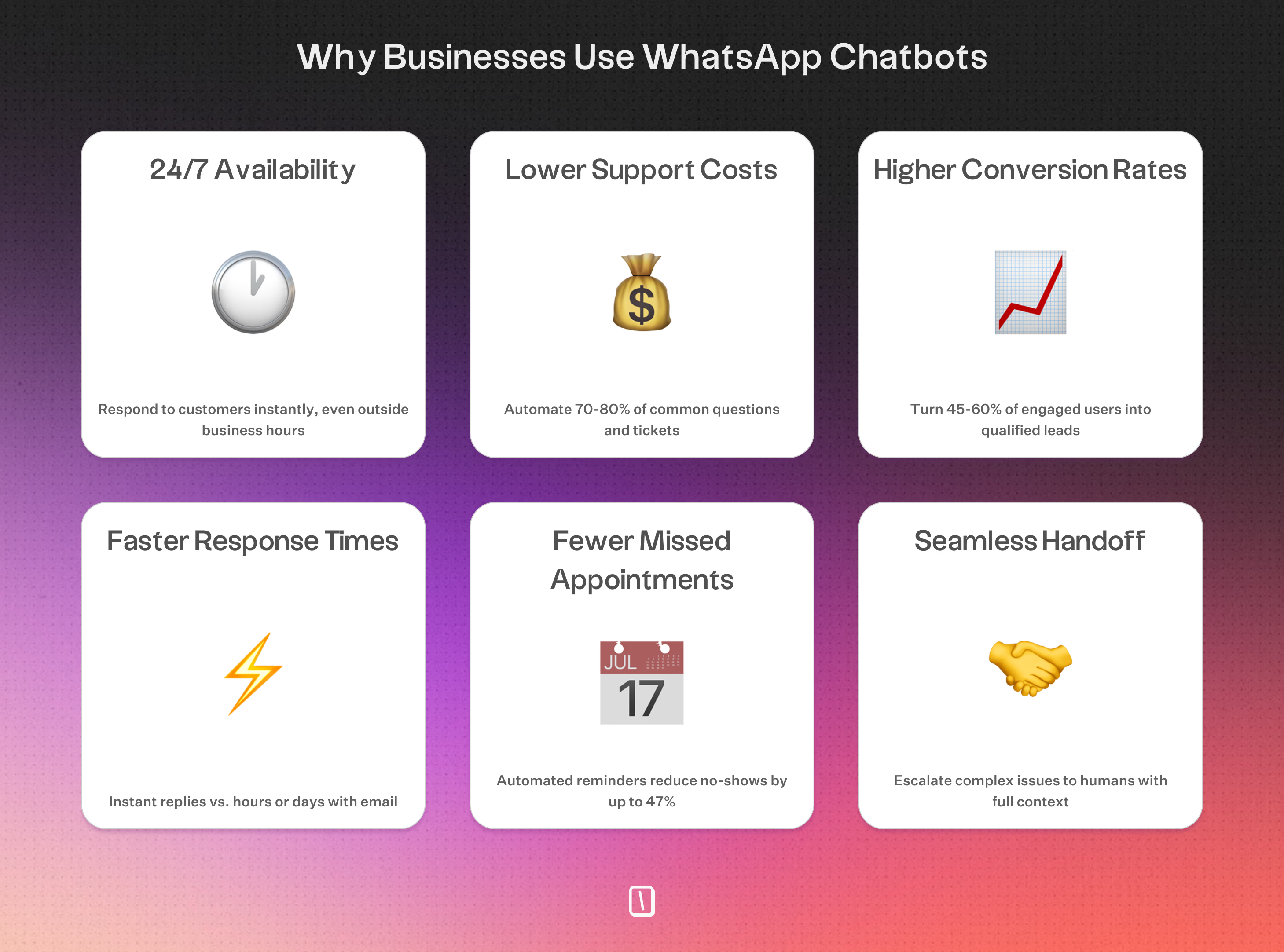
WhatsApp now connects with over 3 billion people worldwide, making it the most widely used messaging platform out there. People do not just use WhatsApp, they read and respond fast.
While only about 20% of emails get opened, 98% of WhatsApp messages are read, and 88% are seen within five minutes. For Shopify merchants, that kind of quick engagement can directly impact sales.
It is especially effective for recovering abandoned carts, where WhatsApp delivers an 18% to 23% conversion rate compared to email’s 5% to 12%.
Up next, we will look at three ways to add WhatsApp chat to your Shopify store, starting with basic buttons, then walking through manual setups, and finally covering full workflow automation with visual chatbot tools.
3 ways to add WhatsApp chat to Shopify
You can connect WhatsApp chat to your Shopify store in a few different ways. Each option gives you a different level of control and customization.
Apps from the Shopify App Store are the fastest route. Just install one, and you’ll get a click-to-chat widget with barely any setup.
If you’re comfortable with code, a manual embed is a flexible, free option.
And if you’re looking to automate more, like abandoned cart recovery, order updates, or AI-powered FAQ responses, dedicated automation platforms offer the broadest set of tools.
The 5 categories of WhatsApp tools
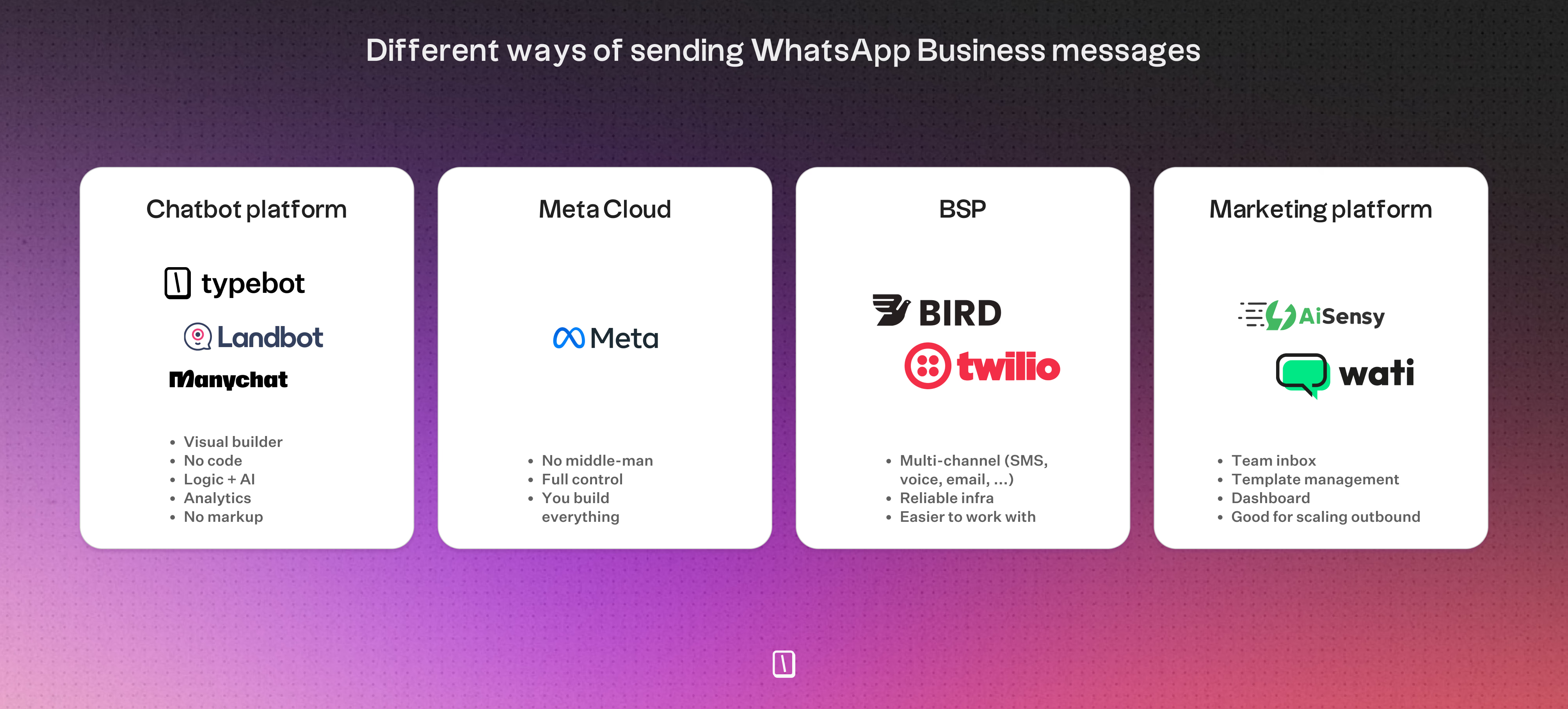
Before you pick a method, it helps to know the main types of WhatsApp tools out there:
- Builder-first / chatbot platforms: Think Typebot and ManyChat. These focus on visual automation flows and smarter messaging logic. They connect to Shopify using webhooks or APIs, so you can handle orders, cart updates, and customer questions automatically.
- Marketing and broadcast suites: Like Brevo and AISensy. These are best for sending campaigns, running abandoned cart reminders, or segmenting customers across multiple channels.
- Inbox and engagement platforms: Such as Wati and Trengo. These are made for teams managing lots of conversations. You get a shared inbox and live Shopify data for hands-on customer support.
- Enterprise omnichannel suites: Examples include Intercom and Freshchat. If you need support to flow smoothly from chat to CRM or helpdesk for larger teams, these handle bigger needs and higher volumes.
- API-first / BSP infrastructure: For instance, 360dialog and Twilio. These give you direct access to the WhatsApp Business API, so developers can build custom experiences from scratch. | Approach | Effort | Cost | Automation | Best Use Case | | :--------------------- | :----------- | :-------------- | :--------------------- | :--------------------------------------- | | Shopify Apps | Low | Free - $30/mo | Basic flows | Simple chat button, quick install | | Manual Embed | Medium | Free | None | Full design control for developers | | Chatbot Platforms | Medium | Free - $89/mo | Full AI & logic | Automated sales, support & recovery | | Marketing Suites | Medium-High | $15 - $500+/mo | Outbound/Lifecycle | Cross-channel CRM campaigns | | Inbox Platforms | Medium-High | $49 - $500+/mo | Multi-agent workflows | Human-assisted team support | | API-first / BSP | High | Usage-based | Fully Custom | Developers & bespoke builds | Next, we’ll walk through how to use each method, so you can choose what fits your budget, skills, and how much automation you want.
Method 1: Install a WhatsApp chat app from Shopify App Store
If you want the quickest, no-code option, installing an app from the Shopify App Store is hard to beat.
This approach works well for store owners who want a straightforward, reliable click-to-chat button.
You do not need theme edits or a developer for this method.
Top WhatsApp chat apps for Shopify
Shopify offers quite a few options, each with their own spin on chat features.
Here’s a breakdown of some of the most popular picks, and what they’re best for:
-
SuperLemon, WhatsApp Chat + Marketing
- Offers a floating chat widget so customers can message you directly.
- Adds features like abandoned cart recovery, order updates, and multi-agent chat routing.
- Basic chatting is free, but automation tools are only on paid plans.
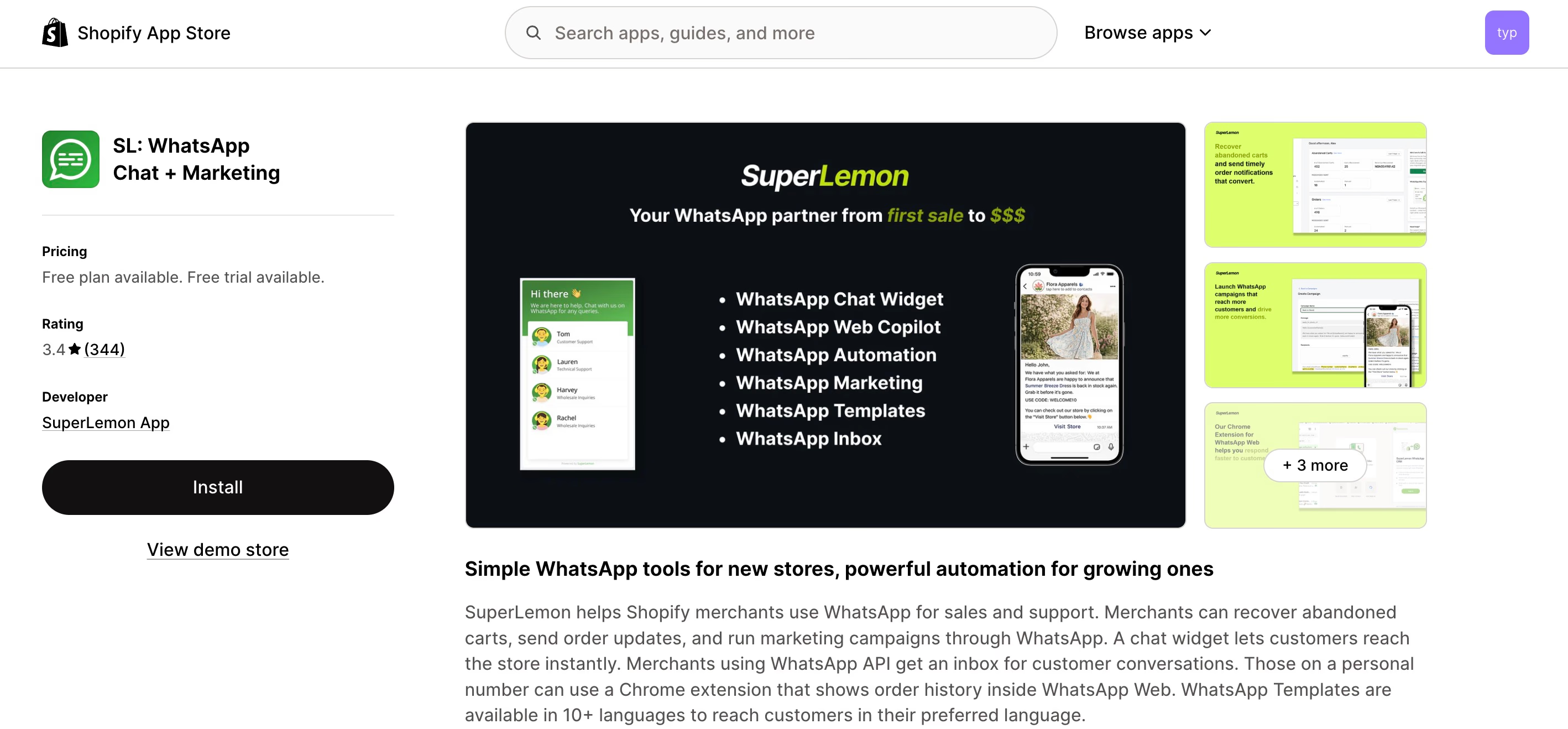
SuperLemon WhatsApp Chat + Marketing app listing on Shopify App Store -
Chaty, Chat Buttons & WhatsApp
- Lets you add a multi-channel widget, including WhatsApp, Messenger, Instagram, and others.
- Customizing the button style and welcome messages is pretty straightforward.
-
Official Meta WhatsApp app
- Built by Meta for sending customer notifications.
- Especially good for automated order status updates.
- You’ll need a WhatsApp Business Account.
-
Interakt
- Syncs your store data with the WhatsApp Business Platform.
- Includes a shared team inbox and can send automated catalog messages.
How to install and configure
Here’s how to get your WhatsApp chat widget up and running:
- Go to your Shopify admin and click Apps.
- Open the Shopify App Store and search for "SuperLemon" (or other).
- Pick an app, then click Install.
- Connect your WhatsApp Business number.
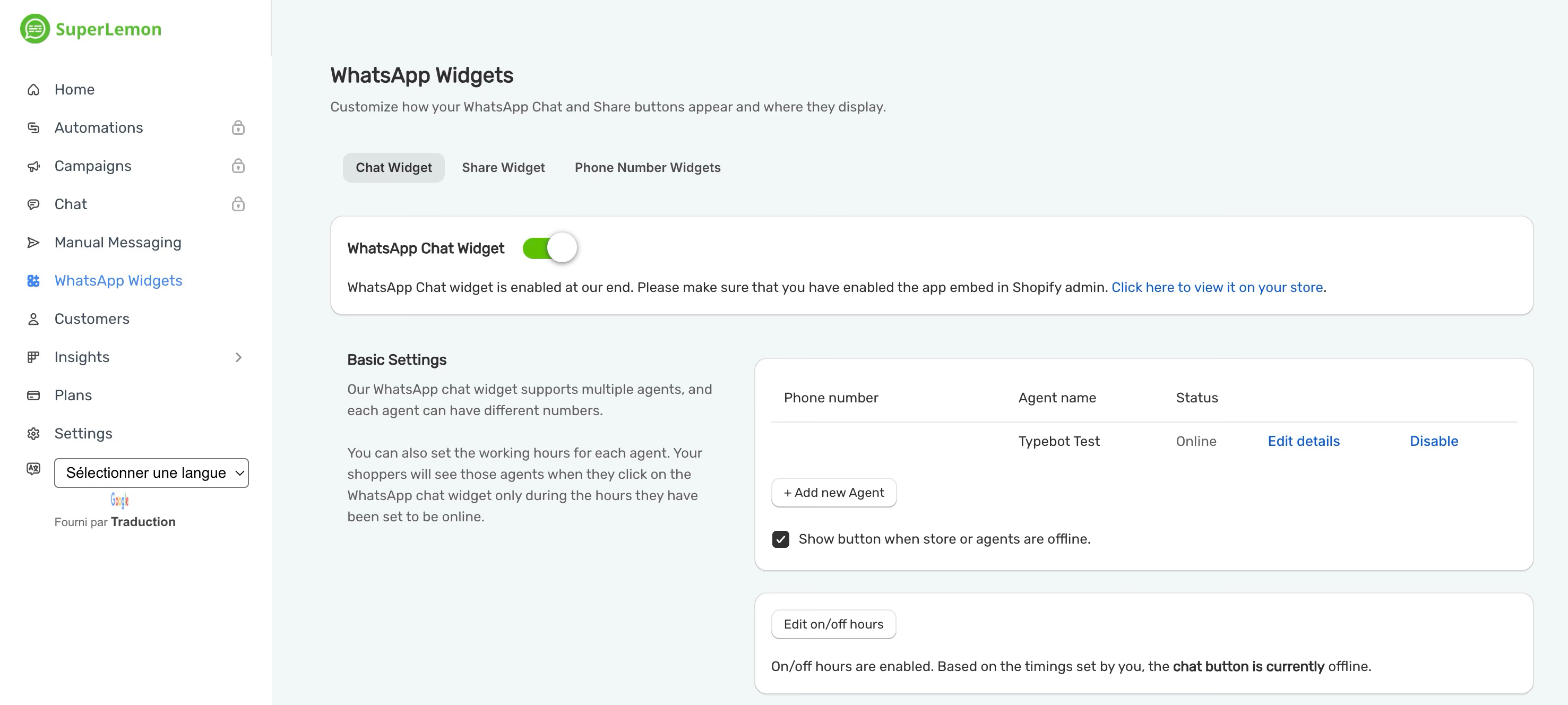
- Adjust how the widget looks, choose the color, set its position, and write your welcome message.
- Turn it on: In your Shopify Theme Editor, head to the App embeds tab and flip the widget toggle to "On".
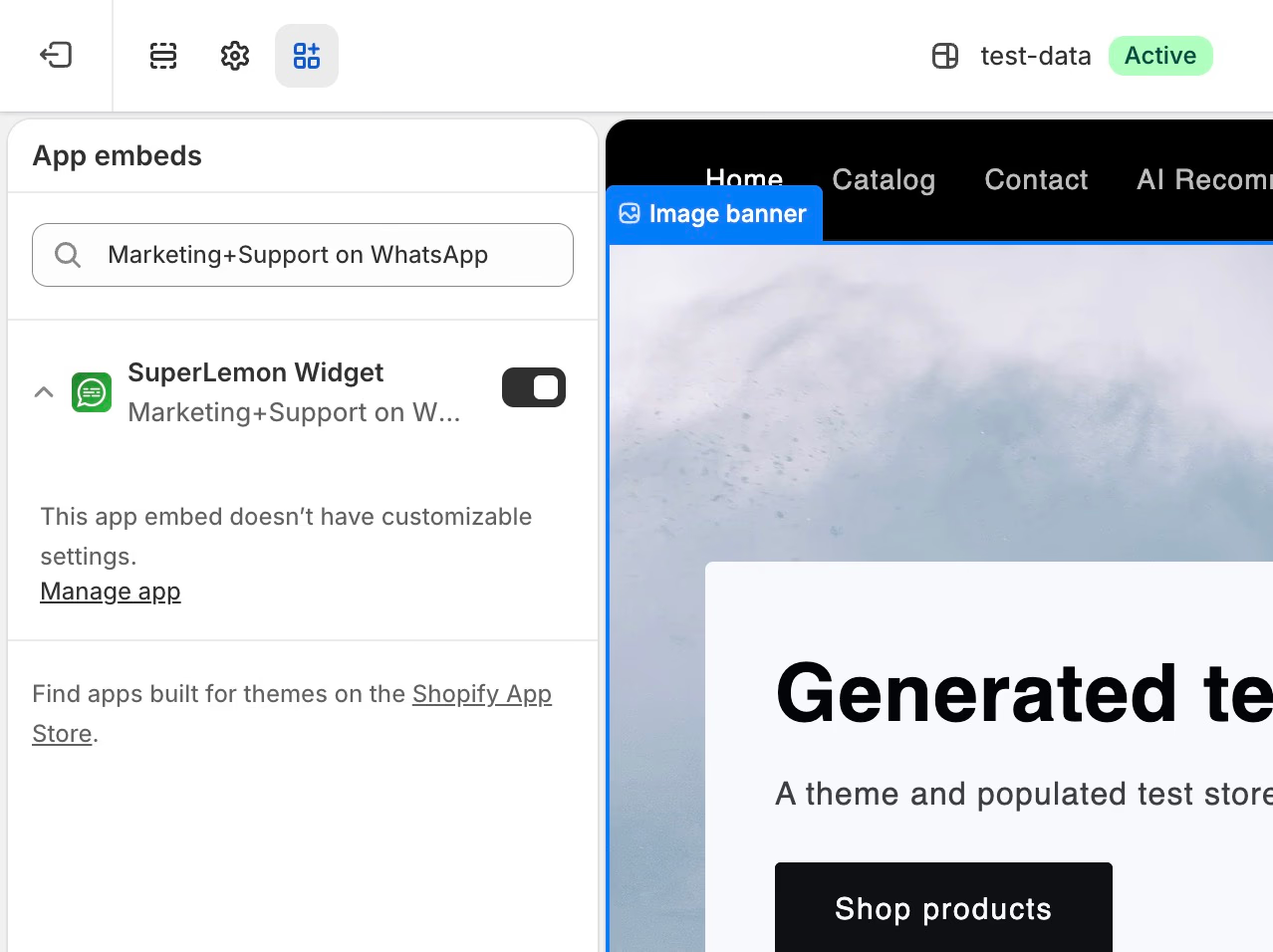
Once the widget is enabled, customers can start chatting with your store right away.
Limitations
So, what are the trade-offs? These App Store integrations are convenient, but they do come with some limitations:
- Cost for automation: The free versions usually just include the chat button. Features like cart recovery will typically require a paid subscription.
- Limited control: You don’t get advanced chatbot flows or complex rules for things like lead qualification.
- Minimal analytics: Most apps only offer basic data. Digging into detailed customer interaction trends or drop-off points usually is not possible.
- Fixed design: You’re mostly limited to the widget styles and routing options built into the app.
For adding a simple chat button, most stores will find these apps do the job.
But if you need more, like automated FAQs, lead qualification, or richer analytics, you’re probably better off with a more customizable, builder-focused platform.
If you're ready to move beyond basic chat buttons, dive into our comparison of the best Shopify chatbot solutions for advanced automation and analytics.
Method 2: Embed a WhatsApp chat button manually with code
If you want to add a WhatsApp chat button without using an app, you can embed the code yourself.
This method is free and gives you full control over the button’s design.
The catch is that there is no built-in automation or analytics. It works best for people who are comfortable editing Shopify theme files and want a lightweight option with no ongoing costs.
How to embed a WhatsApp button manually
- In your Shopify admin, go to Online Store > Themes.
- Click the "…" menu next to your theme and choose Edit Code.
- Find and open the
theme.liquidfile. - Paste your WhatsApp button code snippet right before the closing
</body>tag. - Save your changes and preview your store to make sure it looks right.
Replace 11234567890 with your WhatsApp number, including the country code. This snippet also adds the current product title to the default message when one is available:
<a
class="whatsapp-chat-button"
href="https://api.whatsapp.com/send?phone=11234567890&text=Hello%2C%20I%20have%20a%20question%20about%20{{ product.title | url_encode }}"
target="_blank"
rel="noopener noreferrer"
aria-label="Chat with us on WhatsApp"
>
Chat with us
</a>
<style>
.whatsapp-chat-button {
position: fixed;
right: 24px;
bottom: 24px;
z-index: 50;
display: inline-flex;
align-items: center;
padding: 12px 18px;
border-radius: 9999px;
background: #25d366;
color: #ffffff;
font: 600 16px/1.2 system-ui, sans-serif;
text-decoration: none;
box-shadow: 0 4px 16px rgb(0 0 0 / 20%);
}
.whatsapp-chat-button:hover {
background: #1ebe5d;
}
</style>Key customization variables
As you build your code snippet, you can tweak a few things.
- Phone Number: Enter your business number, including the country code, but leave out the "+" sign. For example,
11234567890. - Default Message: Set the message that appears when someone starts a chat. You can also use Shopify Liquid variables to pull in product info, like
Hello, I have a question about {{ product.title }}. - Design: Adjust where the button appears, left or right, its color, such as
#25d366for WhatsApp green, and what the button says, like “Chat with us.” - WA.me Link: The button uses a standard link format to launch WhatsApp directly:
https://api.whatsapp.com/send?phone={number}&text={message}.
Tradeoffs
Pros:
- Cost: It is totally free, with no subscription or hidden fees.
- Performance: It adds almost zero load time, unlike bulkier apps.
- Independence: You are not tied to a third-party developer for basic chat features.
Cons:
- No Automation: It will not recover abandoned carts, answer FAQs, or send order updates on its own.
- No Analytics: There is no easy way to track how often people click or chat with you.
- Manual Maintenance: You need to edit your theme, and if something breaks, you have to fix it yourself.
- Basic Support: Features like multi-agent chat or CRM sync are not included.
So, if you just need a simple, always-there button and do not want to pay monthly fees, manual embedding does the job. But if you want more advanced automation or team features, a dedicated WhatsApp platform will probably be a better fit.
Method 3: Automate WhatsApp Conversations with Typebot
What Typebot adds that chat buttons cannot
Typebot goes past the basics of click to chat. It turns WhatsApp into an always-on conversational tool.
With its drag and drop builder, you can set up flows that cover FAQs, qualify leads, and handle replies to cart recovery campaigns. You can do this without needing to reply manually once a customer starts the WhatsApp conversation.
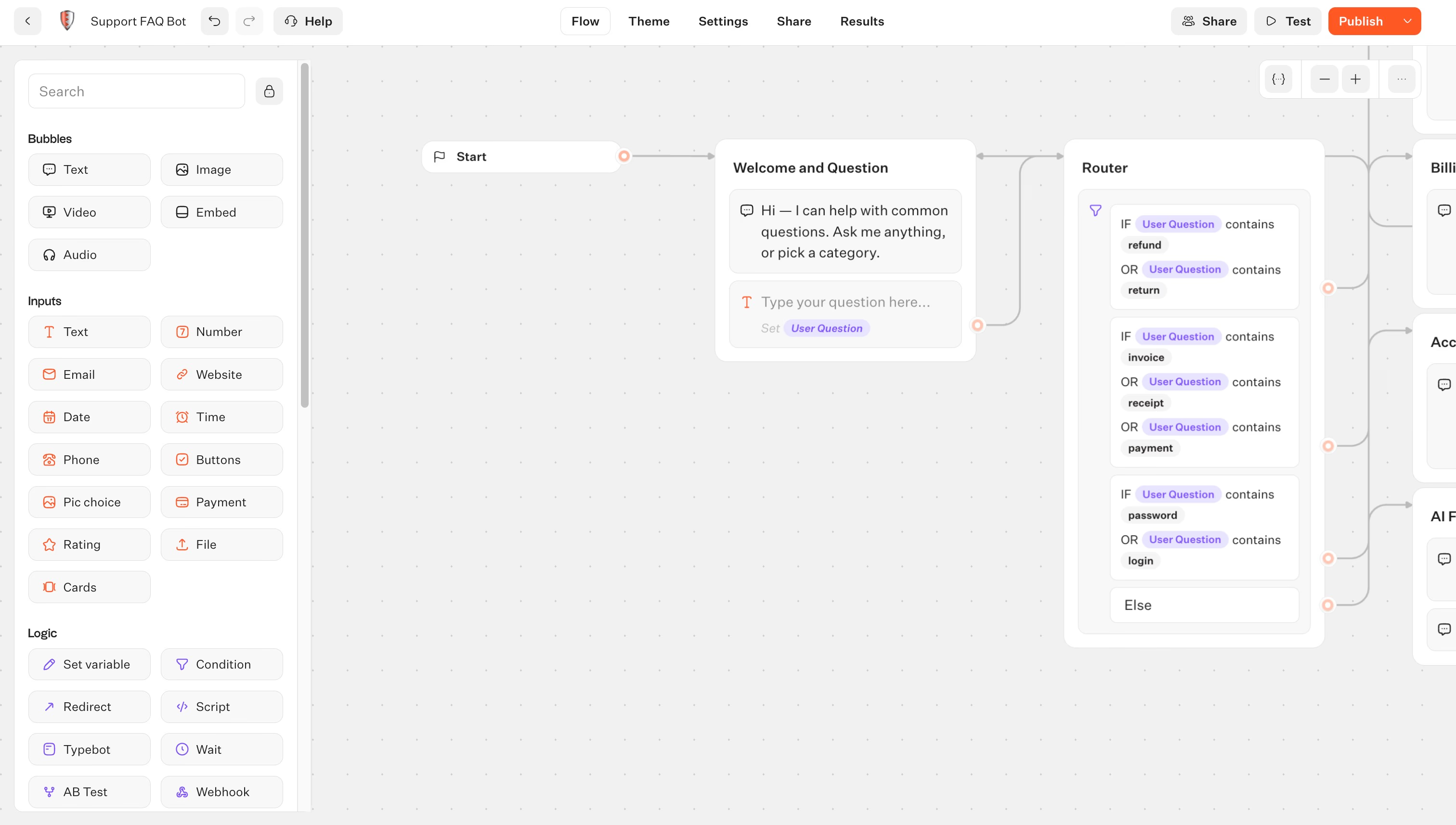
Here’s what stands out:
- AI and logic: You can plug in OpenAI, Anthropic, or Mistral for more natural conversations. Conditional branching lets the bot adjust its replies based on what the user does or on segments you define.
- Shopify integration: Webhooks connect Typebot directly to your store’s data. If someone asks, "Where is my order?", the bot can check Shopify and share the shipping status in real time.
- Rich analytics: Track exactly where conversations drop off and export completion rates. This helps you pinpoint and fix bottlenecks in your sales funnel.
- Data sovereignty: Typebot is open source, so you can host it yourself if you need full control over your customer data. That is something most click to chat apps do not offer.
How to connect Typebot to WhatsApp for Shopify
For this integration, you’ll need a Meta Business Account and a WhatsApp Business phone number.
Here’s how to get set up:
- In Typebot, open your bot's Publish tab and select WhatsApp.
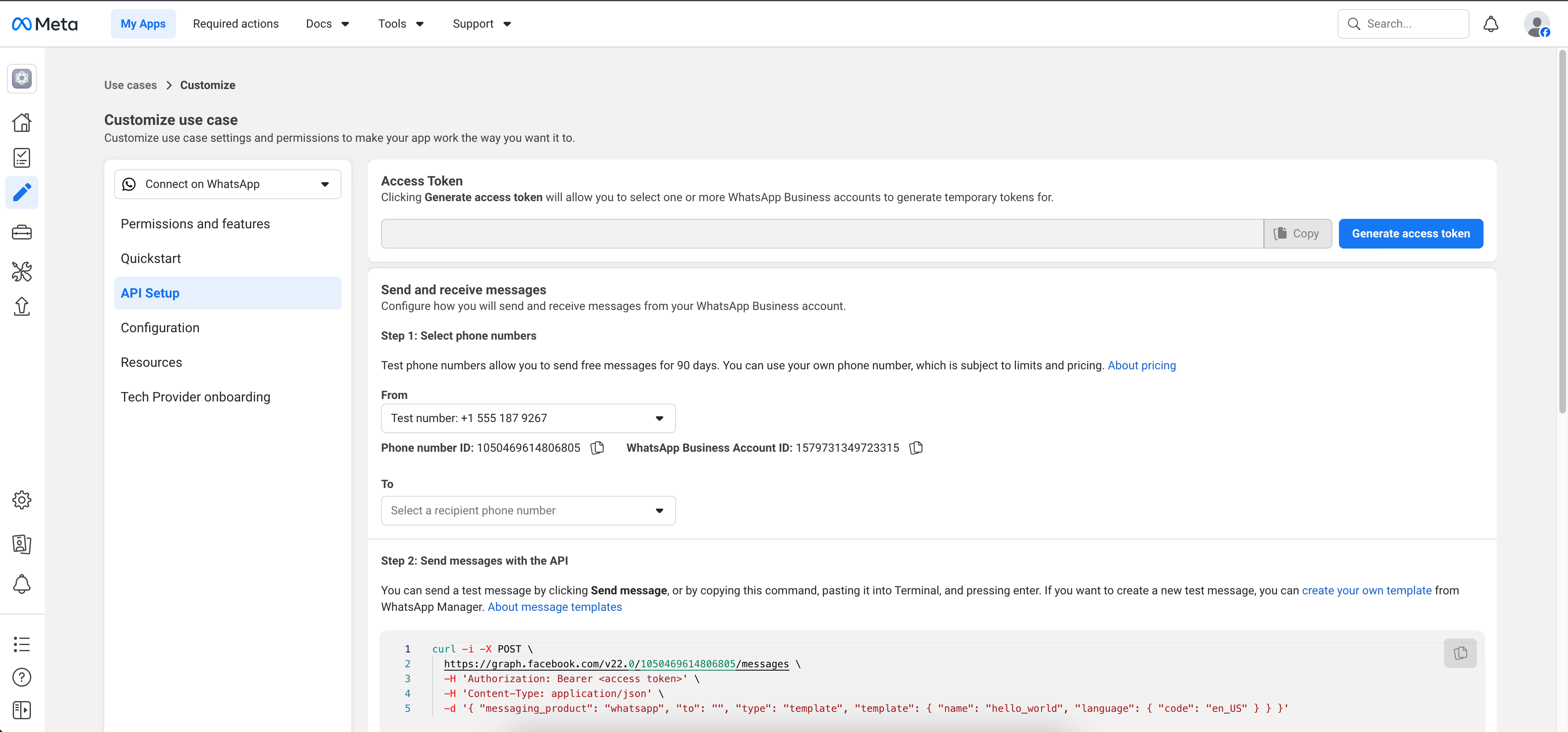
- Enter your Meta app credentials: App ID, Access Token, Phone Number ID, Verify Token, and Webhook URL.
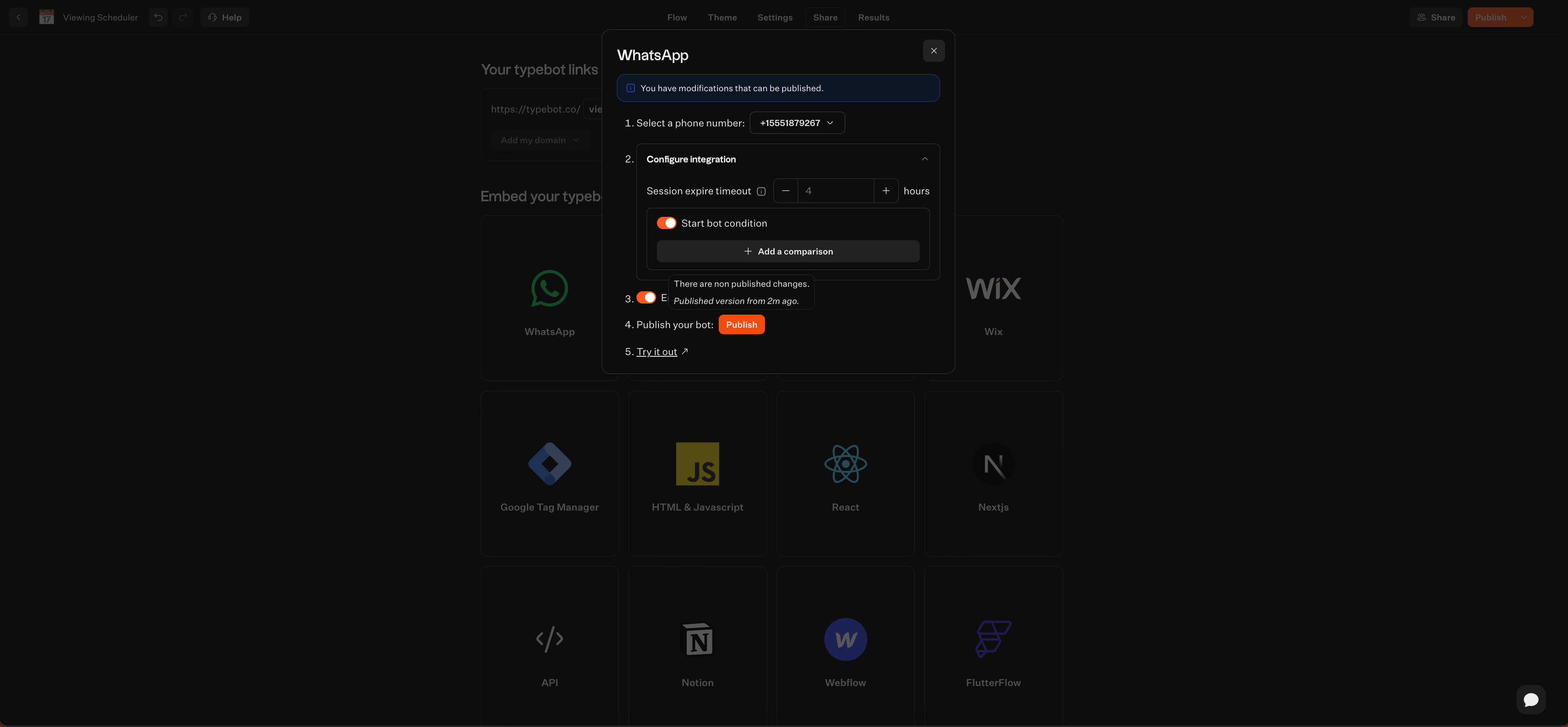
You’ll generate these credentials inside the Meta for Developers portal.
- Test the connection in Typebot’s editor, then deploy the bot to your WhatsApp number.
Reach your audience where they are. Integrate Typebot with WhatsApp for seamless, personalized communication.
No trial. Generous free plan.
WhatsApp automation use cases for Shopify stores
Abandoned cart recovery
Typebot does not initiate abandoned-cart messages on its own. Use a Shopify app, marketing platform, or custom integration to send the approved WhatsApp template with a direct checkout link.
When the shopper replies, Typebot can take over the inbound conversation, answer questions, and guide them back to checkout.
Reaching out within the first hour works best.
It usually converts 18–23% of abandoned carts.
For a more coordinated marketing approach, stores often sync these recovery attempts with tools like Klaviyo or HubSpot.
This makes it easier to run follow-ups across different channels.
Order confirmations and shipping updates
Use a Shopify app, messaging provider, or custom integration to send proactive order and shipping templates. Typebot can then handle replies and answer inbound “Where is my order?” questions by looking up Shopify data through a webhook.
It also keeps the post-purchase experience feeling smooth.
If someone replies with a question, support agents using a connected helpdesk can pull up the full order history immediately.
COD verification
Cash-on-delivery (COD) orders have a reputation for high Return-To-Origin (RTO) rates.
To cut down on unwanted shipments, use an outbound messaging service or custom integration to send an approved confirmation template.
When the buyer replies, Typebot can collect the confirmation and tag the status back to the Shopify order record or CRM.
That way, fulfillment teams know they’re only shipping to people who are ready to accept delivery.
This helps keep shipping costs in check and improves margins.
Customer support and FAQ
Typebot can automatically answer straightforward questions about returns, shipping, or products by pulling information directly from the Shopify API.
For more details, see our guide on building a FAQ chatbot.
In practice, this approach usually resolves more than 70% of customer service requests before a human needs to step in.
For anything unusual, like a tricky refund, the bot can escalate the conversation to a live agent through platforms such as HubSpot or Zendesk.
Agents get access to the entire chat history.
That makes it much easier and faster to sort out tougher issues.
→ Learn more about building a WhatsApp chatbot.
Measuring WhatsApp chat performance on Shopify
Typebot analytics for WhatsApp conversations
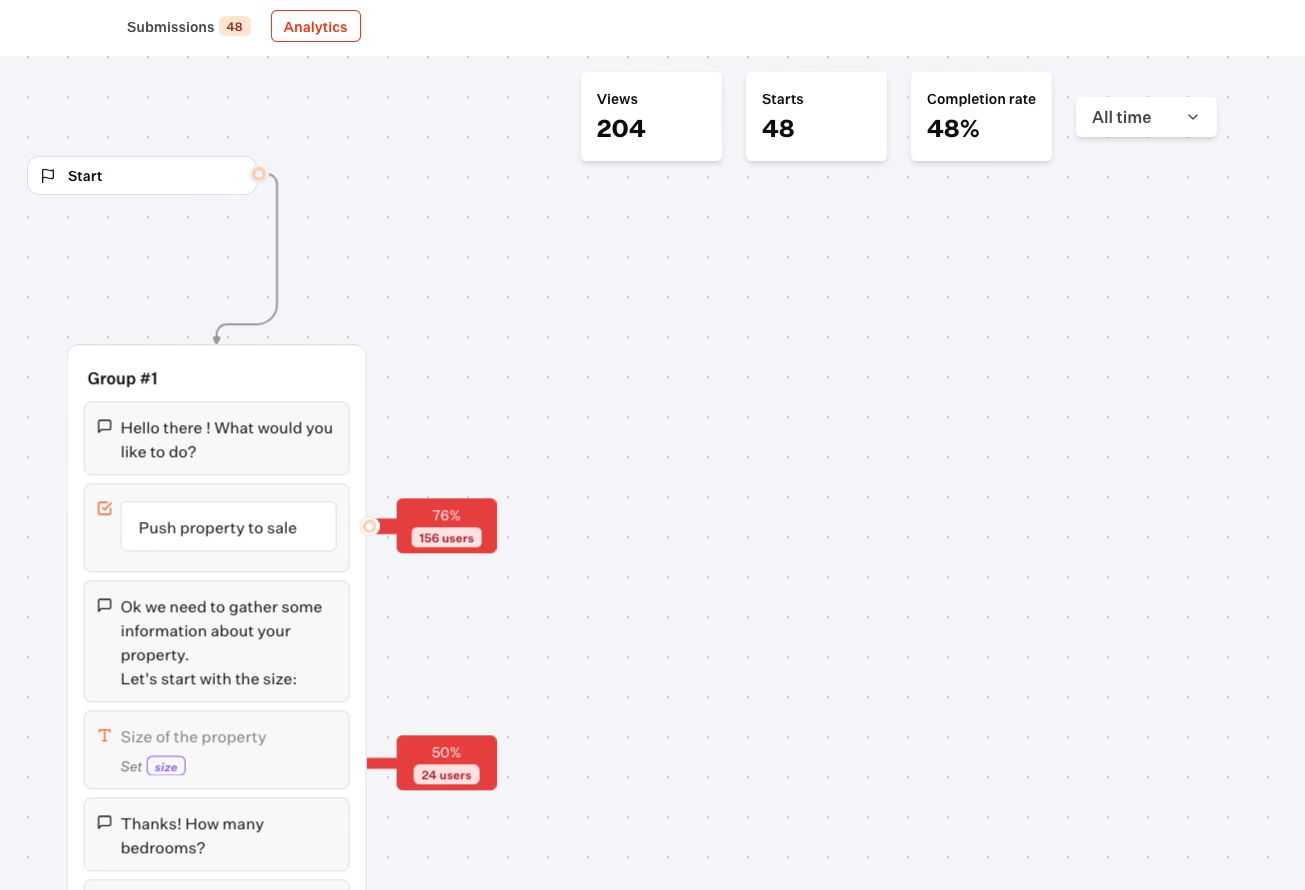
With Typebot, you can see how users move through every part of your flow, whether it’s an input prompt, a decision point, or a checkout button.
You’ll know how many people reach each step, and how many make it through.
For instance, if most users drop off during your abandoned cart flow at the discount offer, you might tweak the wording or the offer itself to see if that helps.
Typebot’s analytics go beyond just totals and averages:
- Analyze paths: Dig into different conversation paths to see which ones lead to results and which ones cause users to stall.
- Export data: Export all of your analytics as a CSV for a closer look in spreadsheets or BI tools.
- A/B test: Try out different greeting messages or incentives, and compare conversion rates so you can make changes based on what’s actually working.
Key metrics to track
To make your automations and support flows as effective as possible, keep an eye on these numbers:
- Completion rate: What percentage of users make it all the way through, whether that’s clicking a checkout link, finishing a support flow, or getting their order update.
- Cart recovery conversion: Out of all WhatsApp reminders sent, how many actually turn into Shopify purchases.
- Support deflection rate: How often customer questions get resolved by the bot without needing to loop in a person.
- Response rate: Of all the messages you send, how many get a reply. This tells you how well your outreach is landing.
- Time to resolution: On average, how long does it take from a customer’s first question to their final answer? Faster is almost always better for customer satisfaction.
Tracking these KPIs helps you turn WhatsApp from just another chat tool into something you can measure, improve, and use to grow your store’s impact.
WhatsApp chat Shopify pricing comparison
Tool comparison table
| Tool / Method | Category | Monthly Cost | Automation | Meta Message Fees |
|---|---|---|---|---|
| Shopify Apps | Click-to-chat | Free – $30 | Basic | None (inbound) / Meta rates (outbound) |
| Manual Embed | DIY | Free | None | None (inbound) |
| Typebot | Chatbot Platform | $89 Cloud Pro | Full AI/Logic | $0 (Inbound/Service) |
| ManyChat | Marketing Suite | Free – $15+ | Marketing/Flows | Meta rates for templates |
| WATI / Kanal | Inbox Platform | $49 – $249+ | Team Inbox | Meta rates for broadcasts |
| Brevo | Marketing | $15 – $60+ | Outbound Campaigns | Meta rates for broadcasts |
| Intercom | Enterprise | $70 – $500+ | Support Routing | Meta rates for outbound |
| 360dialog | API / BSP | €49+ / number | Fully Custom | Meta rates, no markup |
Cost breakdown by use case
- Shopify Apps: A good choice if you want a low-cost chat button. Paid versions can send abandoned cart reminders, but those usually count as outbound templates.
- Manual Embed: Works well if you only need a free, static WhatsApp button. There’s no cost, but you won’t get any automation.
- Typebot: Offers predictable costs for support automation. Typebot Cloud requires the $89 Pro plan to deploy on WhatsApp. The Free and Starter plans can be used to build and test browser-based flows, but they do not include production WhatsApp deployment.
- Marketing & Inbox Tools: Great for teams that need a shared inbox or want to send messages proactively. Meta messaging fees, which range from about $0.01 to $0.14 per message depending on the country, can quickly add up.
Meta's per-message template fees
Some typical outbound WhatsApp message fees:
| Country | Marketing Template | Utility Template |
|---|---|---|
| India | ~$0.012 | ~$0.0014 |
| North America | ~$0.025 | ~$0.003 |
| UK / Brazil | ~$0.064 | ~$0.007 – $0.022 |
| Germany | ~$0.140 | ~$0.055 |
Summary for Shopify merchants
If you need an inbound support or FAQ bot, Typebot is likely the most cost-effective option since you avoid per-message fees.
For proactive marketing, you’ll need to budget for both your tool subscription and Meta’s per-message costs. These can increase quickly depending on your message volume and target countries.
When to choose each WhatsApp chat method for Shopify
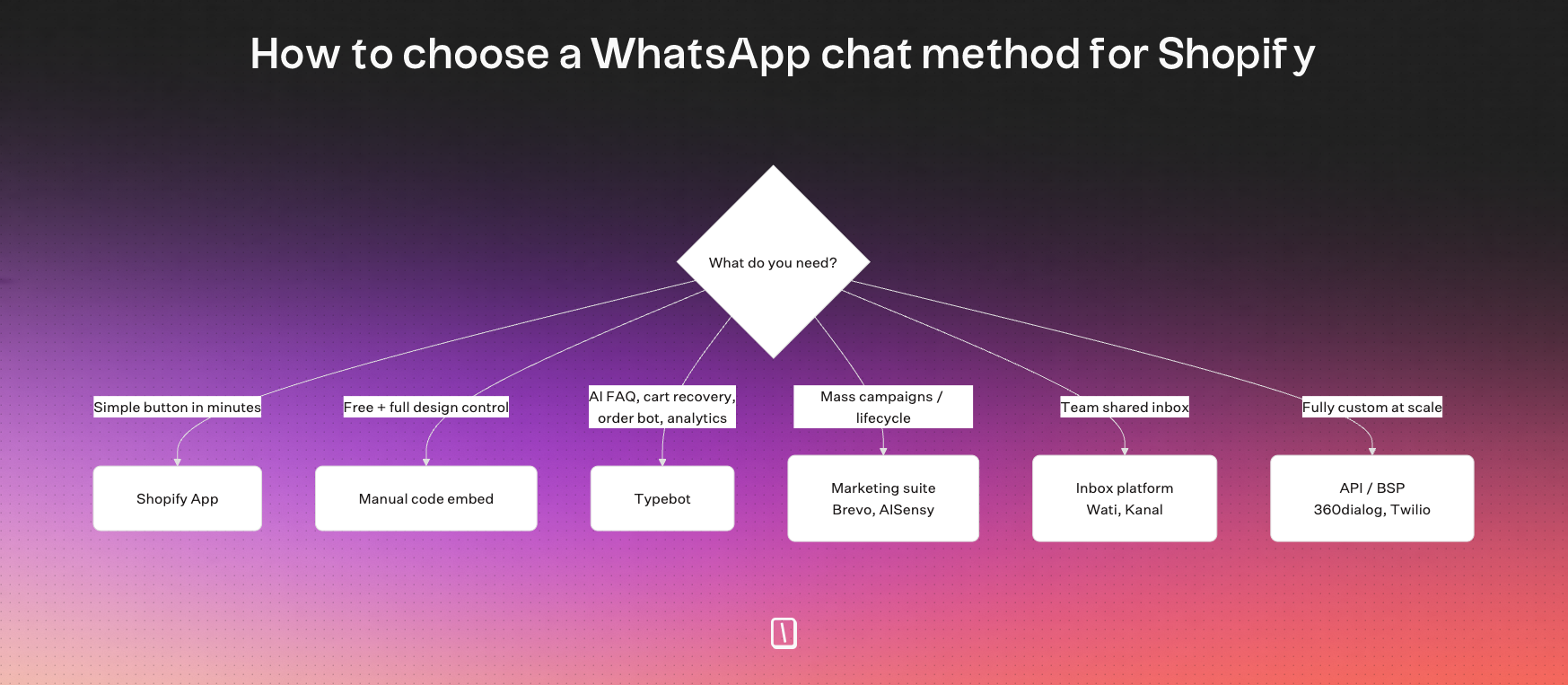
Choose a Shopify app if:
You want something quick and easy, with zero coding involved. A Shopify app is your best bet if you only need a basic chat button added in minutes.
Paid plans might include simple automation, like cart reminders.
This route is not for merchants who need complex conversational flows or detailed analytics.
Choose manual code embed if:
You’re comfortable poking around in theme.liquid and want total control over how your chat button looks. This option keeps things lightweight and costs nothing.
You are not relying on a third-party app.
The downside is that it is limited to straightforward click-to-chat. There is no automation, team features, or tracking baked in.
Choose Typebot if:
You want automation to do the heavy lifting. Typebot is built for merchants who want AI-powered chats around the clock.
It can handle FAQs, qualify leads, or offer order support without paying Meta’s messaging fees.
If data ownership, advanced AI models, and robust analytics matter to you, this is probably your strongest option.
Curious which AI chatbot leads the pack? Read our detailed comparison of the best WhatsApp AI chatbot tools on the market.
Choose a marketing broadcast suite if:
Proactive outreach is at the heart of your strategy. Tools like Brevo or AISensy are built for campaigns, product announcements, and lifecycle messages.
They help you send messages to segments of your Shopify audience.
These tools are built for mass messaging, not for ongoing interactive customer support.
Choose an inbox or omnichannel platform if:
You’re running a busy support team that handles lots of manual inquiries. Platforms like Wati or Kanal offer shared inboxes and multi-agent routing.
That keeps everyone on the same page.
This method is perfect if you want human-driven service with Shopify data shown right alongside each chat.
Choose API-first or BSP infrastructure if:
You have developers on hand and need something fully custom. Options like 360dialog or Twilio let you build exactly what you need.
There are no restrictions from pre-made interfaces.
This is usually the route for large enterprises or merchants with very specific technical needs.
Create, customize, and deploy your first Typebot today. No coding required.
No trial. Generous free plan.