
If you've seen customers jump between a static FAQ page, a contact us form, and a 2-day email wait, you already know the problem. An FAQ chatbot solves this instantly. People don't want to hunt for answers. They want to ask questions in their own words and get a useful reply immediately.
An FAQ chatbot turns your best support knowledge into a conversation. This stops repetitive questions from draining your team and helps customers find answers on their own.
Let's define an FAQ chatbot first
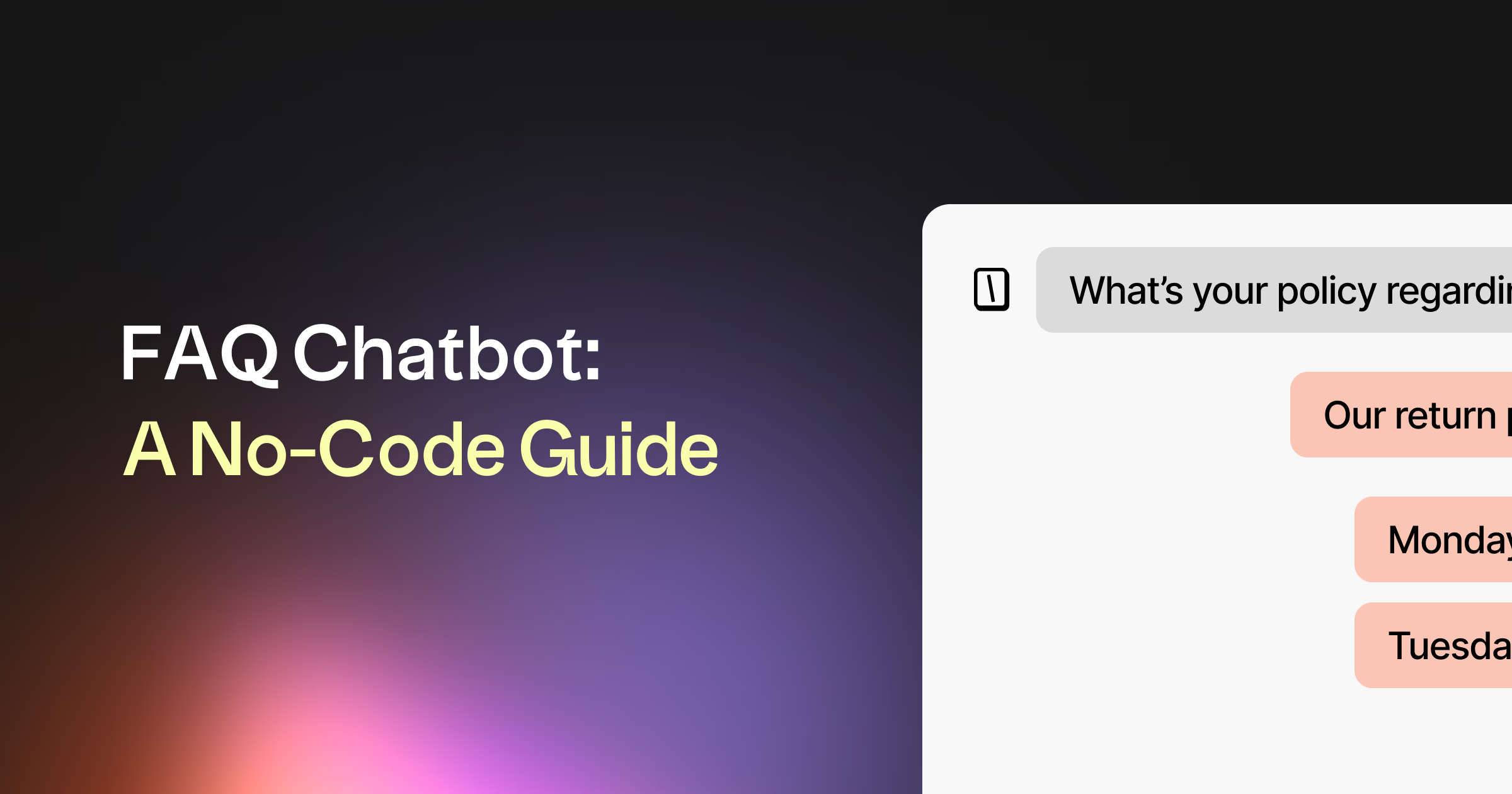
An FAQ chatbot is an AI-powered assistant that answers frequently asked questions in an interactive, conversational way. Instead of scrolling through help pages or waiting for an agent, users get instant responses from a structured knowledge base. Here is an FAQ chatbot example:
FAQ chatbots excel at high-volume questions like What are your business hours? or How do I reset my password? They don't replace your support team. They free your team from repeating the same answers all day. At runtime, an FAQ chatbot runs a simple loop:
- User input: A customer types a question.
- Query analysis: The bot uses rules or AI to detect intent.
- Knowledge base lookup: It matches the question to the closest FAQ entry.
- Answer delivery: It replies in a conversational tone.
- Escalation: If the bot can't resolve the issue, it hands off to a live agent.
Think of it like an airport information desk. It handles the same 20 questions all day, but routes complex issues to a human.
FAQ chatbot versus live chat
Chatbots handle common questions with known answers. Live chat works best when empathy and judgment matter. Key differences:
- Response time: Chatbots respond instantly; live chat depends on agent availability.
- Availability: Chatbots run 24/7, live chat operates during work hours.
- Scalability: Chatbots handle unlimited queries. Live chat is limited by agent count.
The best setup combines both. Use the chatbot for repetitive questions, with an easy path to live chat for complex issues.
Why build an FAQ chatbot in 2026
In 2026, support is part of the product experience. Customers expect fast, accurate answers right when questions arise. Not static FAQ pages or "we'll get back to you" messages.
An FAQ chatbot meets this expectation without hiring more staff. The ROI comes from speed, deflection, consistency, and timely responses during critical moments like buying or canceling.
Faster responses and 24/7 availability
Customers ask questions when they're stuck. Not during business hours. FAQ chatbots provide instant, always-on support, removing dead time that leads to abandonment or unnecessary tickets.
Research shows AI-powered enterprises respond 50% faster than others, resulting in fewer drop-offs and duplicate tickets. Some of the true benefits of AI chatbots
Lower support costs through automation
FAQ chatbots automate high-frequency queries like hours of operation, password resets, returns, and order tracking. That reduces incoming support tickets and frees agents for complex issues that need judgment.
Studies report up to 40% cost savings by augmenting staff with chatbots. Every question the bot resolves means fewer interruptions, shorter queues, and fewer new hires needed.
Sales impact in e-commerce
Support questions often block purchases: "Where's my order?" "What's the return window?" "Do you ship to…?"
An FAQ chatbot answers these blockers immediately. Companies ecommerce chatbots have boosted traffic by over 70% through better customer engagement. Drake Waterfowl handles 50% of support with AI and maintains positive customer feedback.
Most businesses see positive ROI within 6–9 months, with implementation taking 4–8 weeks.
Higher satisfaction and consistent answers
An FAQ chatbot delivers consistent answers every time, unlike human agents whose replies vary. Well-designed bots regularly achieve 90%+ deflection rates and high CSAT scores. Proof that quality automation works.
Instant answers to common questions, with smooth handoffs when needed, reduce the small frustrations that cause cancellations.
Want to ensure your FAQ bot follows industry best practices from the start? Check out chatbot best practices to avoid common pitfalls before you begin building.
Which FAQ chatbot should you build?
Before you open the Typebot editor, decide how your bot should reason.
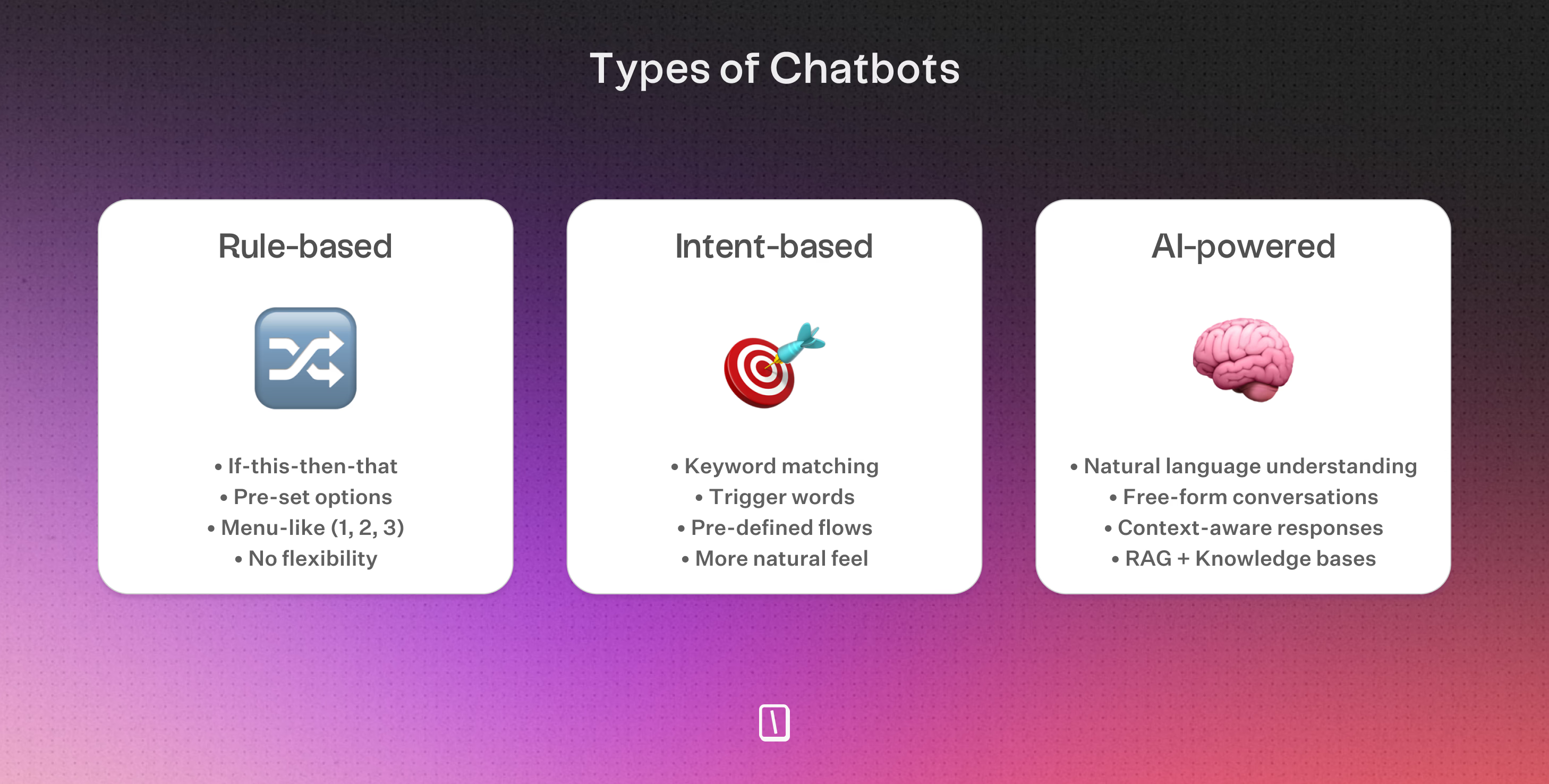
FAQ bots fall into three architectures. Pick the one that matches how your customers ask questions, how tightly you need answers controlled, and how much maintenance you can own. Typebot can ship all three, which is why this choice matters more than which block you drag first.
Rule-based and keyword FAQ bots
Rule-based bots follow predetermined paths. Users tap categories or type keywords like “refund,” and Condition blocks send them to a fixed answer.
Strengths: fast to ship, predictable every time, cheap to run, easy to audit. Ideal when the same 10–20 questions make up the bulk of tickets and answers must stay word-for-word accurate (policies, pricing, shipping rules).
Limits: they break on paraphrases. “When do I get my money back?” may miss a branch written for “refund.” Keyword bots are a little more flexible but still miss context and can loop the same reply when users rephrase related follow-ups.
Typebot fit: visual flows, Buttons, and Condition blocks. You can map billing, shipping, and account access in minutes without writing code.
Choose this path when policy language must never drift and almost all volume is top-of-FAQ.
AI and RAG FAQ bots
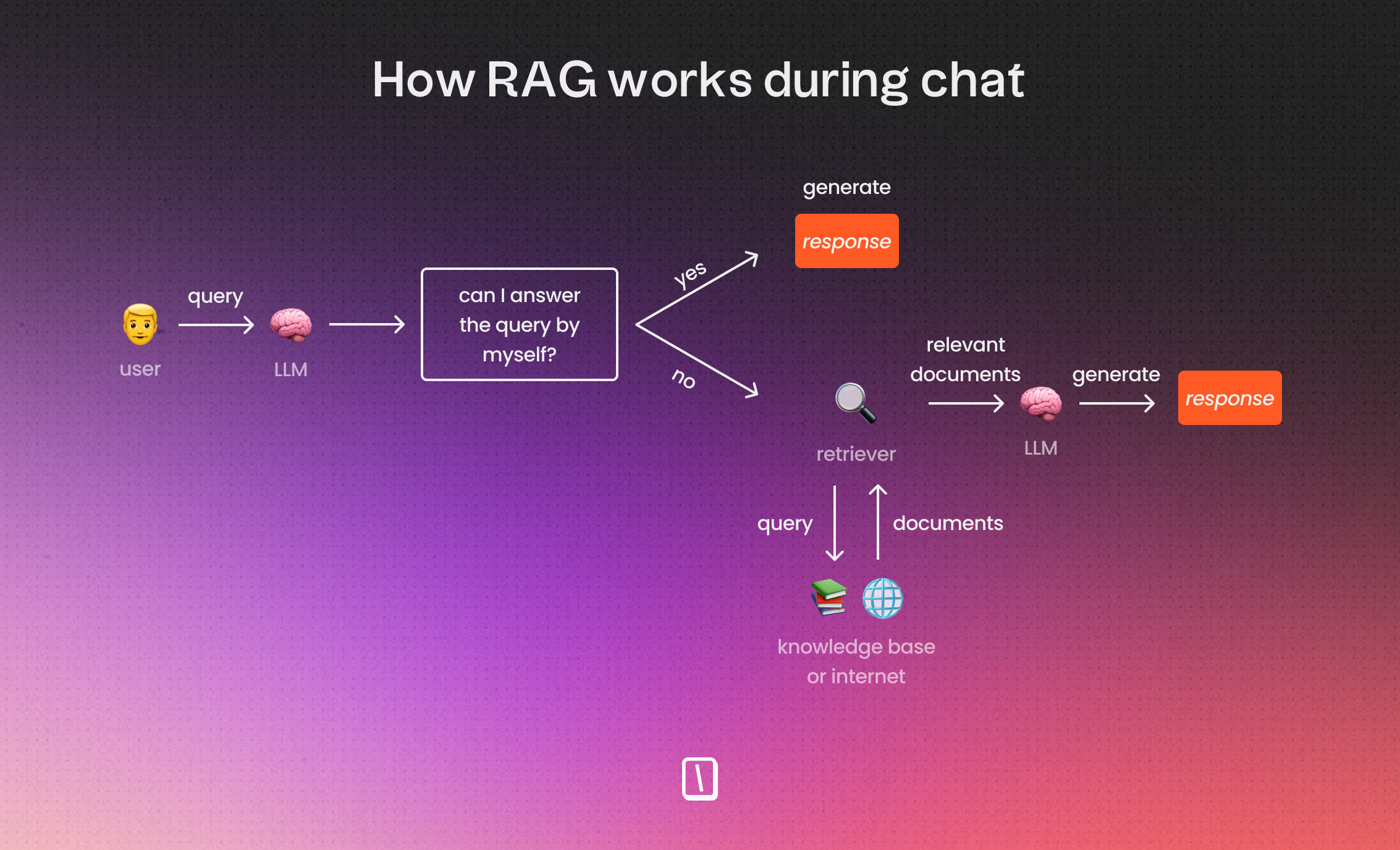
AI-powered FAQ bots use large language models (OpenAI, Anthropic, Mistral, and others) to read free-form questions, rephrase policy text, and keep a more natural back-and-forth. With RAG (retrieval-augmented generation), the model answers from your docs, Sheets, or help center instead of inventing product facts from general training data.
Strengths: paraphrase-friendly, scales to long-tail questions, can multi-language more easily, less branching to maintain as FAQs grow.
Limits: needs solid prompts and sources or it drifts. Token costs add up at volume. Without a structured path, users may get soft answers when you needed a firm rule.
Typebot fit: native AI blocks plus knowledge sources. You can ground responses in Google Sheets, a help doc, or an API instead of a pure chat model guessing.
Choose pure AI when questions vary widely and you already have a clean knowledge base you trust.
Dive deeper into building a grounded AI FAQ with a RAG chatbot that retrieves answers from your own knowledge sources.
Hybrid: structured answers first, AI fallback second
Hybrid bots combine both approaches—and they match how real support works. Start with menus, categories, or keyword routes for known FAQs. When nothing matches, route to an AI block (optionally grounded in Sheets or docs). When confidence is low or the request is sensitive, hand off to a human.
Strengths: you get control where accuracy is non-negotiable and flexibility where language is messy. Most of your deflection stays deterministic; rarely asked questions still get a useful reply.
Typebot fit: Condition blocks for top categories, Google Sheets as a living FAQ knowledge base, OpenAI (or another model) only for unmatched questions, plus a clear “Talk to a human” exit. That is the architecture this guide builds next.
Recommended default: start hybrid in Typebot. Ship categories or a Sheet lookup first so common answers stay exact. Add AI only on the fallback path so paraphrases do not fall into a dead end. You can always expand AI later without rewriting the whole bot.
| Type | Speed to launch | Handles paraphrases | Answer control | Best for |
|---|---|---|---|---|
| Rule / keyword | Fastest | Low | Highest | Stable policy FAQs, simple menus |
| AI / RAG | Medium | High | Depends on sources | Long-tail support, messy language |
| Hybrid | Fast to medium | High where it matters | High on known FAQs | Most businesses (our default) |
| If you only need a button menu today, the next section still starts clean: a core loop with routing and fixed answers. Section after that shows how to connect Sheets and OpenAI so the same bot can grow into a smart hybrid without a rebuild. |
How to build an FAQ chatbot with Typebot
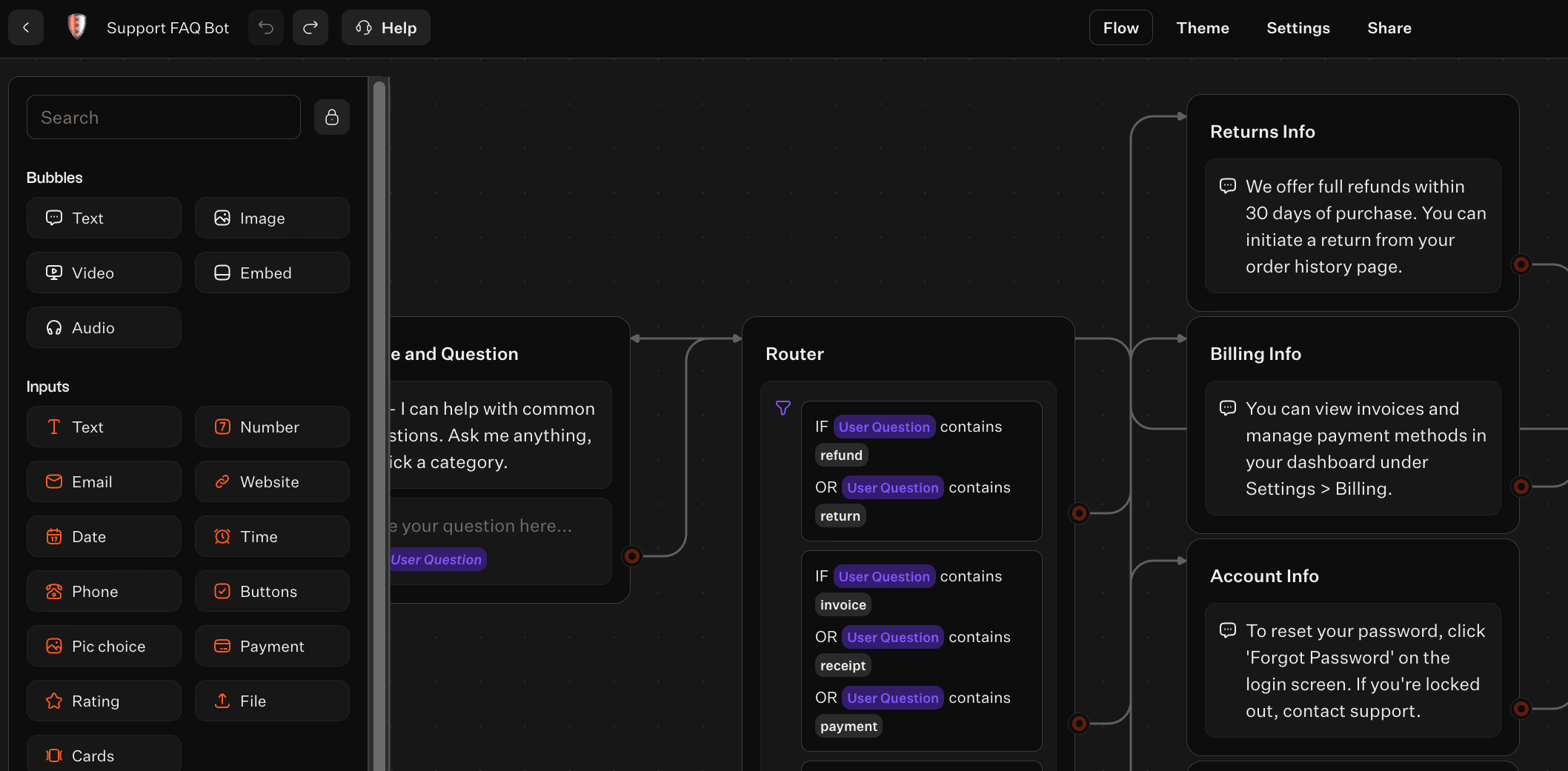
If you've tried to "just add an FAQ chatbot" before, you likely ended up with a complicated flow that's hard to maintain. Your bot should look like this:
This section shows you how to build a bot like that:
- Answers questions quickly
- Routes conversations efficiently
- Updates easily when your FAQ changes
We start with a simple core loop—the simplest way to build an FAQ bot with no coding. Then, we add routing and fallback handling using Typebot’s visual builder and logic blocks.
Create a Typebot account
- Create your Typebot account and log in.

After signing in, you'll land on the dashboard to create a new Typebot.
- Click “Create a Typebot” and name it thoughtfully.
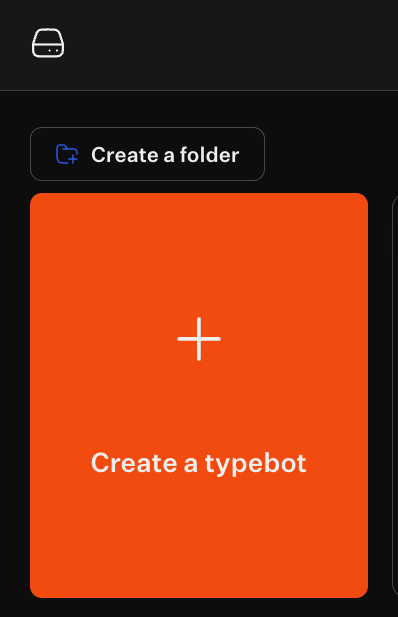
Choose a name your team will understand six months from now. Good examples include "Support FAQ Bot" or "Shipping FAQ" This approach ensures internal clarity for your team.
- Familiarize yourself with the editor layout.
Typebot’s editor has a clear structure:
- The top navbar shows your bot’s title and includes undo, redo, and help buttons.
- In the middle, you’ll find four tabs: Flow, Theme, Settings, and Share.
- On the right, use Test to simulate conversations and Publish when ready.
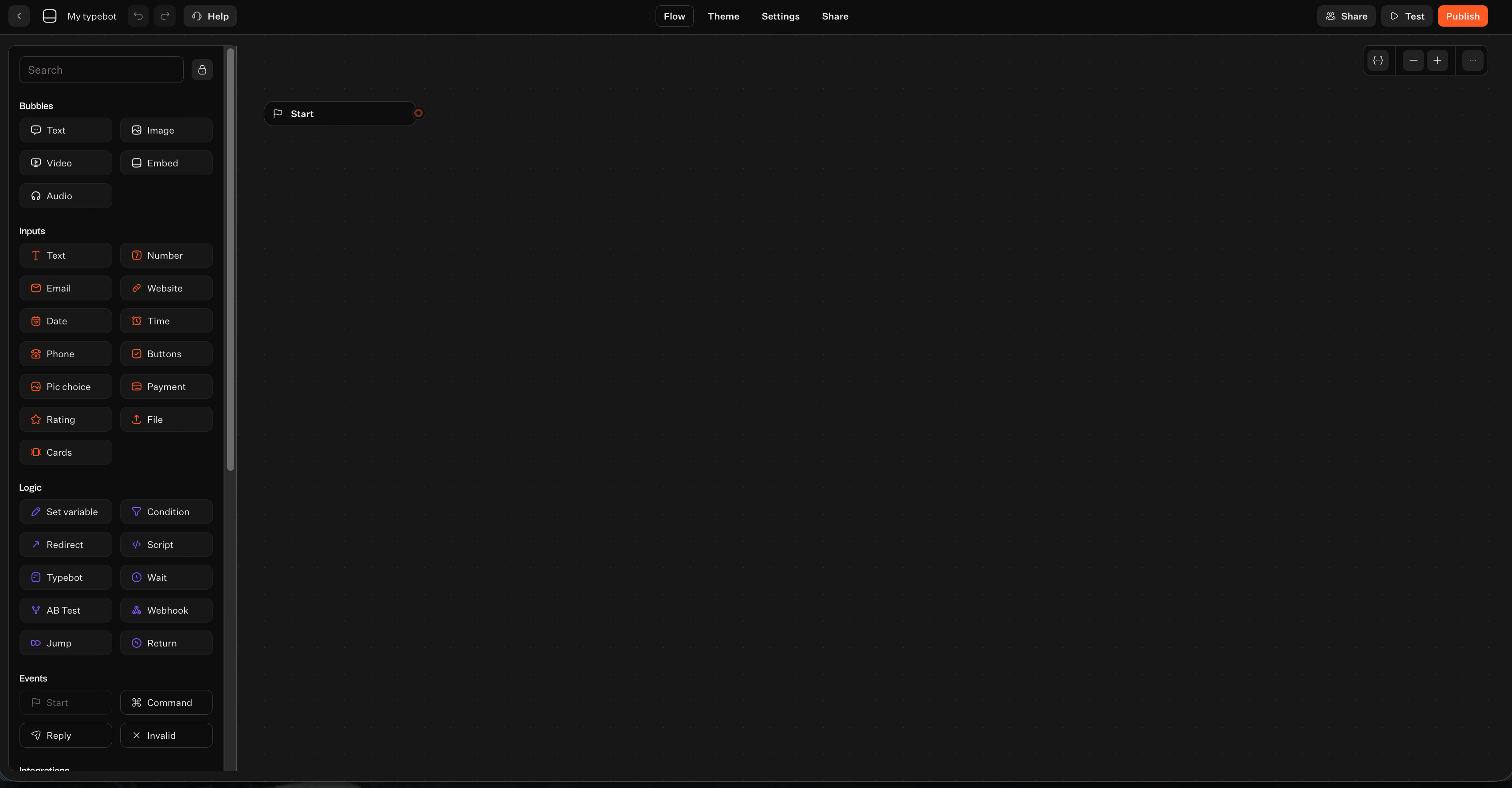
You'll spend most time in Flow, frequently using Test.
Once you know the workspace, you can build the core loop every FAQ chatbot needs.
Design the core FAQ flow
Treat your FAQ bot like a store clerk with one job: greet, understand the question, answer, then stay ready for the next question.
- Add a welcome message (Bubble → Text).
In the left panel, under Bubbles, add a Text block. Keep it short and directional, for example:
“Hi, I can help with common questions. Ask me anything, or pick a category.”
This sets expectations for quick help.
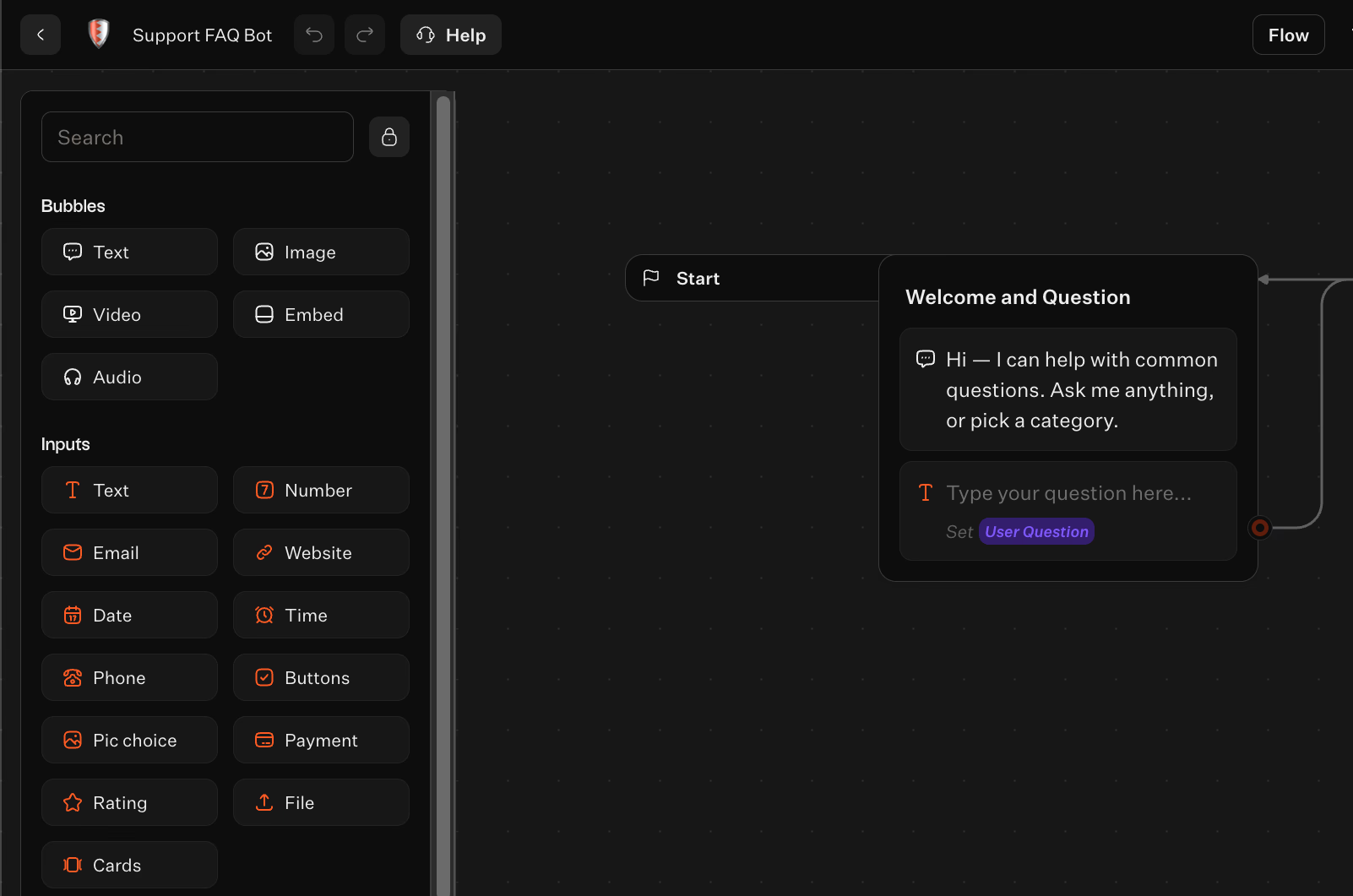
- Add a question input (Inputs → Text).
Add a Text input where the user types their question.
- Store the user's question (Logic → Set variable).
Add a Set variable block after the input. Save the response as user_question.
Storing the question makes routing and fallback handling cleaner later.
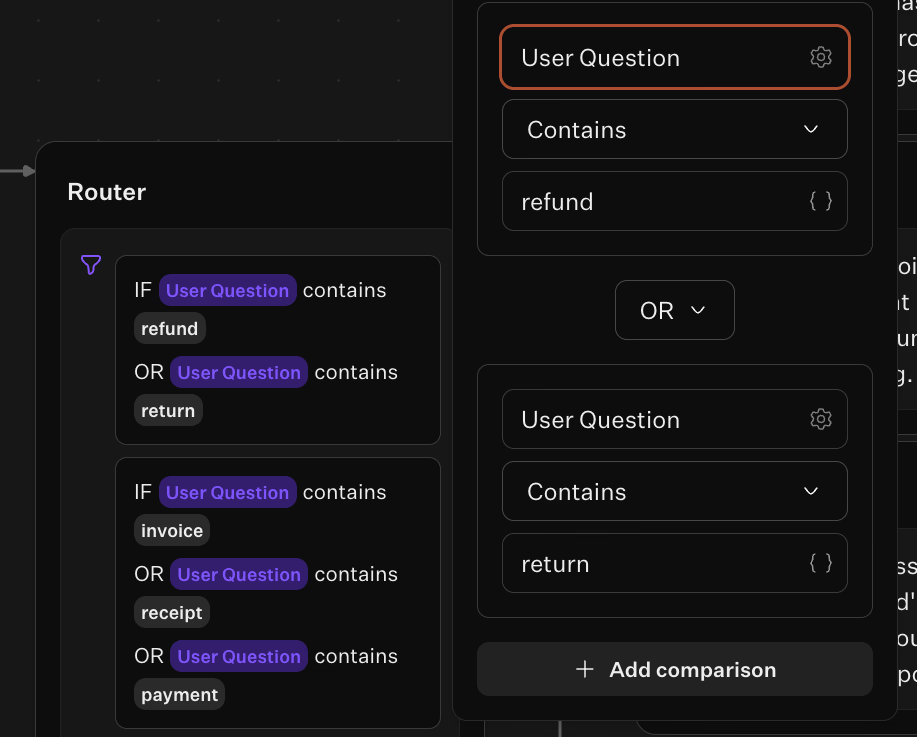
- Create the ask-again loop (Logic → Jump / Return).
Your FAQ bot shouldn’t stop after one answer. Use Jump or Return blocks to route back to the question input so users can ask more questions without restarting.
Now the backbone is ready. Next, add routing to keep the bot organized and easy to maintain.
Add routing with conditional blocks
Routing turns a simple text box into a functional FAQ system.
- Select a few top categories to start.
Don’t create 30 branches at once. Choose a few main buckets covering most questions, such as billing, shipping, account access, and troubleshooting.
- Add routing conditions (Logic → Condition).
After setting user_question, add a Condition block.
Use keyword matching to route questions:
- If the question contains “refund” or “return,” route to Returns.
- If it contains “invoice,” “receipt,” or “payment,” route to Billing.
- If it contains “password” or “login,” route to Account Access.
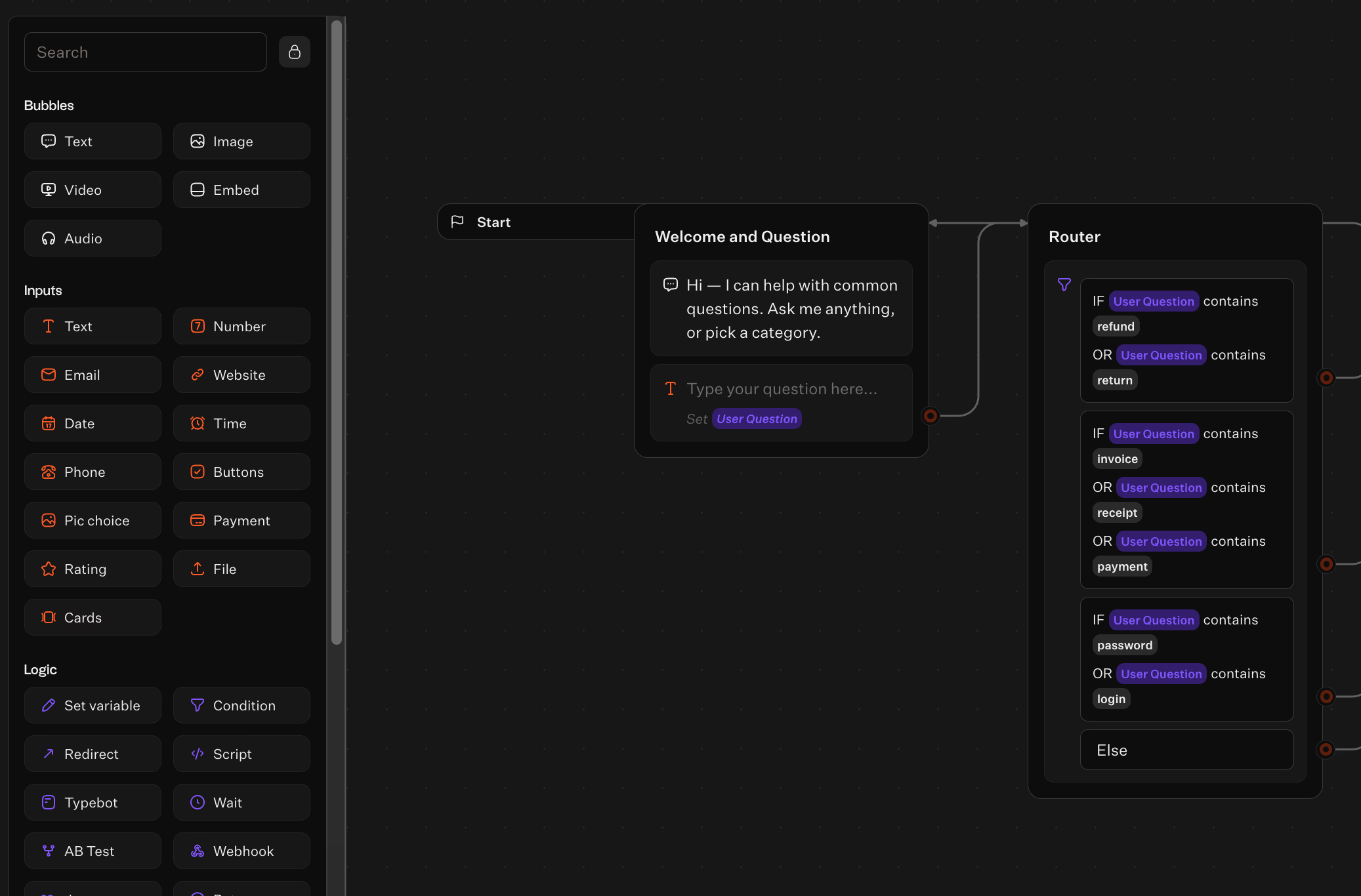
- Add a default route for unmatched questions.
Include a fallback path when no conditions match. This safety net can ask for clarification or suggest categories. Routing controls where users go. Next, build clear, editable answers teammates will appreciate.
Add FAQ answers as response blocks
The fastest way to ruin an FAQ bot is to hide answers inside complex logic. Instead, keep answers easy to find and edit.
- Use Bubbles → Text blocks for answers.
Add a Text bubble for each routed category’s response. Long answers should split into two short messages for better readability.
- Maintain consistent answer formatting.
A simple pattern works well:
- One sentence answer
- One sentence explaining the next step (if relevant)
- One escape option, for example, “If this didn’t help, ask another way.”
- Add rich media only when it clarifies.
Typebot supports Image, Video, and Embed bubbles. Use these if visuals reduce confusion, such as showing where to find a setting.
- Return to the question loop after each answer.
After answering, use Jump or Return to route back to the question input. This keeps the bot behaving like a persistent assistant. With answers added, testing becomes essential to avoid boring errors.
Test in preview mode
Typebot lets you test your bot directly from the editor, making it easy to simulate conversations.
- Use the Test button to open the simulator.
Click Test at the top of the editor to try conversations without publishing.
- Test as a real user would, not just as the builder.
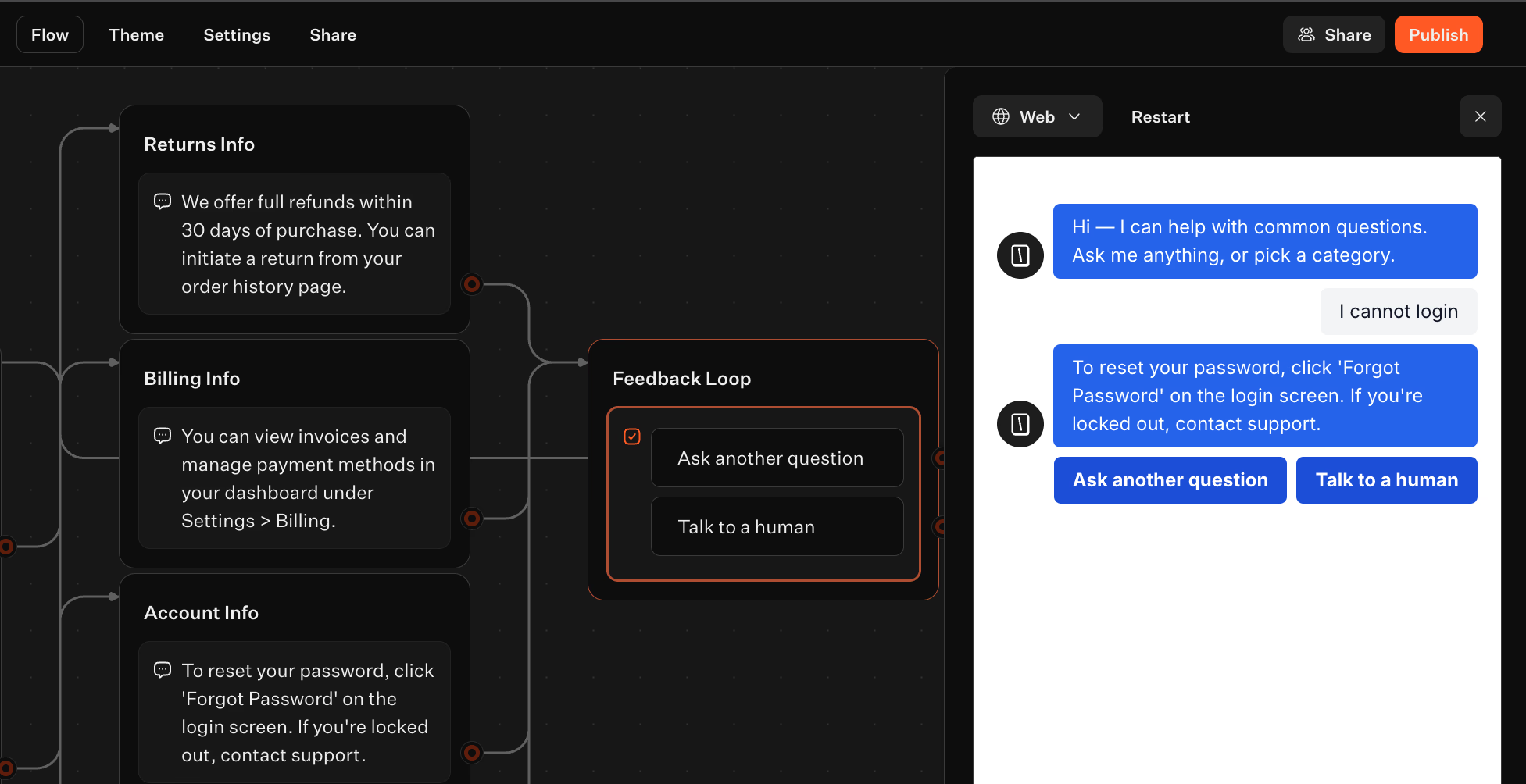
Your tests should include:
- Rephrasing the same question in different ways
- Short keywords like “refund” or “login”
- Complex sentences with multiple intents
- Typos or misspellings
- Questions that could fit multiple categories
- Make sure the fallback route works reliably.
When no condition matches, the bot should guide users with a helpful next step instead of ending abruptly.

Create fully customizable chatbots without writing a single line of code.
No trial. Generous free plan.
Add your FAQ knowledge base and AI
Typebot flows collect questions and route users to the right answers. But they need a reliable source of truth beyond logic to work effectively.
For FAQ chatbots handling complex or evolving questions, consider going beyond static sheets. Train your chatbot on your own data to let AI handle nuance while staying grounded in your knowledge base.
This section helps you transform your FAQ chatbot into full support infrastructure. You'll:
- Set up a maintainable knowledge base
- Add AI backup for complex questions
- Connect APIs to systems where your answers already live
Connect Google Sheets as a knowledge base
Google Sheets is practical for predictable, easy-to-update FAQ bots. It’s friendly for non-technical teammates and scalable.
Step 1: Create a simple sheet structure.
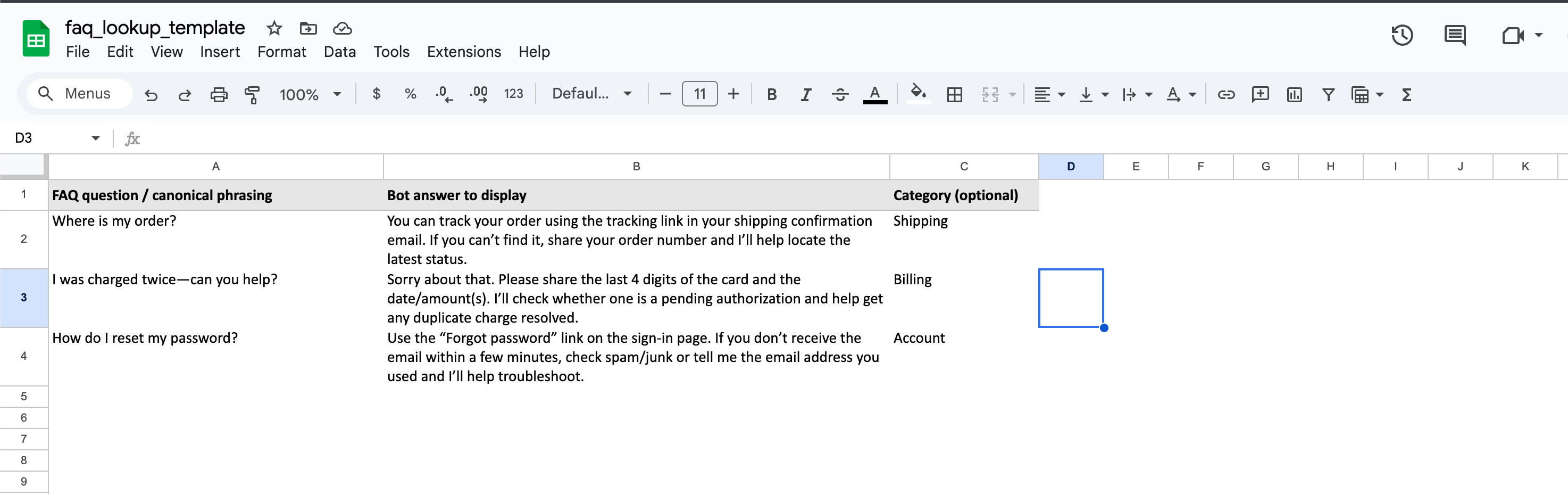
Build a clean lookup table with columns for:
- FAQ question or canonical phrasing
- Bot answer to display
- Optional category (Shipping, Billing, Account, etc.) to help routing
Keep it simple and boring on purpose; this approach scales better.
Step 2: Add the Google Sheets integration in Typebot.
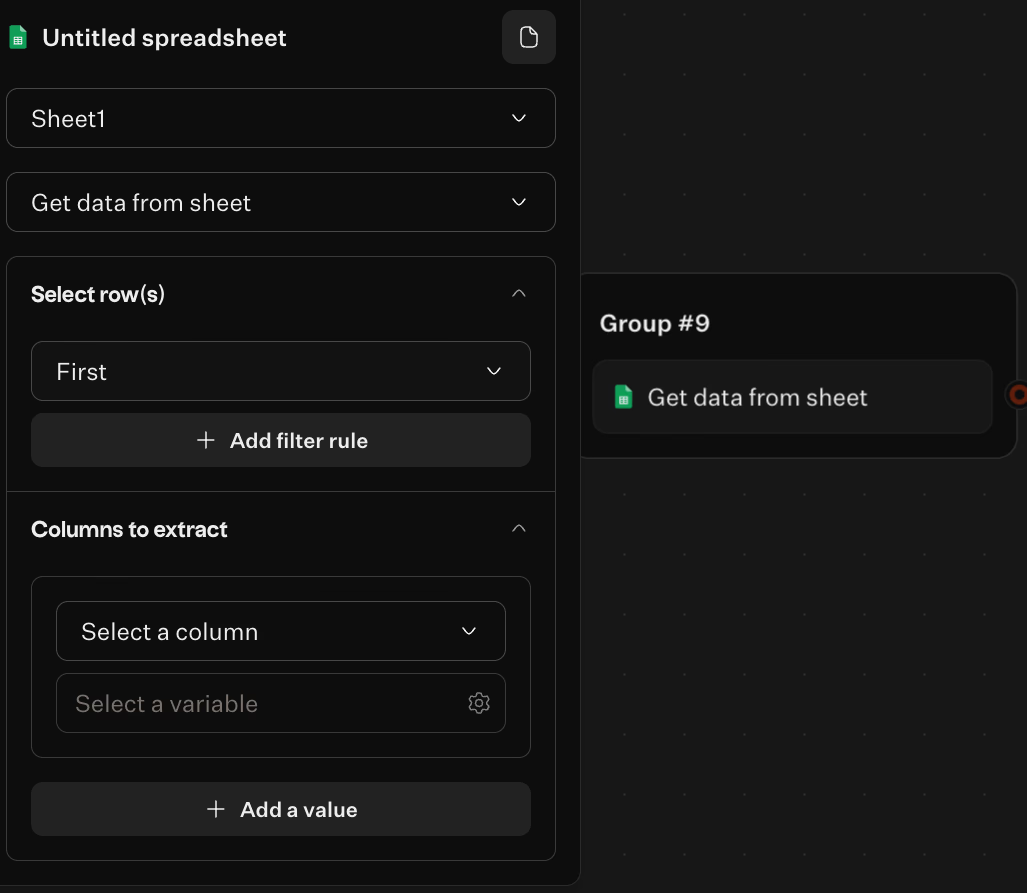
Use the built-in Google Sheets integration in the Typebot builder. Your flow can:
- Take user input
- Query the sheet
- Store the matched answer in a variable
- Display that variable in a response bubble
Step 3: Make answer delivery consistent.
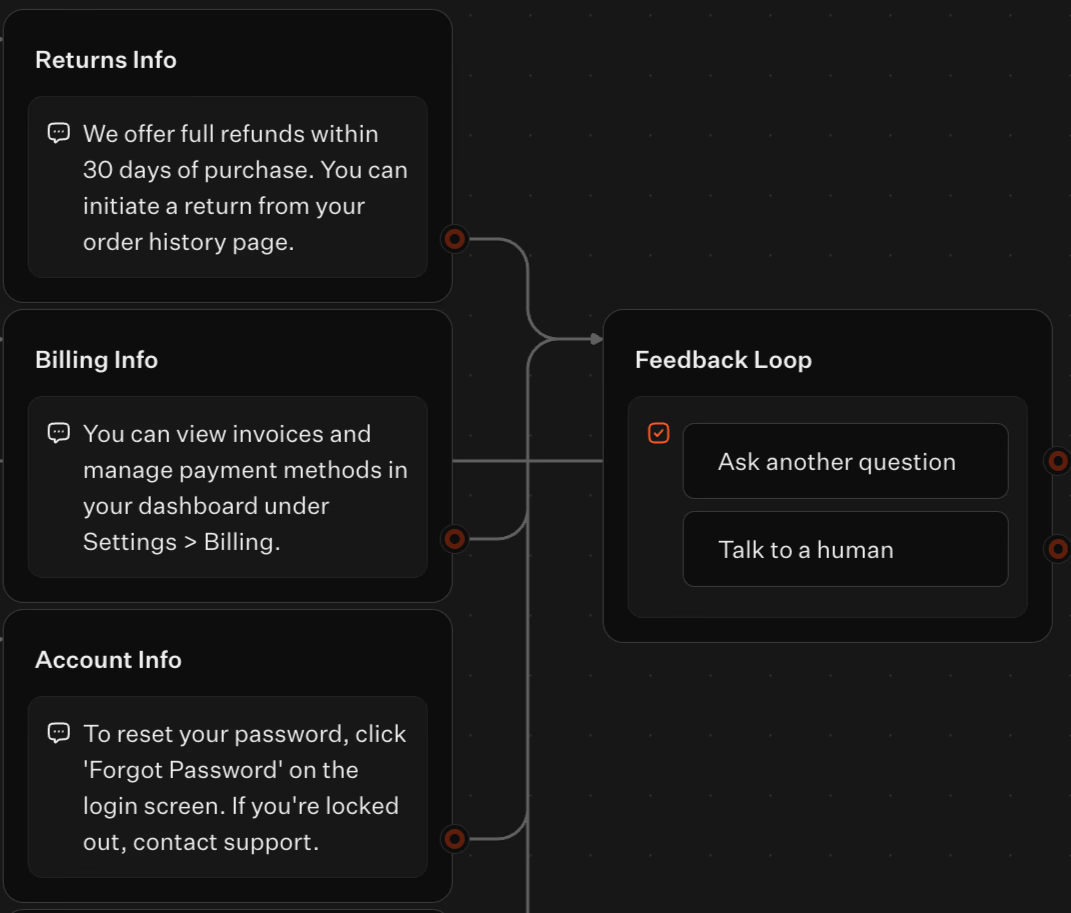
Even with varying answer lengths, your responses should feel uniform. A good pattern:
- Display the answer
- Offer 2–3 buttons like “Ask another question,” “Talk to a human,” or “Back to categories”
This keeps users engaged instead of leaving them at dead ends.
Step 4: Build a no-match path that feels natural.
No sheet lookup covers all phrasing. When no result appears:
- Acknowledge it
- Ask one clarifying question or offer categories
- Route to AI or human escalation
This choice makes your bot feel helpful rather than brittle.
Want advanced setups? Follow our guide: Build AI Chatbot with Custom Knowledge Base Without Code.
Use OpenAI for uncovered questions
Users’ questions often don’t match spreadsheet phrasing and include intent, emotion, and missing context.
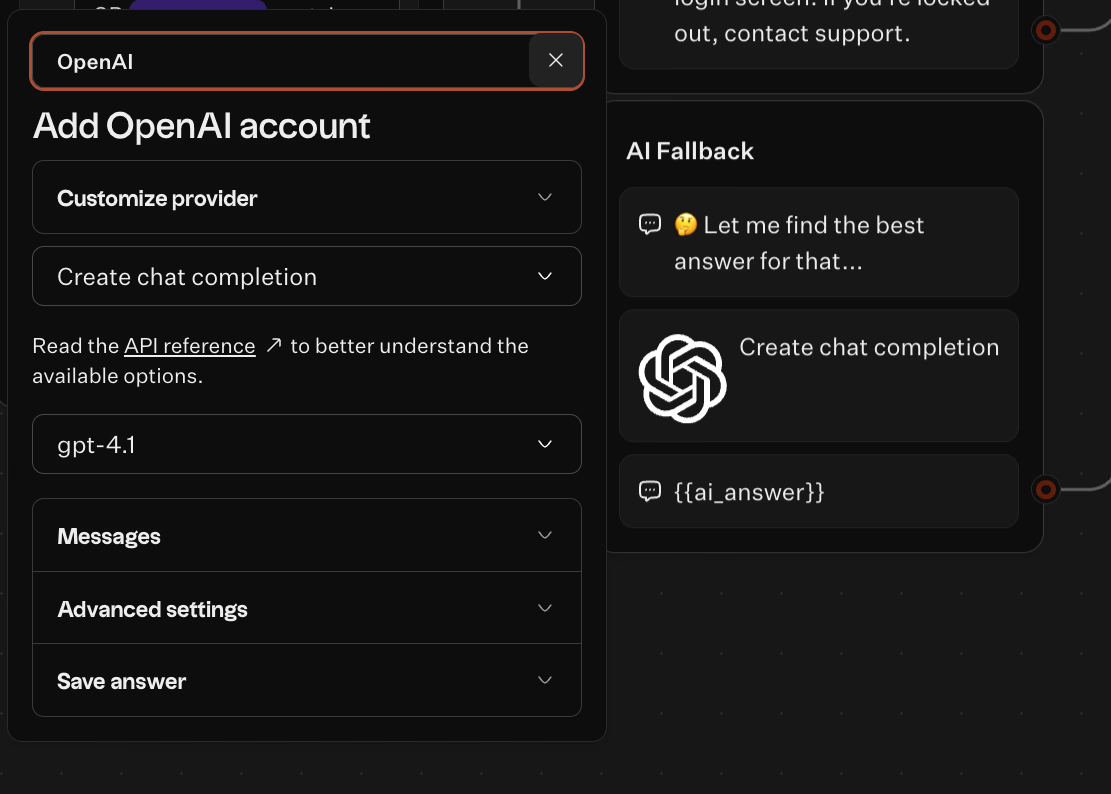
Use Typebot’s OpenAI integration as a second layer to interpret complex or messy questions.
Step 1: Use OpenAI only as a fallback
Avoid making AI the first step when you want consistent, approved answers. Pattern:
- Try Google Sheets first
- If no match or low confidence, call OpenAI
This keeps answers grounded and flexible when needed.
Step 2: Define the AI’s role clearly.
Give the model clear instructions on its support role:
- Answer support questions only
- Don’t invent policies; ask for missing details instead
- Know when to hand off to human support
The goal is to make AI responses safe and useful, not smart.
Step 3: Format AI responses with structured next actions.
After showing the AI answer, immediately offer buttons with next steps. This prevents users from leaving after long AI replies. Also, save user questions handled by AI in a variable for later review to decide if they warrant new FAQ entries.
Build an API connection with webhooks
When answers depend on live data (order status, subscription details), use Typebot's Webhook and HTTP blocks.
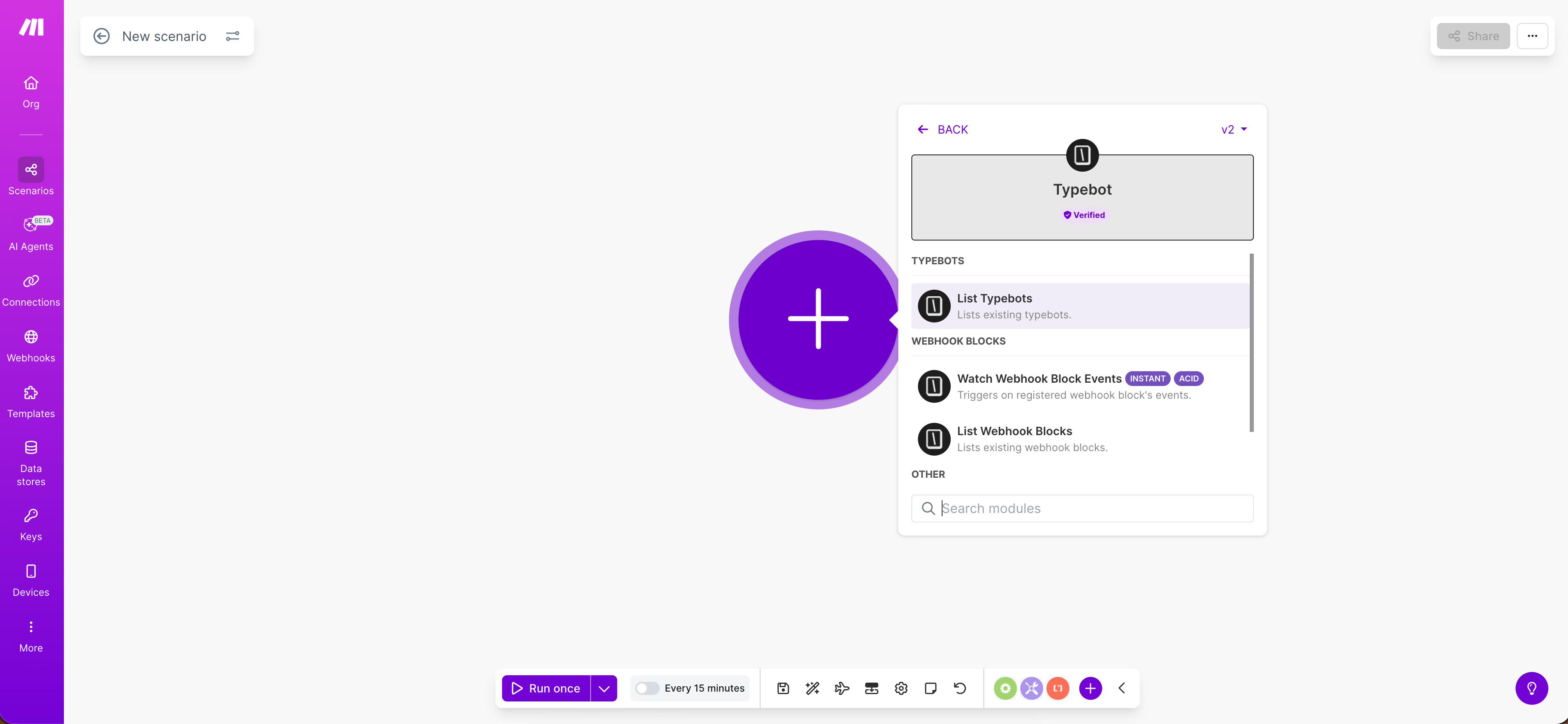
Send the user's question, identifiers (email, order number), and context. Return a simple response. An answer string, optionally with a link or "needs_handoff" flag.
Handle failures gracefully. Prepare fallback messages that route users to AI or human support instead of dead ends.
Deploy your FAQ chatbot
Your automated FAQ chatbot isn't finished until it's live on your business website—and other channels—where customers get stuck. Typebot lets you build once and deploy across multiple platforms.
Choose a format
In the Typebot editor, go to the Publish tab and choose:
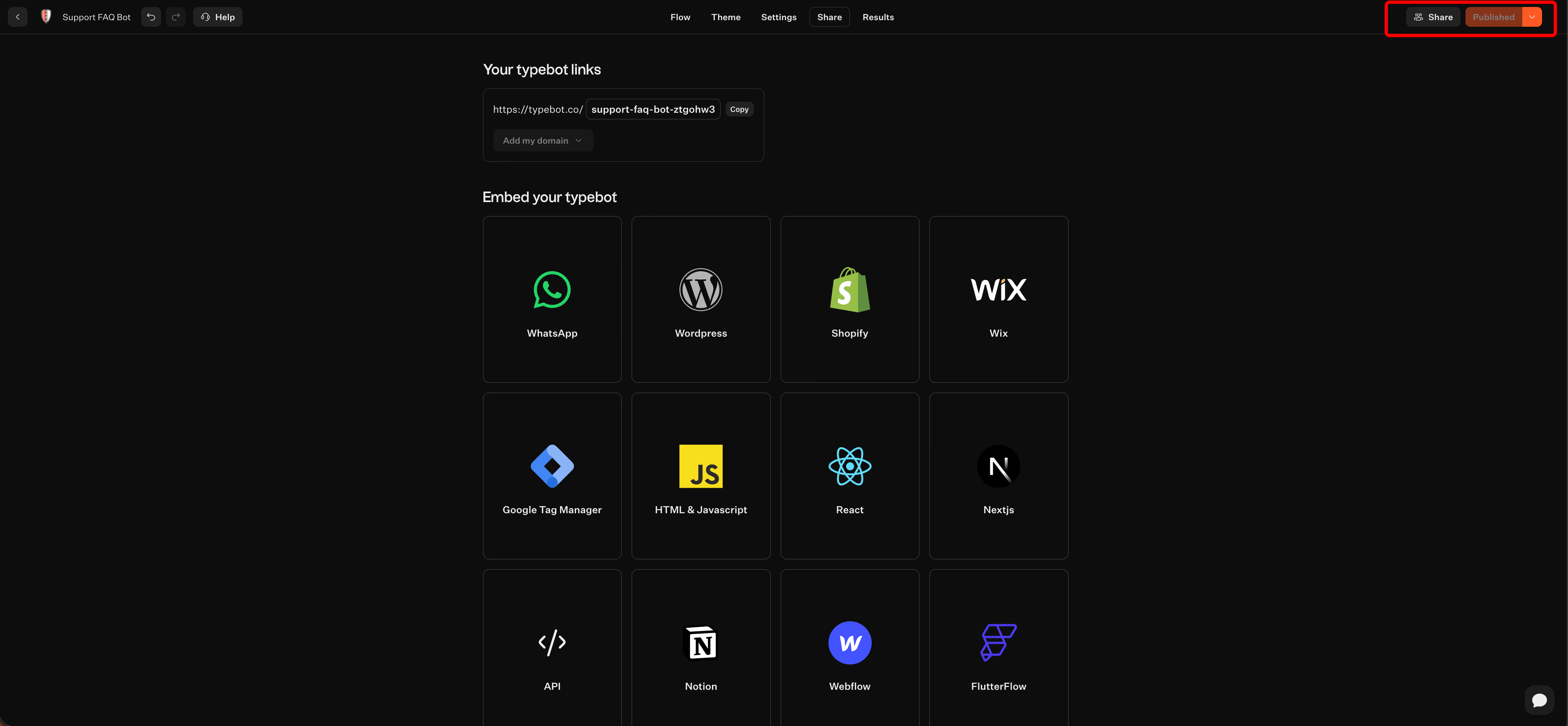
- Embedded container: Inside a page layout—ideal for help centers, FAQ pages, and docs
- Popup: Appears when triggered—best for checkout or cancellation pages
- Bubble: Sits in the corner, always available
- Full page: A dedicated URL for campaigns or support pages
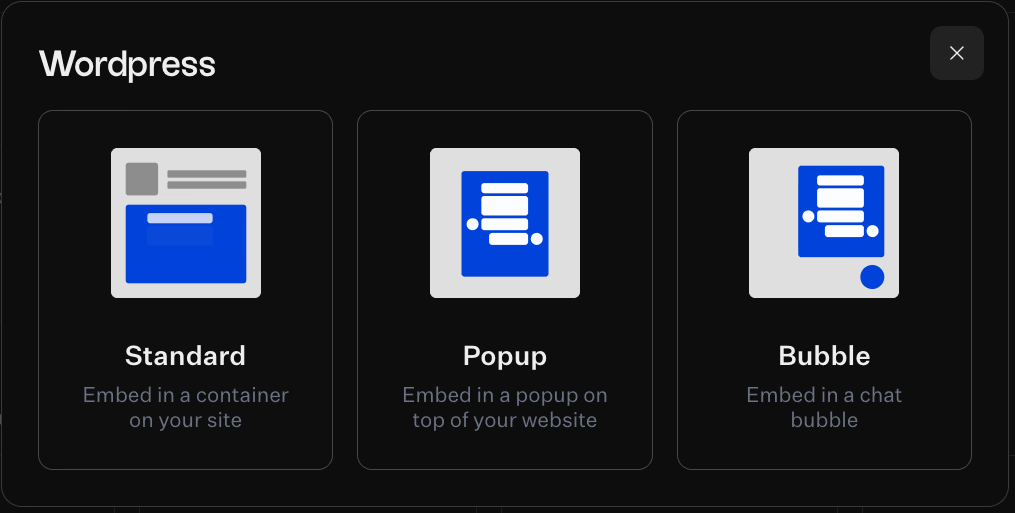
Typebot supports WordPress, Shopify, Wix, Webflow, React, Next.js, and more. Check mobile views, sticky headers, and cramped layouts. Match theming to your brand, test keyboard behavior on mobile, and use hidden fields to personalize by user segment.
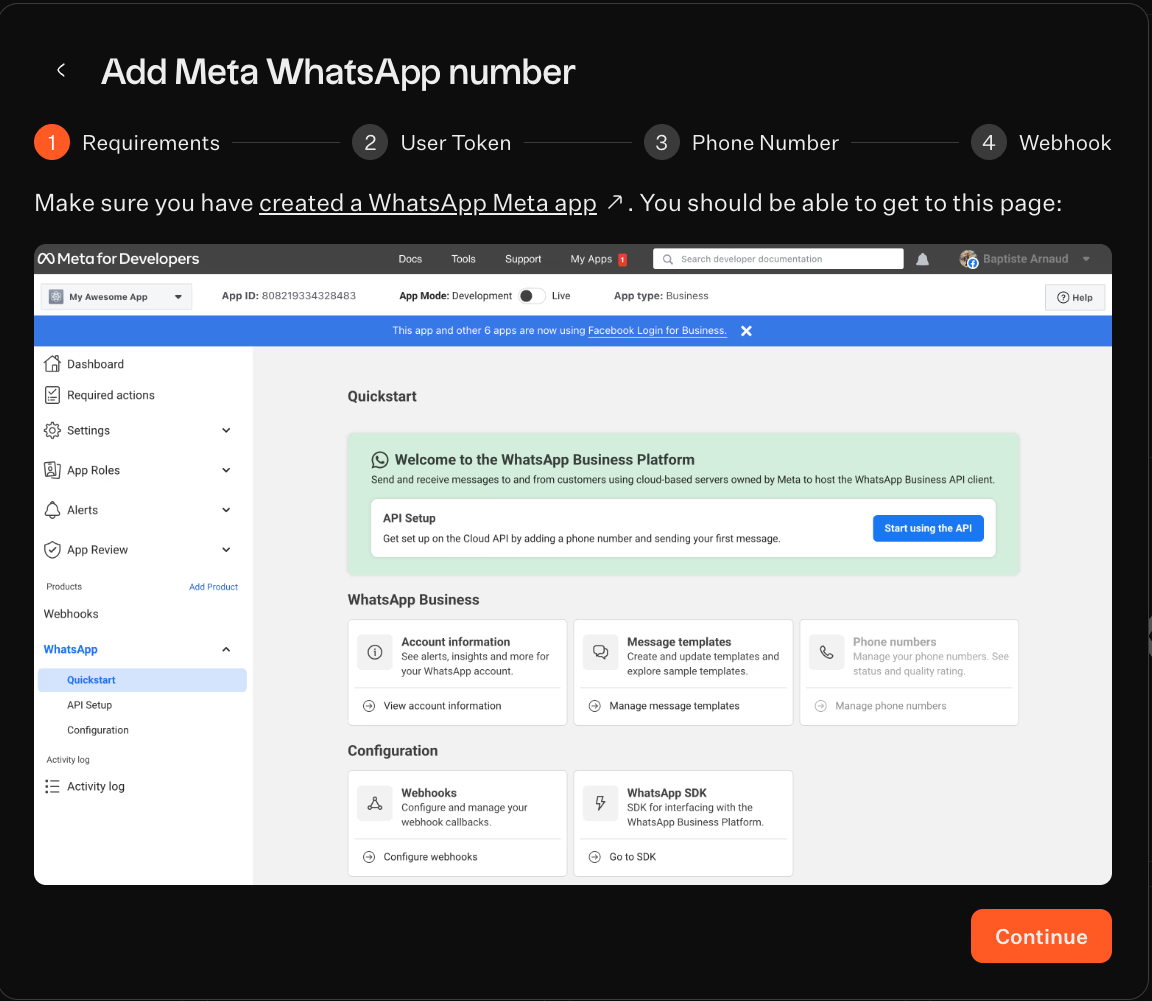
WhatsApp: Connect via the Share tab to run an FAQ agent for common package or product questions, and keep complex bookings for staff. Keep messages short and offer quick category buttons plus a “talk to a human” option.
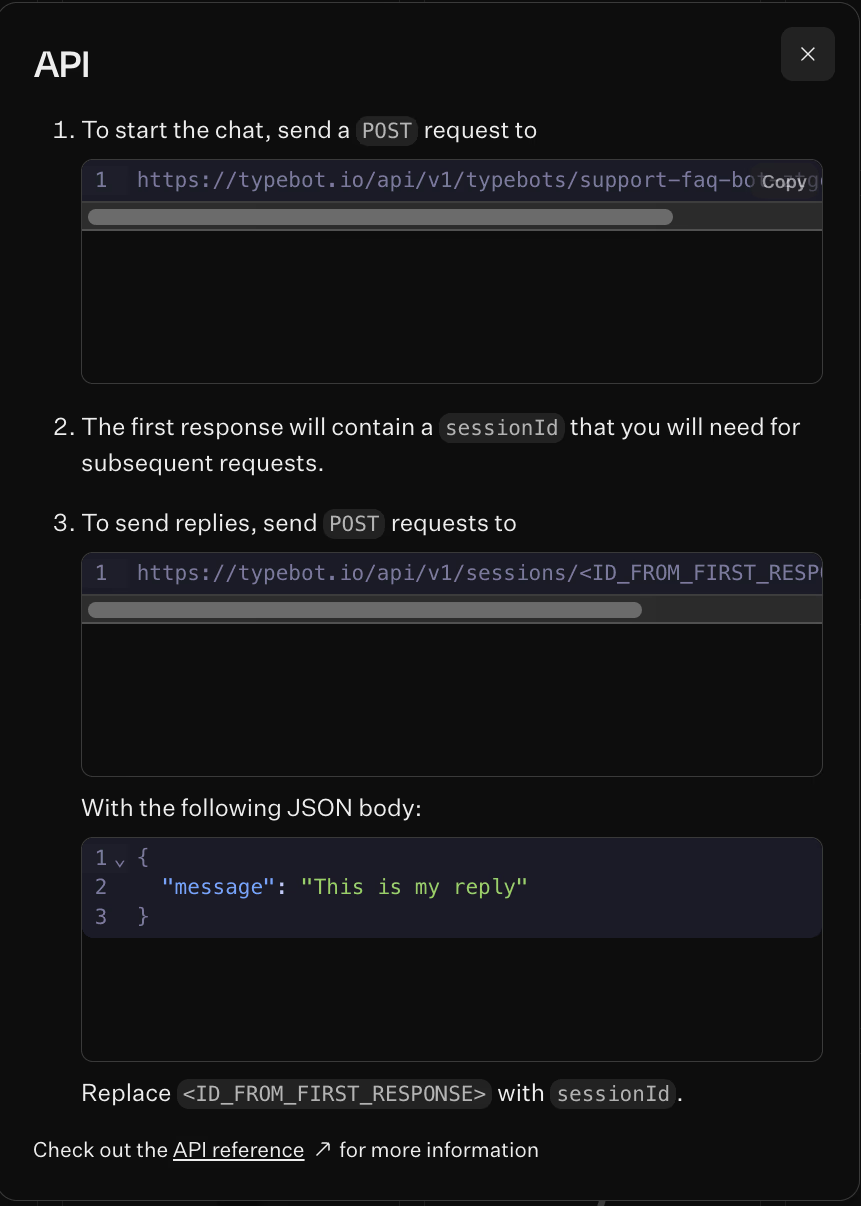
HTTP API: Trigger conversations programmatically from your app, internal tools, or automated workflows.
Wrapping it up
With a clear content plan and simple flows, a small team can build an internal FAQ bot the simplest way—no coding required—and turn a shared FAQ into proactive support in hours, not weeks, using Typebot.
Launch across web and messaging platforms. Monitor conversations in real time. Iterate based on user behavior to keep answers accurate and helpful.
Ready to reduce support load and improve customer experience? Start building your FAQ chatbot in Typebot today.
Create, customize, and deploy your first Typebot today. No coding required.
No trial. Generous free plan.