
![How to Build a WhatsApp Chatbot with No Code for Free [2026]](/blog-assets/how-to-build-whatsapp-chatbot/cover.avif)
Most people assume building a WhatsApp chatbot means hiring developers or wrestling with complex APIs. That might have been true a few years ago, but it is no longer the case. Today, you can build a fully functional WhatsApp bot in under an hour using drag-and-drop tools.
With over 3.3 billion WhatsApp users worldwide and Meta's free API tier offering 1,000 conversations per month, the opportunity is bigger than ever. This guide walks you through every step, from getting API access to launching your first bot.
What is a WhatsApp chatbot and why you need one
How WhatsApp chatbots work
A WhatsApp chatbot is an automated agent that chats with customers inside the app.
You do not have to handle every message yourself. A visual flow guides users through answers, questions, and transactions any time of day.
Platforms like Typebot let you build these flows with connected blocks.
Each block decides what happens next. It may send a reply, collect a phone number, or trigger another app.
The bot keeps track of what users say with variables.
This helps it tailor replies and branch the conversation based on their choices.
Because it stays conversational and personal, you can use chatbots to welcome users, show menus, or sync info directly to your CRM.
Types of WhatsApp chatbots: rule-based, AI-powered, and hybrid
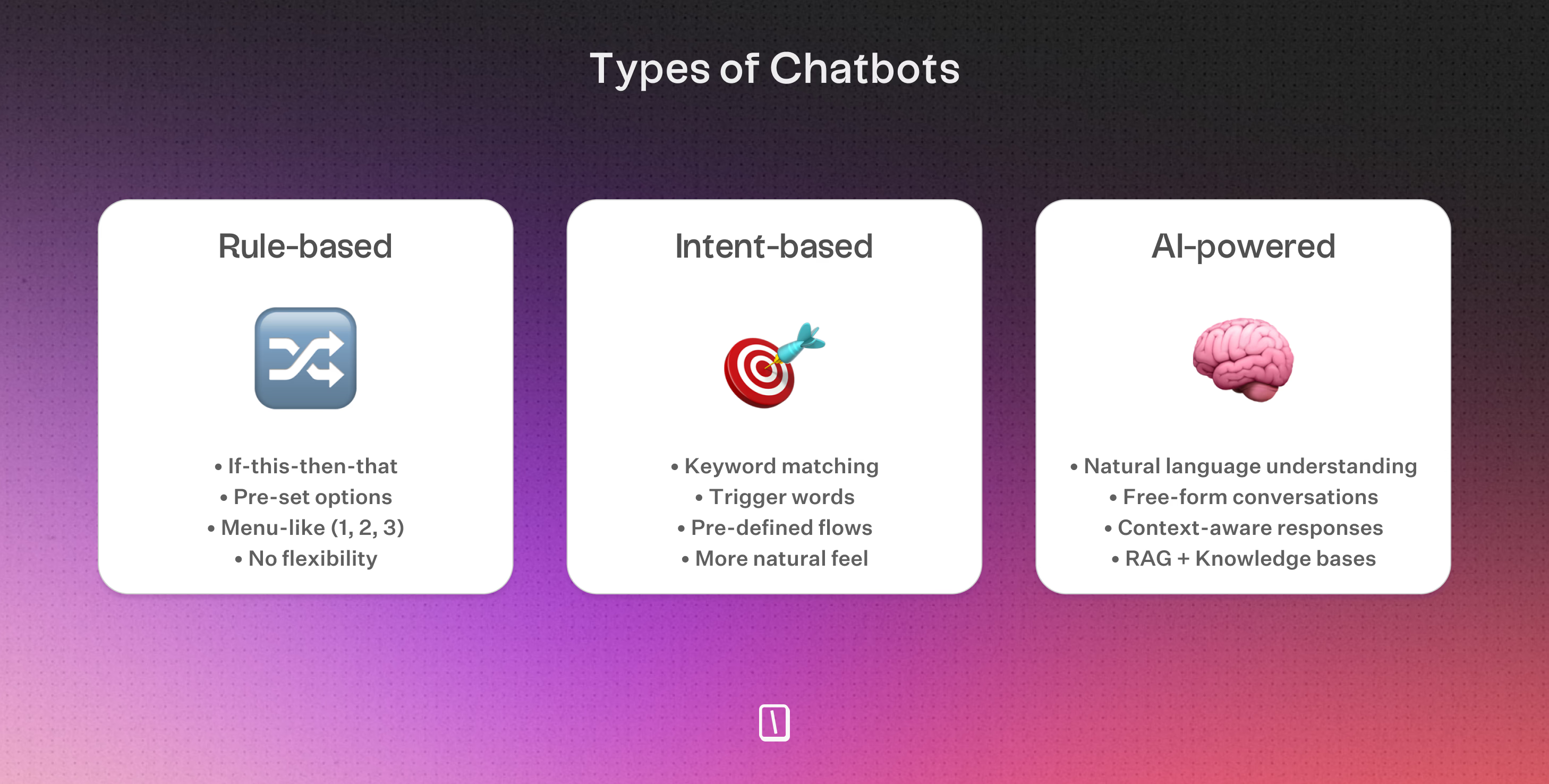
WhatsApp automation comes in a few main flavors:
Rule-based chatbots:
These bots follow strict “if-then” rules, usually laid out as menus or step-by-step flows.
Every path is mapped ahead of time.
This makes them a solid pick for FAQs, scheduling, or quick lead capture.
Typebot uses Condition blocks to build these interactions, no coding required.
AI-powered chatbots:
Here, large language models like OpenAI or Mistral handle natural language.
Users can type questions however they want, and the AI figures out relevant answers.
This approach is more flexible and tends to work well for open-ended sales chats or tricky support questions.
Hybrid chatbots:
This option mixes structured menus for common needs with AI for unique requests.
You get the reliability of a defined flow, plus the freedom to handle advanced queries or hand off to a live agent.
Benefits of using WhatsApp for customer conversations
WhatsApp is the world’s most-used messaging app, and chances are your customers are already on it.
Talking to them where they are comfortable saves them from downloading new apps or searching your website.
- Familiar communication: Conversations feel informal and one-on-one, like messaging a friend.
- Instant responses: Chatbots can handle routine questions around the clock, so your team can focus on the tougher stuff.
- Improved data collection: Instead of static forms, you gather phone numbers, orders, or feedback right in the chat.
- External integrations: You can connect your CRM, calendar, or inventory so conversations trigger real actions.
- Consistent support: Nobody waits in line, every user gets an answer right away.
Combine these perks with analytics and custom branding, and a WhatsApp chatbot becomes a practical tool for growing customer engagement.
Limitations of the WhatsApp Business App
The WhatsApp Business App is really meant for very small businesses, think solo operators, who just need basic features like auto-replies and greeting messages on one phone.
But if you’re hoping to use chatbots, set up interactive lead-capture flows, or tap into any AI integrations, the app just can’t handle it.
Since the app is tied to a single device, there’s no option for multi-user access. You also can’t connect it to third-party tools like Typebot.
So, more complex workflows, like tracking orders dynamically, syncing with your CRM, or qualifying leads through multiple steps, aren’t available here.
If you’re aiming for automation that scales, the Business App falls short.
Why the WhatsApp Business API is required for chatbots
Here’s where the WhatsApp Business API comes in. It’s built for automation and integrating with other platforms.
With the API, you can:
- Build conversation flows visually using Typebot’s drag-and-drop interface.
- Sync data with tools like CRMs, Google Sheets, or webhooks.
- Allow multiple users, which is perfect for sales or support teams.
- Set up AI-based responses and handle lead qualification any time, day or night.
- Manage sessions, templates, and customer info.
The API isn’t tied to your phone. It connects your WhatsApp number to specialized automation software.
| Feature | WhatsApp Business App | WhatsApp Business API |
|---|---|---|
| Chatbot/Automation | No | Yes, for example Typebot |
| Multi-user Access | No | Yes |
| Third-party Integrations | No | Yes, CRM, Sheets, webhooks, AI |
| Message Templates/Broadcast | Basic, manual only | Yes, API-based |
| Button Interactions | Basic | Up to 3 buttons |
| Pricing Model | Free app | Per-conversation fee via Meta |
| Designed For | Small businesses | Scalable automation and AI |
⚠️ Before you start buildingYou'll need three things to follow this guide:- A Meta Business Account and a Meta App (free, takes 5 minutes to set up)- Access to the WhatsApp Business API via the Meta Cloud API (free tier: 1,000 conversations/month) or a Business Solution Provider- A phone number to register for your botThat's it. You don't need Meta Business verification to start. Full details on verification, API paths, and pricing are covered later in this article.
How to build a WhatsApp chatbot with Typebot: step-by-step guide
Step 1: Get WhatsApp Business API access and configure your phone number
To use Typebot with WhatsApp, you'll need the WhatsApp Business API. The regular Business App can't handle automation through Typebot.
Here's how to get started:
- Meta Business Account: Head over to business.facebook.com and set up an account.
- Create a Meta App: Go to developers.facebook.com/apps and create a new Meta app.
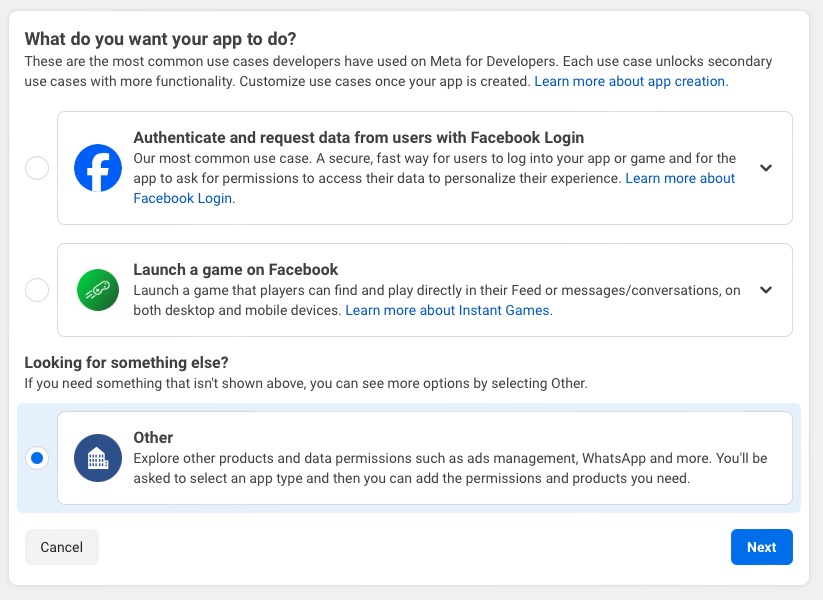
- Select Use Case: On the "Use case" step, select "Other".
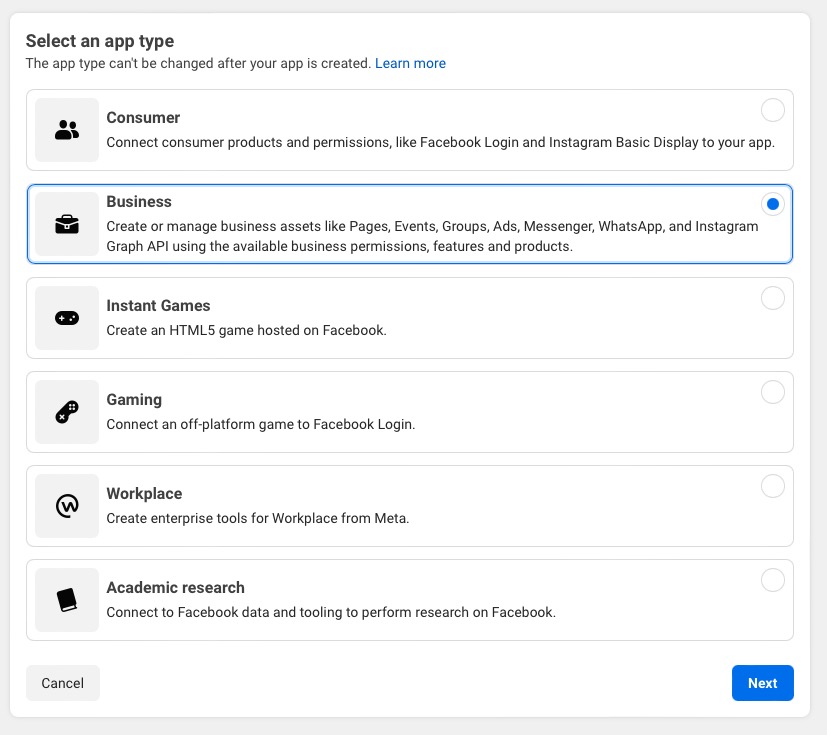
- Choose App Type: On the next step, select "Business".
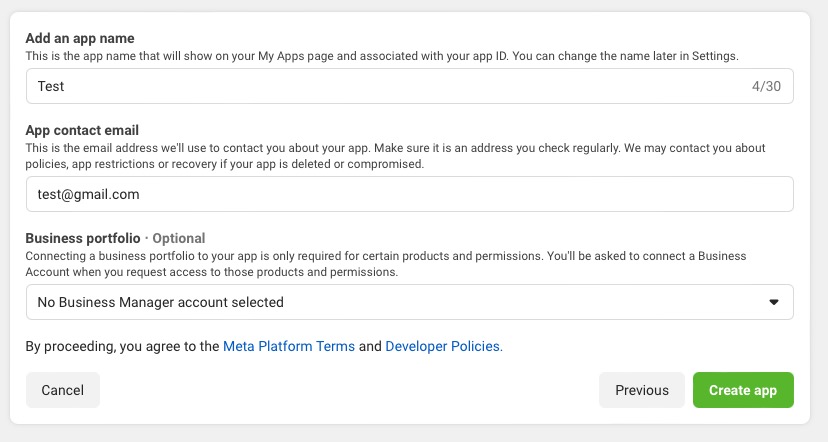
- App Details: Fill in your app name and email address.
- Enable WhatsApp: In your app dashboard, activate the WhatsApp product.
- System User and Token: Go to your System users page in Business Settings. Create a system user with Admin permissions, click "Add assets" to link your app (check "Manage app"), and generate a WhatsApp access token.
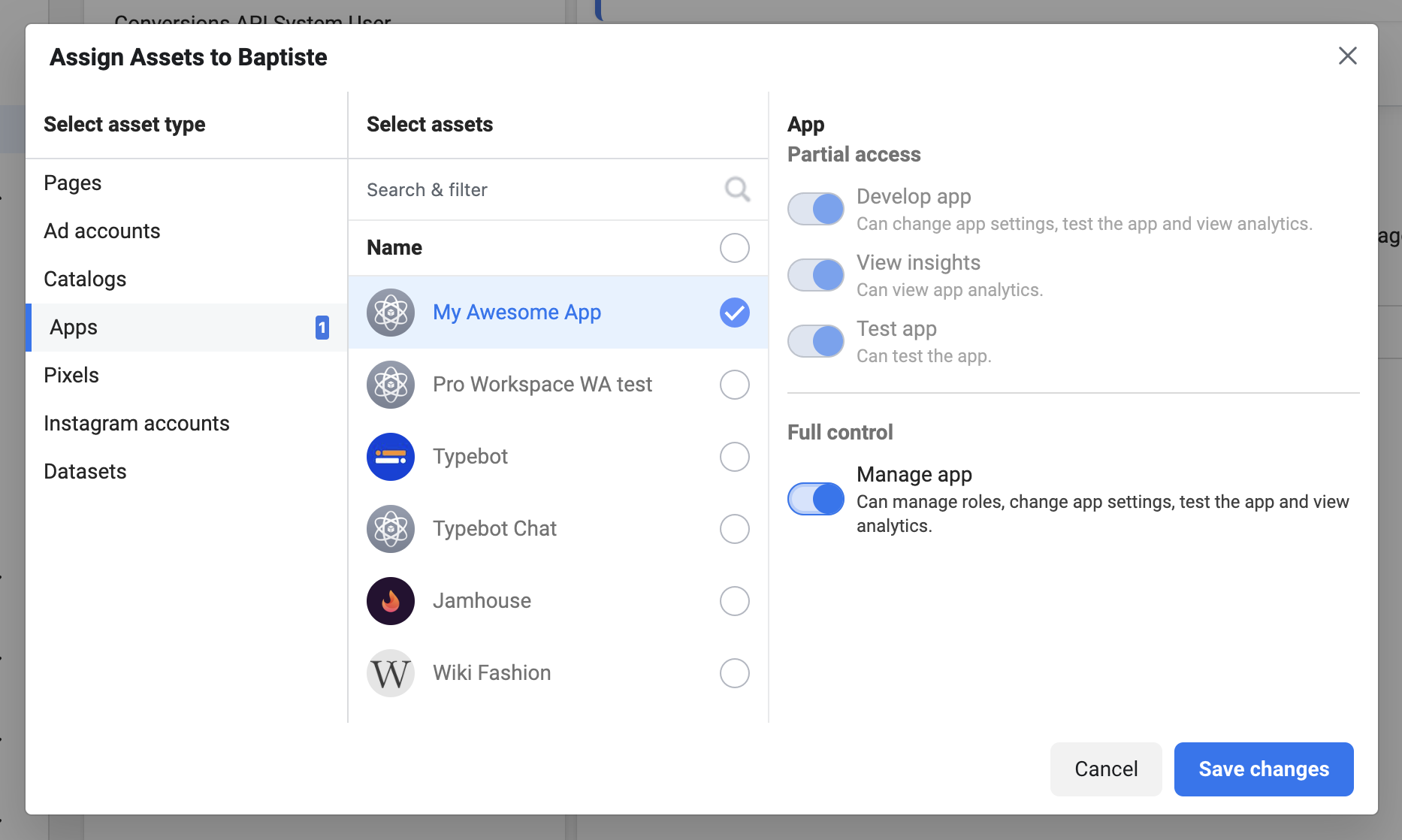
- Add Phone Number: Register the phone number you'll use for your bot in the WhatsApp Developer Console.
Step 2: Connect WhatsApp to Typebot via webhook setup
Now, connect everything so messages can flow between users and your bot.
- Configuration: In Typebot, go to WhatsApp settings and paste in your access token.
- Webhooks: Typebot will give you a unique "Webhook URL" and "Verify Token."
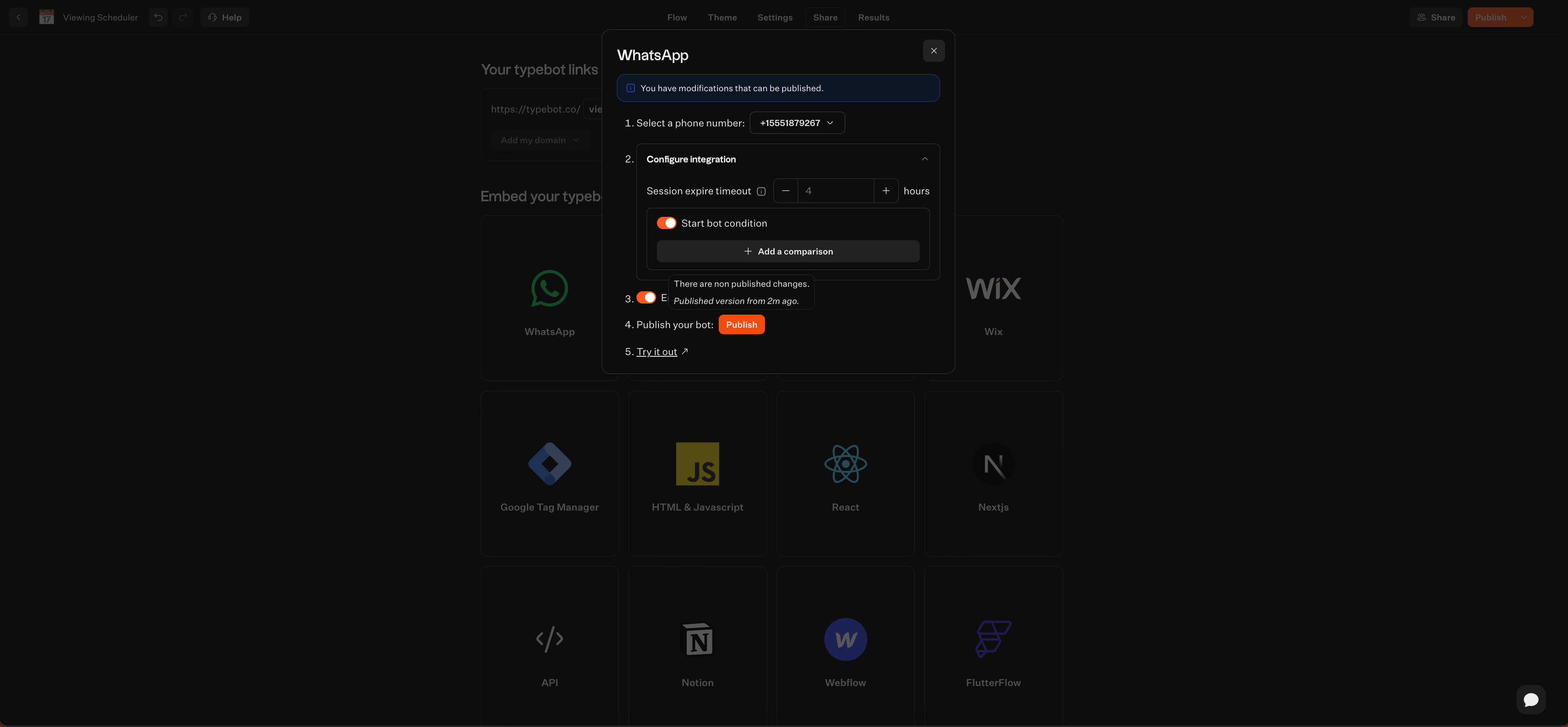
- Verification: Copy these values into the "Webhook Configuration" section of the Meta WhatsApp console and click "Verify."
- Deployment: Once it's verified, choose your specific bot in Typebot and deploy it to your WhatsApp channel.
Step 3: Design your conversation flow and map user intents
A little planning goes a long way, especially on WhatsApp, where you're working with a few interface constraints.
- The Greeting: Start with a text bubble, and use variables like
\{\{Contact name\}\}for a personal touch. - Navigation: WhatsApp only allows up to three buttons per message. If you need more options, break menus into steps or branch them out.
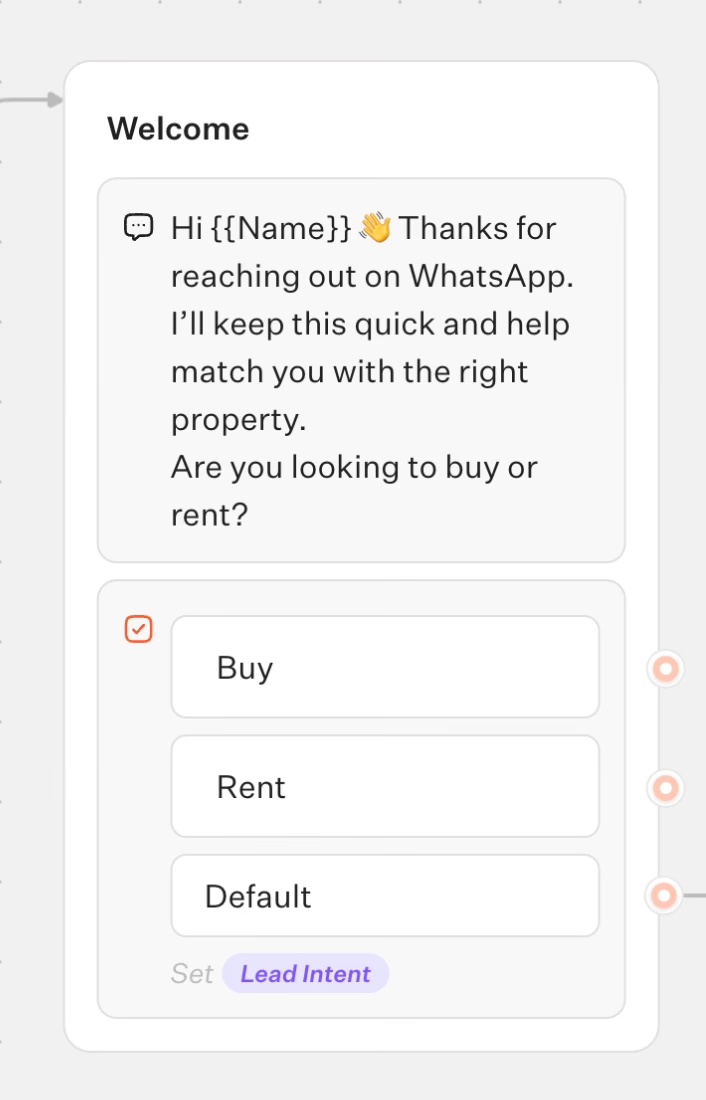
- Fail-safes: Always include a "Back to menu" button and fallback replies for unrecognized inputs.
- Intent Mapping: Make a list of the main user tasks you want to cover, like FAQs, capturing leads, or handing off to a human.
Want to skip the design phase? Check out Typebot templates to see pre-built chatbot flows you can customize for your WhatsApp channel.
Step 4: Build your chatbot visually using drag-and-drop blocks
Time to turn your plan into action with Typebot's editor.
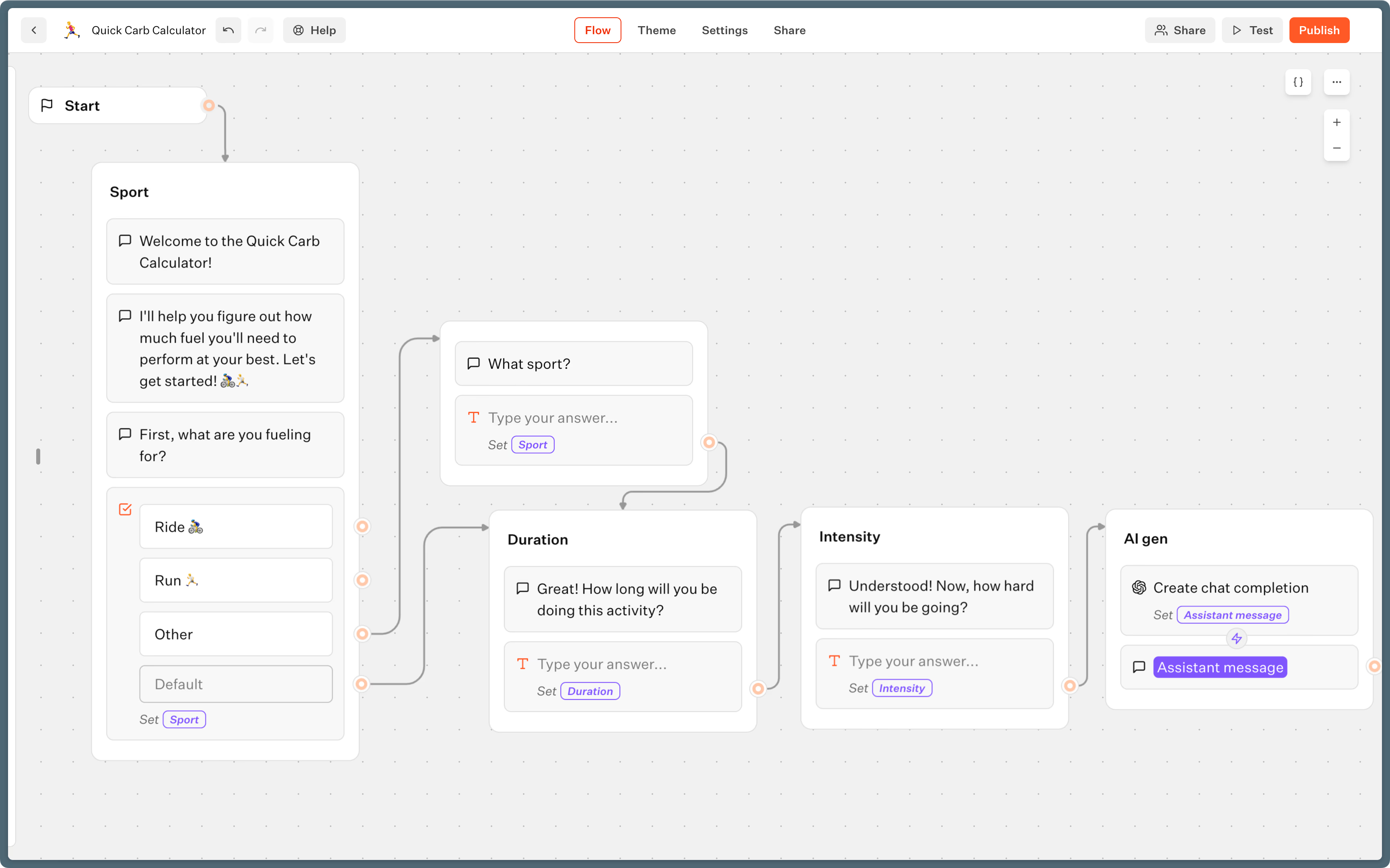
- Start Event: Every conversation should kick off with the
Startblock. - Introduction: Give users a warm welcome and a quick overview using
Textbubbles. - Inputs: Add "Input" blocks to collect info, like text, phone numbers, or emails, and save these in variables.
- Sequencing: Connect blocks with arrows to map out the flow.
- Branching: Create different paths for choices, say, one for "Support" and another for "Sales."
Step 5: Add conditional logic, AI, and integrations
Add some smarts and connectivity to your bot.
- Condition Blocks: Direct users based on certain criteria, for example, send "qualified" leads to a booking link.
- Integrations: Sync data with tools like Google Sheets or your CRM using Webhook or HTTP Request blocks.
- AI Integration: Use OpenAI blocks if you want your bot to handle open-ended FAQs or natural language inputs.
- Media and Variables: Bring in WhatsApp-specific variables to personalize messages. Script blocks and payment blocks don't run on WhatsApp.
Step 6: Test, debug, and launch your WhatsApp chatbot
Testing makes sure everything works smoothly on mobile.
- Preview: Hit the "Test" button in Typebot and pick the WhatsApp runtime.
- Verify Elements: Check that buttons are showing up right, media actually loads, and variables fill in as expected.
- Flow Stress Test: Run through all branching logic and make sure integrations, like pushing data to your CRM, behave.
- Natural Pauses: Turn on typing emulation in Typebot so your bot's replies feel less robotic.
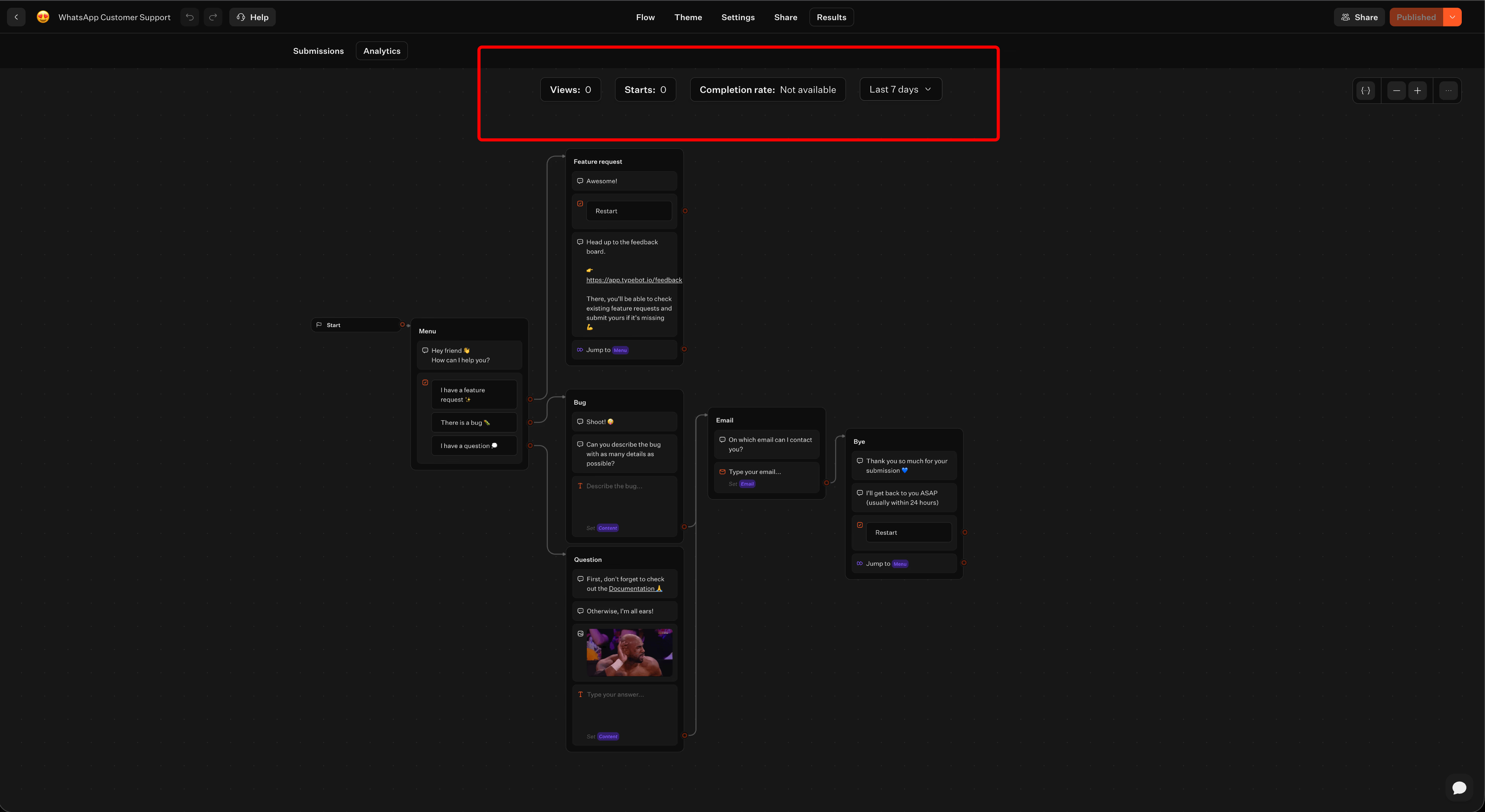
- Publish: When you're satisfied, hit "Publish." Track performance in Typebot’s analytics and keep refining your chat flow as needed.
Deliver real-time responses and boost engagement with Typebot's WhatsApp integration.
No trial. Generous free plan.
WhatsApp chatbot use cases and examples
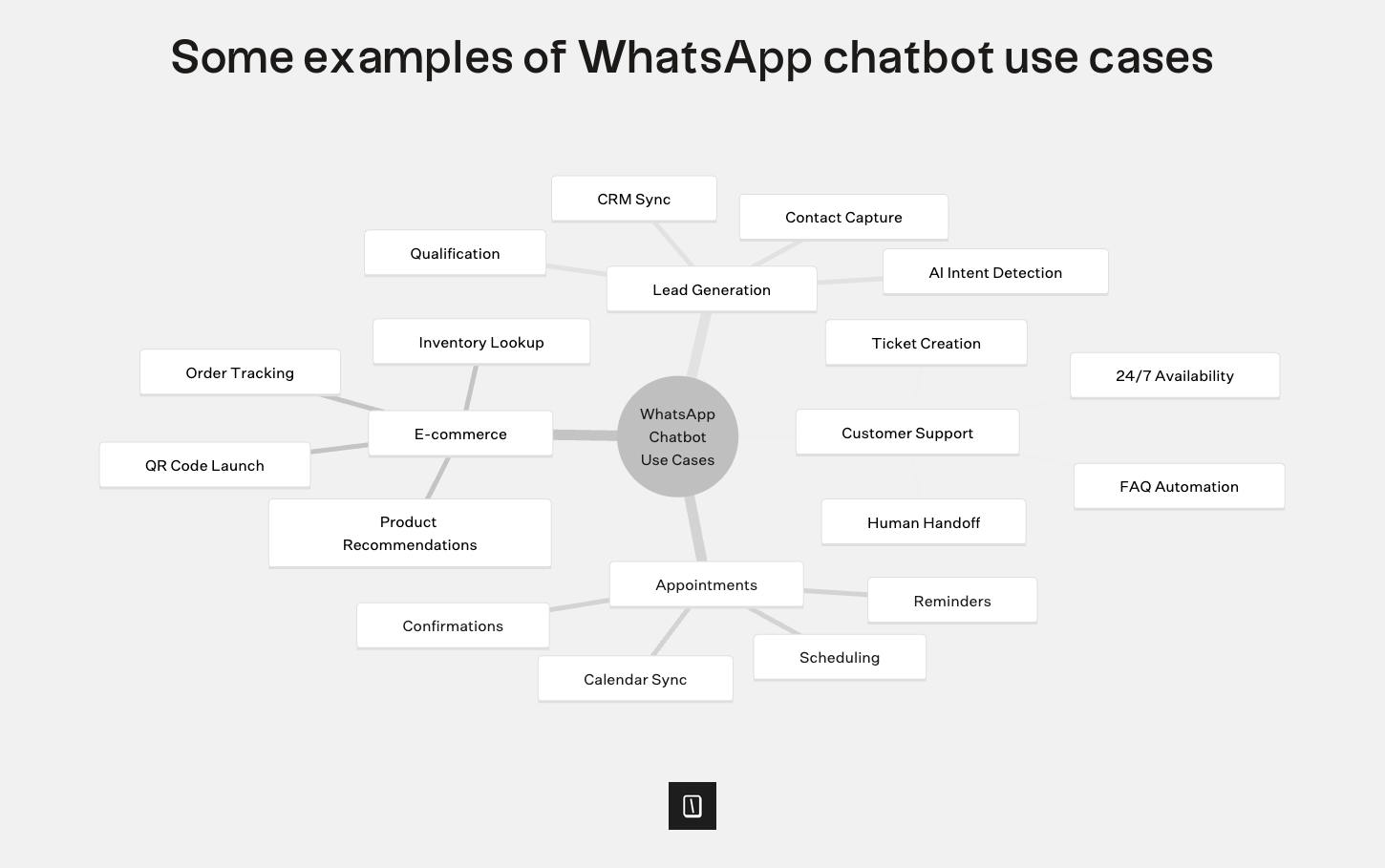
Customer support and FAQ automation
WhatsApp chatbots offer quick responses for routine questions, no more waiting for someone to pick up the phone.
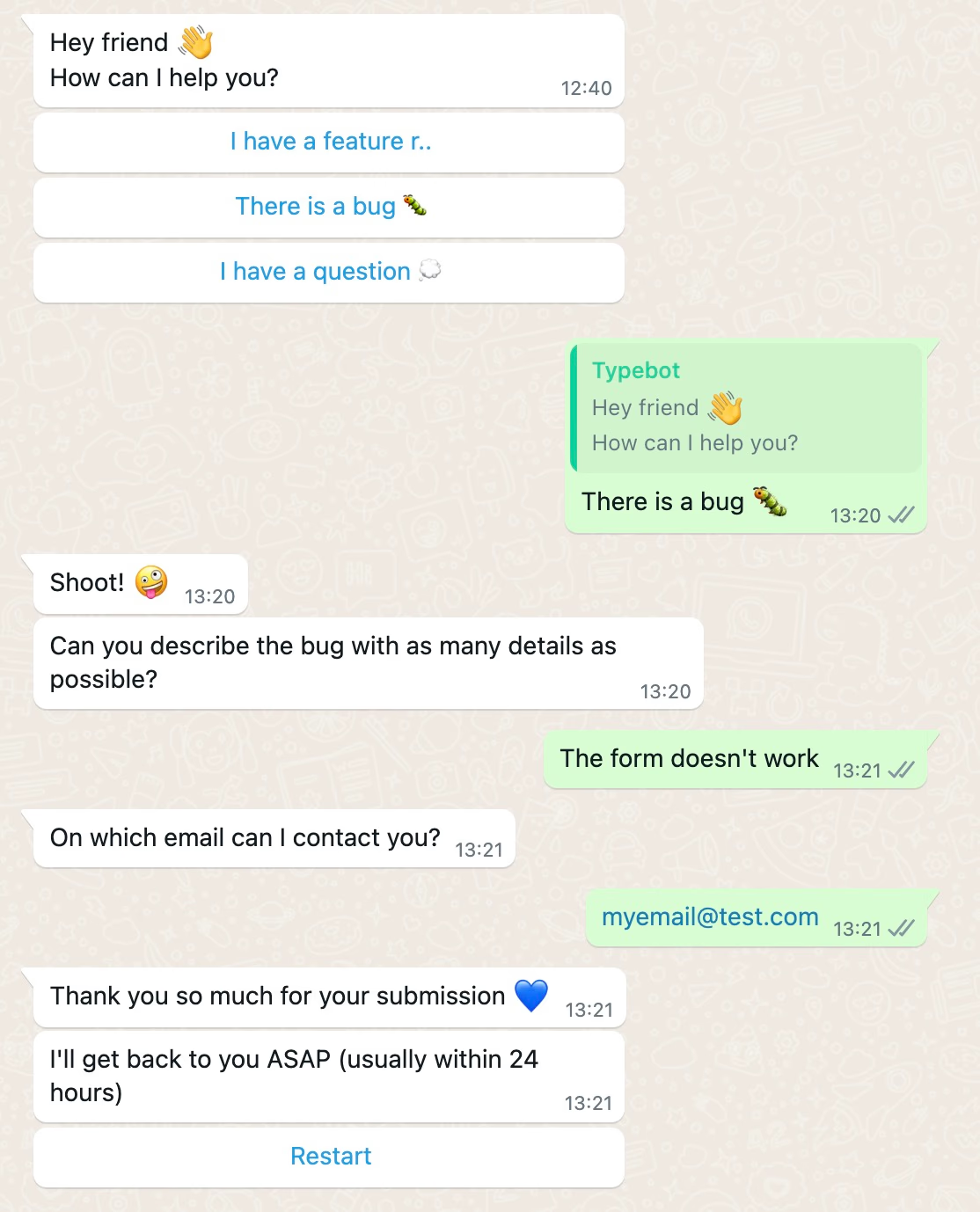
Try this live FAQ chatbot demo to see how it works:
With Typebot, users can get step-by-step help, submit order numbers with input blocks, and receive answers in tidy text bubbles.
Because the API is built for private 1:1 chats, it is easy to track conversations through built-in analytics.
This data helps you spot recurring issues or common questions.
When someone asks something that does not fit the standard flow, you can add an AI block for natural language support or hand things off to a real person.
Lead generation and qualification
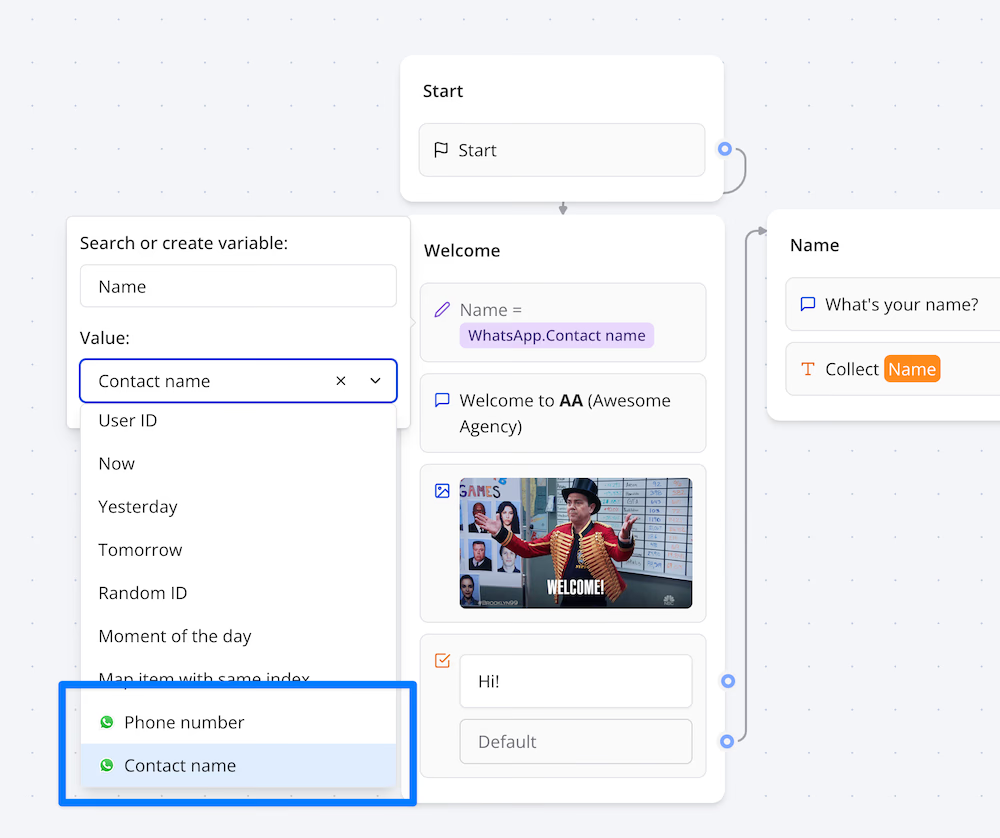
Typebot makes lead collection simple, pulling WhatsApp contact names and numbers automatically, so you skip the manual effort.
Just drop in input blocks to grab important info, like budget or project details, and use conditional logic to sort prospects as you go.
You can sync qualified leads straight to your CRM or Google Sheets with webhooks.
If you add AI blocks, the bot can understand user intent in plain language.
That helps highlight the best prospects for your sales team right away.
Appointment booking and reminders
Chatbots take over the busywork of scheduling and follow-ups.
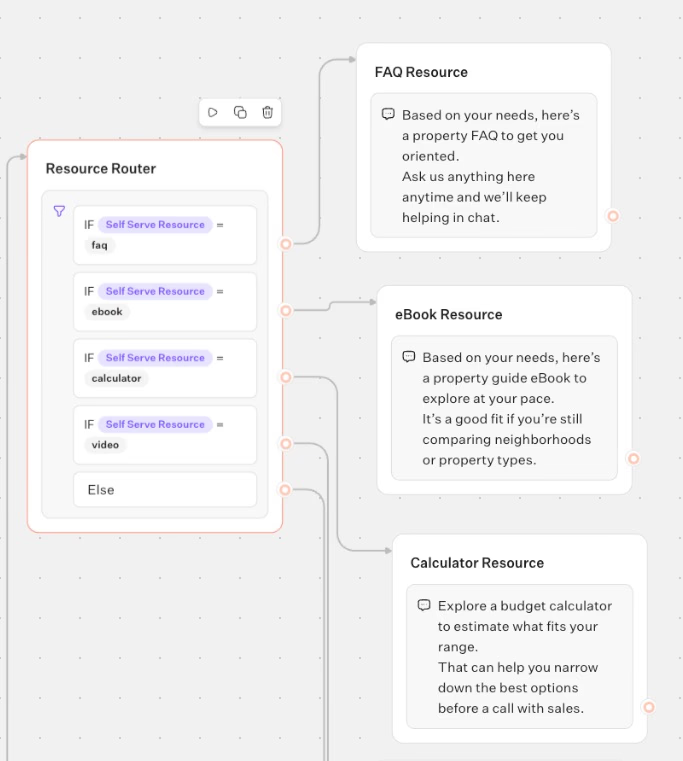
Build flows to gather a user's chosen date and time, then use webhooks to send that info to your calendar or booking system automatically.
The bot can send confirmation messages and reminders right in WhatsApp.
Say a salon bot lets a customer pick a service and time slot.
It can instantly trigger a status update and send a friendly reminder the day before the appointment.
E-commerce order tracking and product recommendations
When it comes to e-commerce, chatbots double as shopping assistants and support staff.
An HTTP Request block lets the bot pull real-time delivery updates from your fulfillment system using the customer’s order number.
If you want to encourage purchases, AI blocks can look at customer preferences and suggest products that fit.
WhatsApp limits you to three buttons per message, but Typebot sidesteps this by paginating extra choices automatically.
You can even set up flows to launch from QR codes or "wa.me" links on your site, sending shoppers straight to product recommendations.
Want to see more real-world examples of what's possible? Check out our WhatsApp API use cases guide to discover how businesses are using chatbots for everything from customer support to lead generation.
Prerequisites before building your WhatsApp chatbot
Meta business verification requirements
You do not need Meta Business verification right away to deploy your first chatbot.
Set up a Facebook Business Account and a Meta App first, and you can automate inbound chats. You can also test things with up to 250 unique users per day.
You will only need verification if you plan to grow past 250 users, want to use several phone numbers, or apply for the Official Business green badge.
There are a few options for verification:
- Partner-led verification: A Business Solution Provider (BSP) submits the application for you.
- Meta Business verification: You handle it yourself in Meta Business Suite and submit your official business documents.
- Quality messaging: If you keep high-quality ratings and reach over 1,000 conversations in 30 days, Meta can raise your limits automatically. This option will not get you the green badge.
Choosing between Cloud API and business solution providers
The way you connect WhatsApp to Typebot depends on your API path:
- Meta Cloud API: You connect Typebot directly by creating a Meta App. For most users, this is the preferred option. It gives you 1,000 free conversations monthly and full control over setup.
- Business Solution Provider (BSP): Third-party platforms such as 360dialog or Twilio take care of hosting your phone number and handling compliance. BSPs are useful if you need managed services or want to oversee multiple brands in one place.
For most Typebot users, the Meta Cloud API is the go-to because of its straightforward integration and access to Meta's environment.
Understanding WhatsApp conversation-based pricing
WhatsApp charges based on 24-hour chat sessions. The price varies by country and conversation type.
- Service Conversations: Usually initiated by users.
- Utility and Marketing Conversations: Messages started by your business, like order updates or promotions.
- Free Tier: Meta gives you 1,000 free service conversations a month.
- Platform Costs: If you use Typebot’s cloud hosting, you will pay fees depending on chat volume. Typebot's free tier offers 200 chats per month, with paid plans starting at $39/month for 2,000 chats. You can skip these chat fees entirely by self-hosting Typebot. | Platform | Free Tier | Next Level Up | Notes | | ------------------ | ------------------------- | --------------- | -------------------------- | | WhatsApp Cloud API | 1,000 conversations/month | Usage based | Per 24h session, by region | | Typebot | 200 chats/month | $39/2,000 chats | Unlimited if self-hosting | Keep an eye on both Meta’s session pricing and Typebot’s chat volume charges to estimate what your bot might cost to run. Once you have these basics in place, you are ready to start building and hooking up your WhatsApp bot.
Key features to look for in a WhatsApp chatbot platform
No-code visual builder vs coding from scratch
These days, no-code builders make it easy for teams to craft even complex conversational flows visually. There is no need to write custom code for APIs or logic. Take Typebot, for example: it uses a straightforward drag-and-drop interface.
You can tweak variables, branch logic, and connect to outside tools in just a few minutes.
On the other hand, building from scratch is still pretty resource-heavy. It slows down prototyping and increases maintenance costs.
Unless your project absolutely requires a completely custom backend, visual builders are usually the quicker and more team-friendly way to launch and improve WhatsApp bots.
Native integrations with AI, data tools, and webhooks
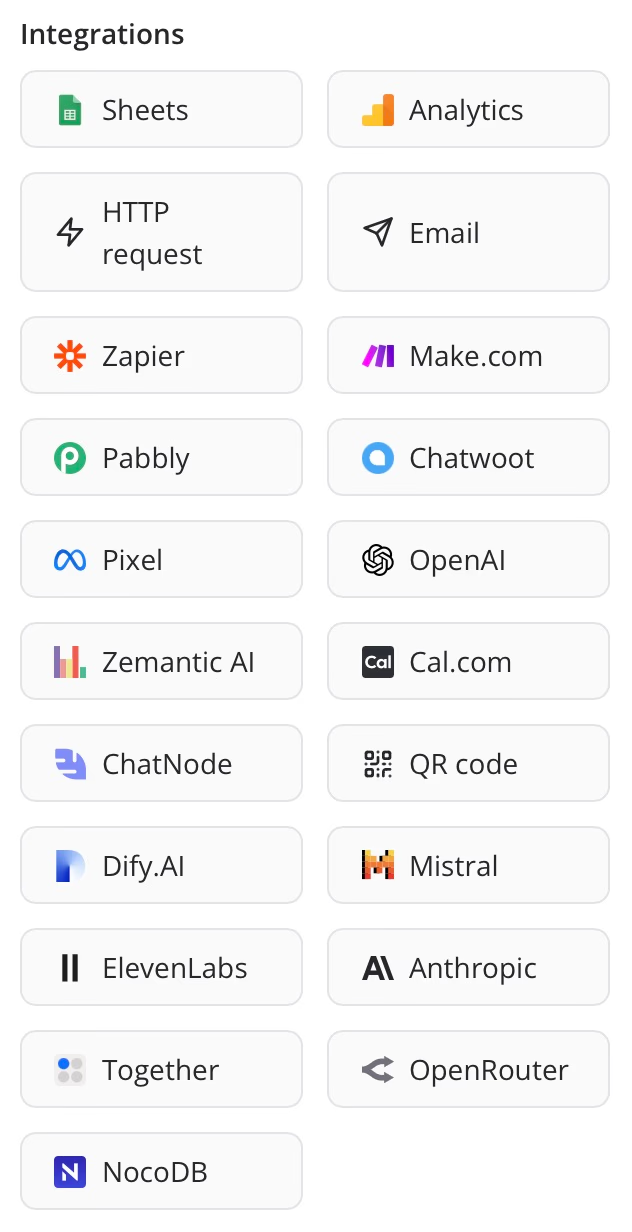
A good platform should easily adapt as your business changes. Strong native integrations help your bot stay flexible and useful as your workflows evolve.
- AI Integration: If you’re working with providers like OpenAI or Mistral, native support lets you drop AI blocks into any flow. Your bot can respond with more context and handle natural language better.
- Data & CRMs: Connecting with Google Sheets or CRM software means every lead or order goes straight into your dashboard. No manual work is needed.
- Webhooks: With HTTP request blocks, your bot can pull in real-time info like inventory or account status. It can also trigger actions in other apps through tools like Zapier or Make.com.
Analytics and performance tracking
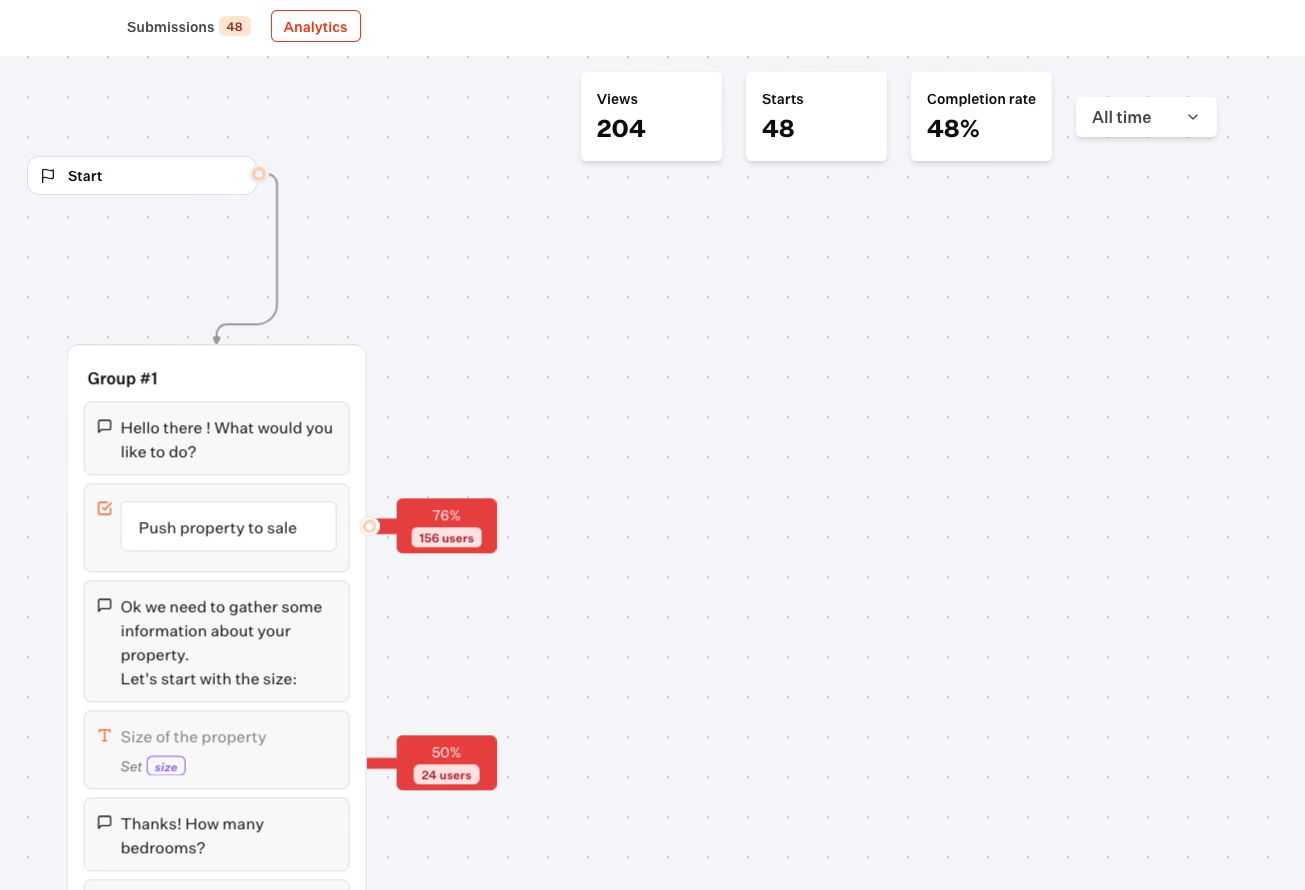
If you want your chatbot to be effective, you’ll need to spot where users lose interest. Typebot includes built-in analytics that track completion rates and session expirations for each bot.
You can export this data as CSV files or sync it with tools like Segment for deeper analysis. Live previews and message logging help marketing or support teams fine-tune chatbot flow and messaging based on actual user behavior, not just gut feeling.
Open-source and self-hosting options
Privacy and controlling long-term costs are big factors for many businesses. With open-source platforms like Typebot, you can run everything on your own infrastructure.
That means you own the conversation logs and user data.
Self-hosting frees you from getting tied to a single vendor and lets advanced teams make tweaks to the code or add custom connectors. It can also help you avoid SaaS price hikes, so costs stay predictable as your bot scales.
WhatsApp chatbot costs: what to expect
Starting July 2025, WhatsApp’s Business API uses a per-message pricing system. You’re billed only when a template message, like Marketing, Utility, or Authentication, is delivered.
Regular service messages sent during a rolling 24-hour window don’t cost anything.
A few things affect your total costs:
- Volume tiers: When you hit certain thresholds for Utility or Authentication messages, volume discounts kick in automatically.
- Market variations: Prices change depending on the recipient’s country, and Meta updates rates every quarter.
- Free windows: If a conversation begins from a Click-to-WhatsApp ad or a call-to-action button on your Facebook Page, you get 72 hours of free messaging.
Current rates are always listed on the official Meta pricing page. You pay these fees directly to Meta or your BSP, separate from anything you pay your chatbot platform.
Start building your WhatsApp chatbot today
Building a WhatsApp chatbot no longer requires a development team or a big budget. With no-code platforms like Typebot, you can design conversation flows, add AI-powered responses, and connect your CRM or calendar in just a few clicks.
Start with Meta's free API tier to test the waters. Then expand your bot as you see real results, whether that means qualifying more leads, cutting support response times, or booking appointments around the clock.
The tools are ready. The only thing left is to build.
Reach your audience where they are. Integrate Typebot with WhatsApp for seamless, personalized communication.
No trial. Generous free plan.