
A customer messages your business at 11 p.m. asking about pricing. By morning, they have already bought from a competitor who replied instantly.
This scenario plays out thousands of times daily. The businesses losing these customers are not slow. They are simply offline. The ones winning have one thing in common: auto-reply systems that respond immediately, set expectations, and keep conversations moving even when no one is available.
This guide walks through every method for setting up WhatsApp auto-replies. You will learn how to configure native greeting and away messages, create quick reply shortcuts, and build advanced chatbot flows that respond intelligently based on what customers actually say.
How to set up auto-reply in WhatsApp Business App
Enable greeting messages for new contacts
If you only need a simple automatic response in WhatsApp, start with the Greeting message feature in the WhatsApp Business App.
It works like a default welcome message. It sends automatically when someone messages you for the first time, or after 14 days of inactivity.
That 14-day detail matters. This is not a message customers will see every time they return. It acts more like a front desk greeting than a full automation flow.
To turn it on:
- Open WhatsApp Business App.
- Tap More options.
- Go to Business tools.
- Tap Greeting message.
- Turn the toggle on.
- Tap Greeting message again to edit the text.
- Choose who should receive it.
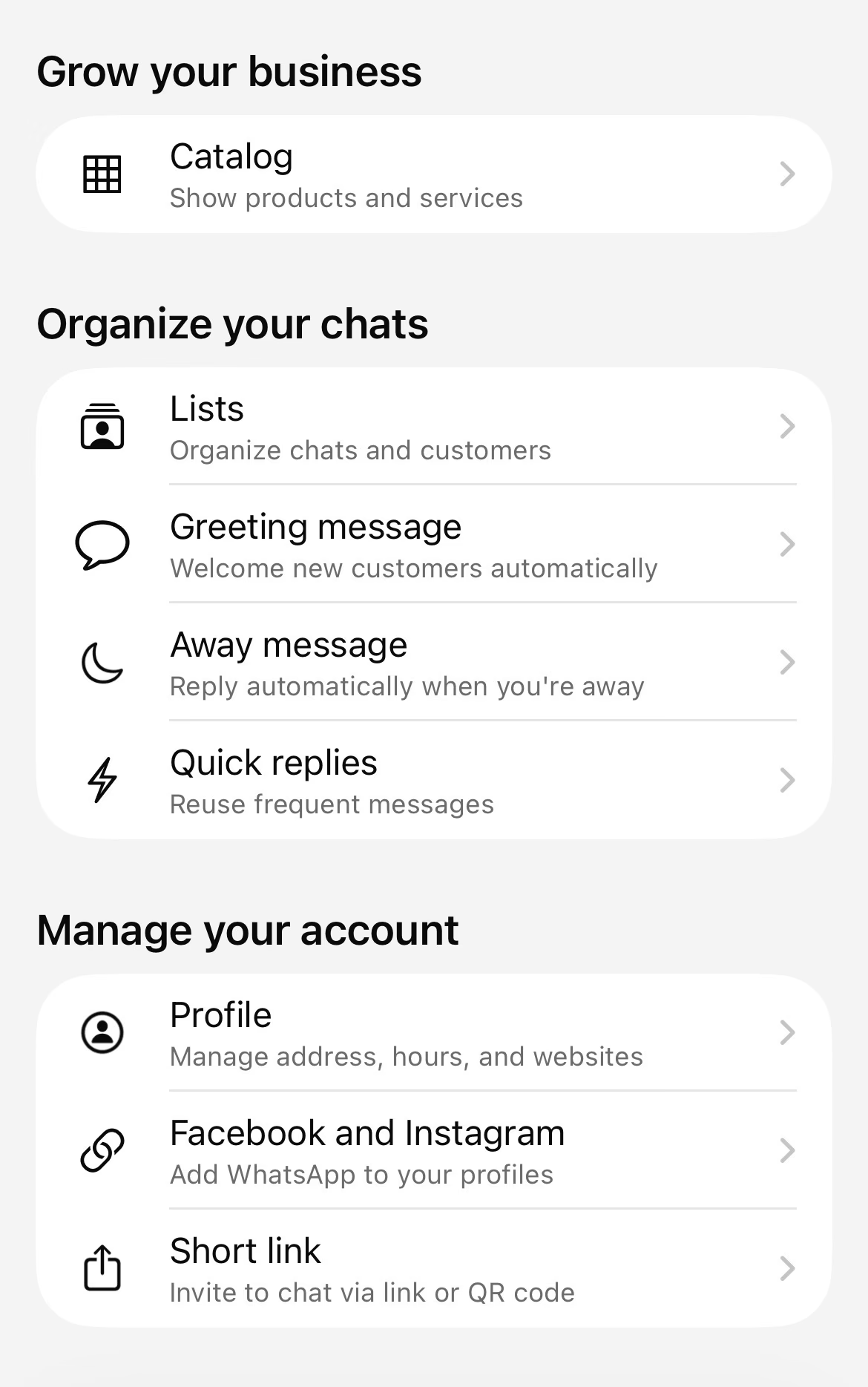
Here is the screen you should expect to see once they reach Business tools:
On the greeting message screen, you can enable the feature, choose recipients, and write the actual message:
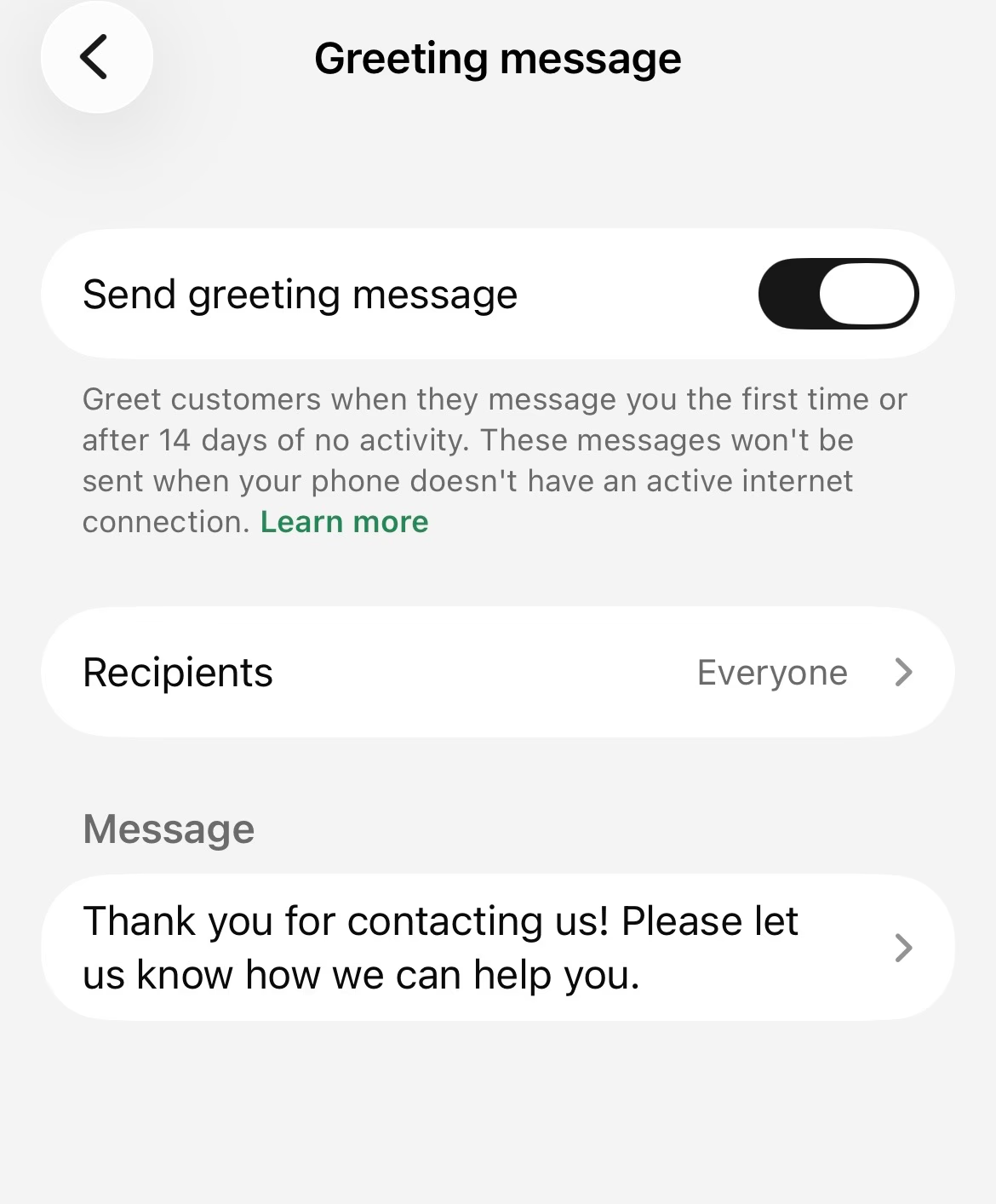
For recipients, WhatsApp Business gives you a few practical choices:
- Everyone
- Everyone not in address book
- Only specific groups
That lets you decide whether the message should greet all inbound contacts or only people who are truly new to your business.
A simple greeting message usually works best. For example:
Hello! Thanks for contacting [Business Name]. How can we help you today?
The goal is to confirm the message was received and make the next step obvious.
Configure away messages for out-of-hours responses
Greeting messages handle the first hello. Away messages handle the moments when you are not available.
This feature sends an automatic response when someone messages you outside your working hours, or whenever you choose to mark yourself as unavailable.
Unlike greeting messages, away messages are not limited to once every 14 days. They send every time a customer messages you during the scheduled away period.
To set up an away message:
- Open WhatsApp Business App.
- Tap More options.
- Go to Business tools.
- Select Away message.
- Turn the toggle on.
- Tap Away message to edit the text.
- Choose your schedule.
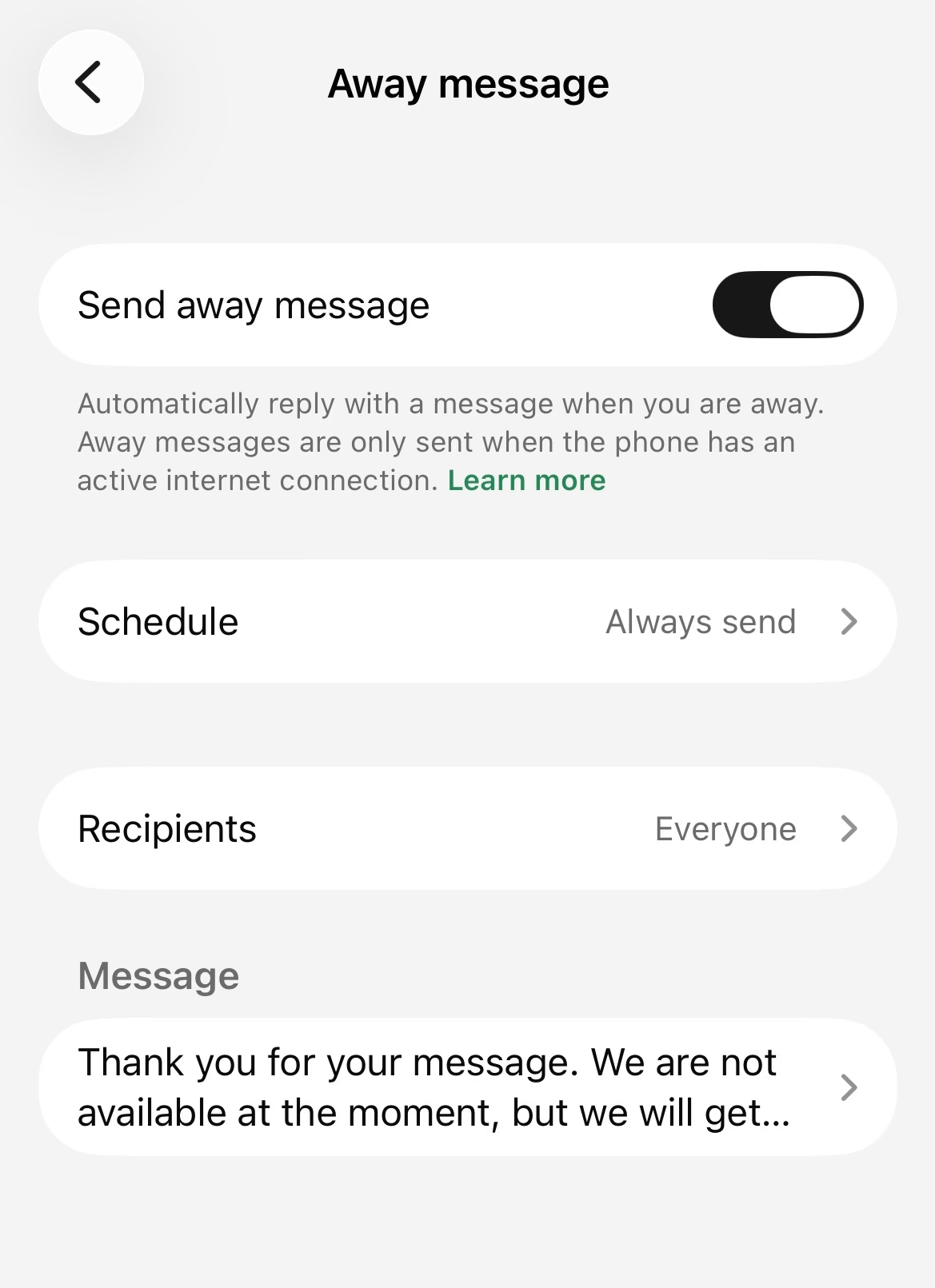
The setup screen looks like this:
A useful away message does three things:
- confirms you received the message
- explains that you are currently unavailable
- tells the customer when to expect a reply
For example:
Thanks for your message! We're currently away but will respond within 24 hours. For urgent matters, call [number].
That expectation-setting matters more than most businesses think. A short, clear delay message reduces uncertainty better than a long apology.
There is also one practical note built into the feature: away messages are only sent when the phone has an active internet connection.
So if auto-replies seem inconsistent, check connectivity before rewriting your setup.
Schedule when your auto-replies are sent
Once your away message is written, the next decision is timing. WhatsApp Business offers three schedule options:
- Always send
- Outside business hours
- Custom schedule
Here is the schedule picker:
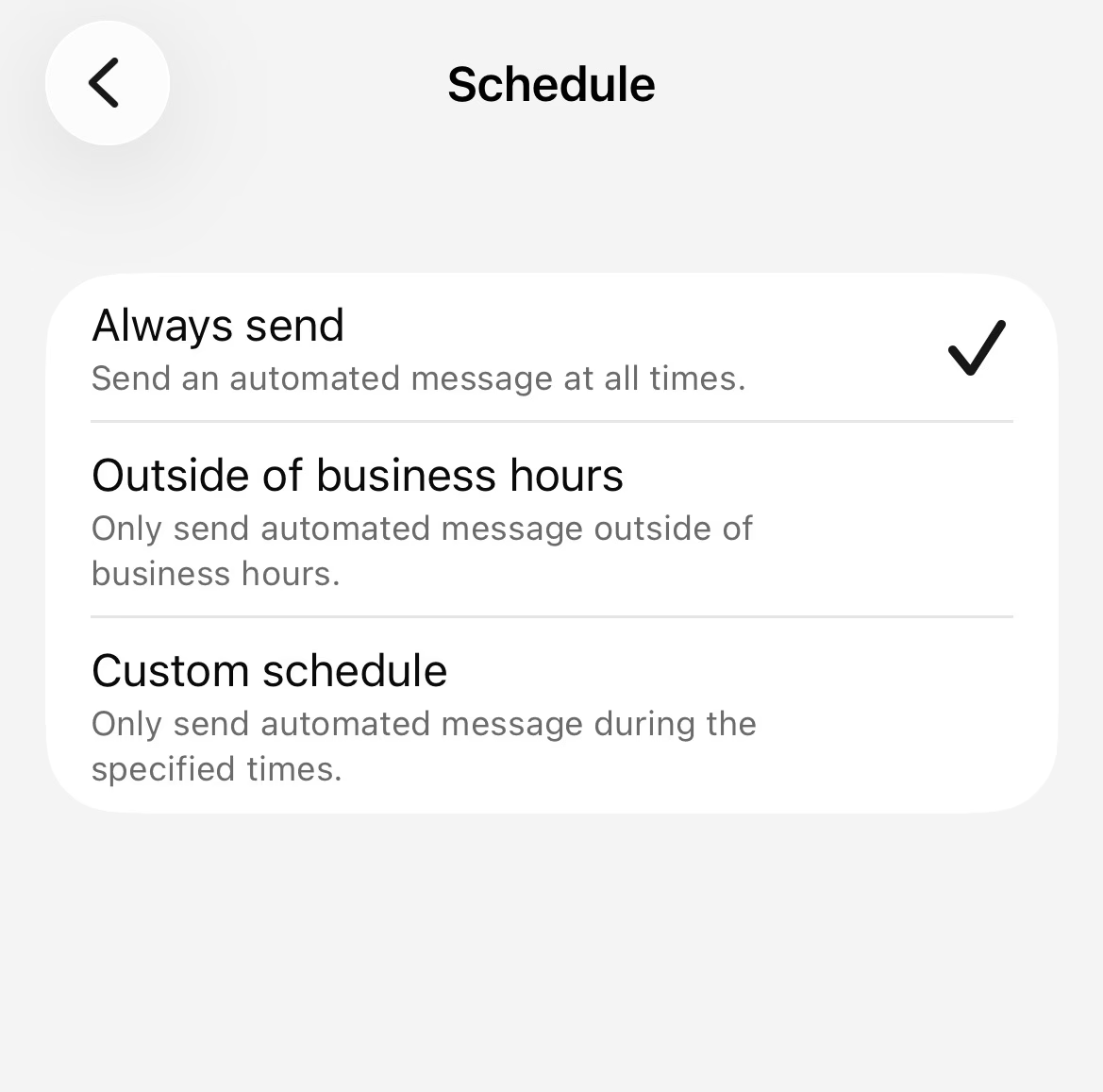
Each option fits a different use case:
| Schedule option | What it does | Best use case |
|---|---|---|
| Always send | Sends the away message at all times | You want every inbound message to get an instant acknowledgment |
| Outside business hours | Sends only when your business is closed | You have defined support or sales hours |
| Custom schedule | Sends only during specific times you set | You need coverage for lunch breaks, weekends, or limited availability |
| If you already keep regular working hours, Outside business hours is usually the cleanest choice. |
If your availability changes during the week, Custom schedule gives you more control without changing the message itself.
One detail is easy to miss: the away message is tied to time windows, not message intent.
In other words, WhatsApp Business can decide when to send the message, but not why. It cannot tell the difference between a pricing question, a support request, or a refund issue. It simply replies because the schedule says it should.
That makes the native setup useful for basic coverage, especially if your main goal is to avoid leaving new messages unanswered. In practical terms, section I comes down to this:
- Use Greeting messages to welcome first-time or inactive contacts.
- Use Away messages to cover hours when you are unavailable.
- Use the schedule settings to control when those automatic replies go out.
After that baseline is in place, the next step is speeding up your manual responses with quick replies.
How to create quick replies for common responses
Quick replies are not automatic replies. They are saved templates you trigger manually inside a chat. If you need an instant response without opening the conversation, use greeting messages or away messages instead.
That said, quick replies help when you send the same answers many times a day—business hours, pricing, delivery times, or onboarding steps.
To create one:
- Open WhatsApp Business App.
- Tap More options (three dots) > Business tools > Quick replies.
- Tap Add (+).
- Enter a shortcut (e.g.,
/hours) and the full message. - Tap SAVE.
To use a quick reply, type / followed by your shortcut in any chat. The saved message appears; tap it to insert and send.
You can save up to 50 quick replies. Keep shortcuts obvious at a glance—/pricing, /hours, /location—so anyone on your team knows what each one sends.
| Feature | How it works | Best use |
|---|---|---|
| Greeting message | Automatic | First message from a new contact or after 14 days of inactivity |
| Away message | Automatic | Responses during scheduled unavailable hours |
| Quick replies | Manual shortcut | Repeated answers sent faster inside active chats |
| If your goal is to reply instantly or route people based on what they ask, quick replies will feel limited. That's usually when businesses start looking beyond native WhatsApp tools. |
WhatsApp auto-reply message examples and templates
Welcome and greeting message samples
A good WhatsApp greeting message should do one job well: confirm that the person reached the right business and invite the next step.
In WhatsApp Business, greeting messages are for new contacts or people who message again after 14 days of inactivity. So this is not the place for a long introduction.
You want something that feels human, but also precise. If the message is too vague, customers still have to guess what to do next. If it is too long, it starts to feel like a wall of text in a chat app built for fast exchanges.
Here are a few simple templates you can adapt:
| Use case | Template |
|---|---|
| General welcome | Hello! Thanks for contacting [Business Name]. How can we help you today? |
| Service business | Hi! Thanks for reaching out to [Business Name]. Tell us what you need help with, and we’ll point you in the right direction. |
| Sales inquiry | Hello! Welcome to [Business Name]. If you’re interested in our products, send us your question and we’ll help you out. |
| Support intake | Hi! Thanks for messaging [Business Name]. Please share your issue, and our team will respond as soon as possible. |
| A practical rule here is to include these three elements: |
- A short welcome
- Your business name
- A clear prompt for the customer’s next message
That last part matters most because it gives the customer an easy first move. “How can we help you today?” works because it opens the conversation naturally.
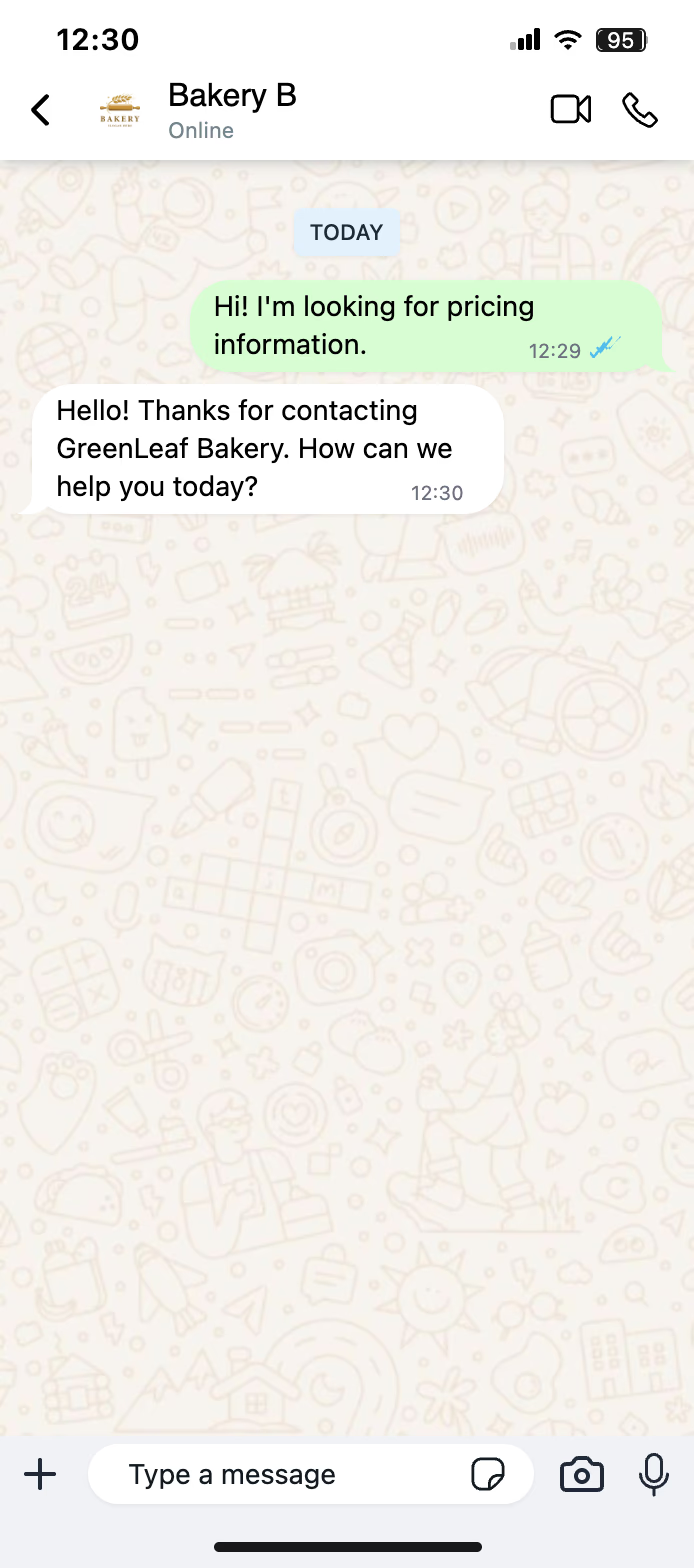
If you already know the kinds of messages you receive most often, shape the greeting to reduce back-and-forth. For example, a freelancer might ask the contact to describe their project. A support team might ask for the issue directly. A local business might ask what product the customer is looking for.
Away and after-hours message templates
Away messages solve a different problem. They are not for first impressions. They set expectations when nobody is available to reply right away.
In WhatsApp Business, away messages can be scheduled to send all the time, outside business hours, or during a custom schedule. Unlike greeting messages, they send every time a customer messages during the scheduled period. That means the wording should stay useful even if someone sees it more than once.
A strong away message usually includes:
- A short acknowledgment
- A clear timing expectation
- An urgent contact option, if relevant
Here are reliable templates:
| Use case | Template |
|---|---|
| Basic after-hours reply | Thanks for your message! We’re currently away but will respond within 24 hours. |
| After-hours with business hours context | Thanks for reaching out. We’re currently outside business hours and will reply when we’re back. |
| Support team | Thanks for your message! Our support team is currently unavailable, but we’ll get back to you within 24 hours. |
| Urgent contact option | Thanks for your message! We’re currently away but will respond within 24 hours. For urgent matters, call [number]. |
| The most common mistake is writing an away message that sounds polite but says nothing. “We’ll respond soon” is weaker than “We’ll respond within 24 hours.” Specificity lowers anxiety and gives customers a clear expectation. |
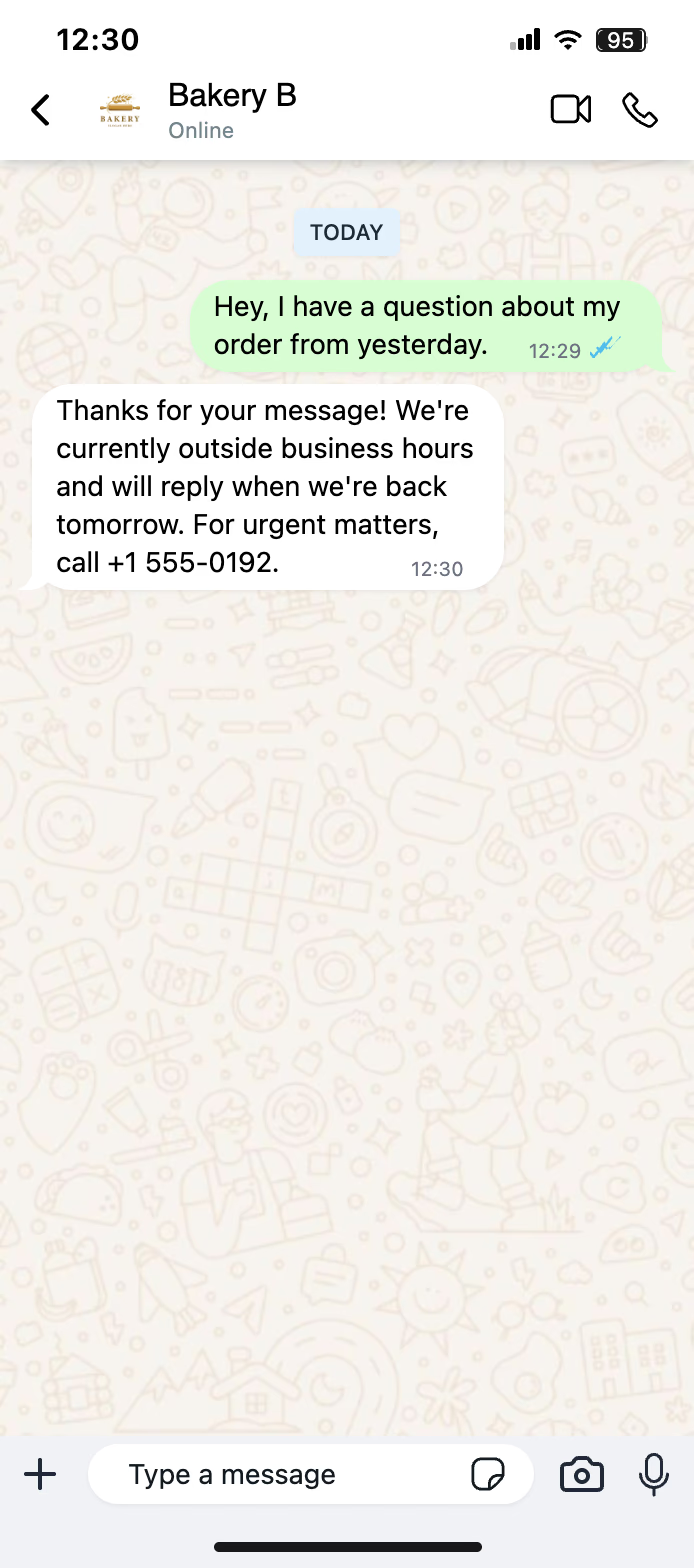
If you use the “outside business hours” setting, match the wording to that context. If you use “always send,” then the message should sound appropriate at any time of day.
Holiday and high volume response examples
There are moments when a standard away message is not enough. Holidays, launches, seasonal spikes, and support backlogs create a different customer expectation. In those cases, the message should explain the delay without becoming defensive.
The key is to say what is happening and what the customer should expect next.
Here are a few templates for those situations:
| Situation | Template |
|---|---|
| Holiday closure | Thanks for your message! We’re currently away and will respond once we’re back. |
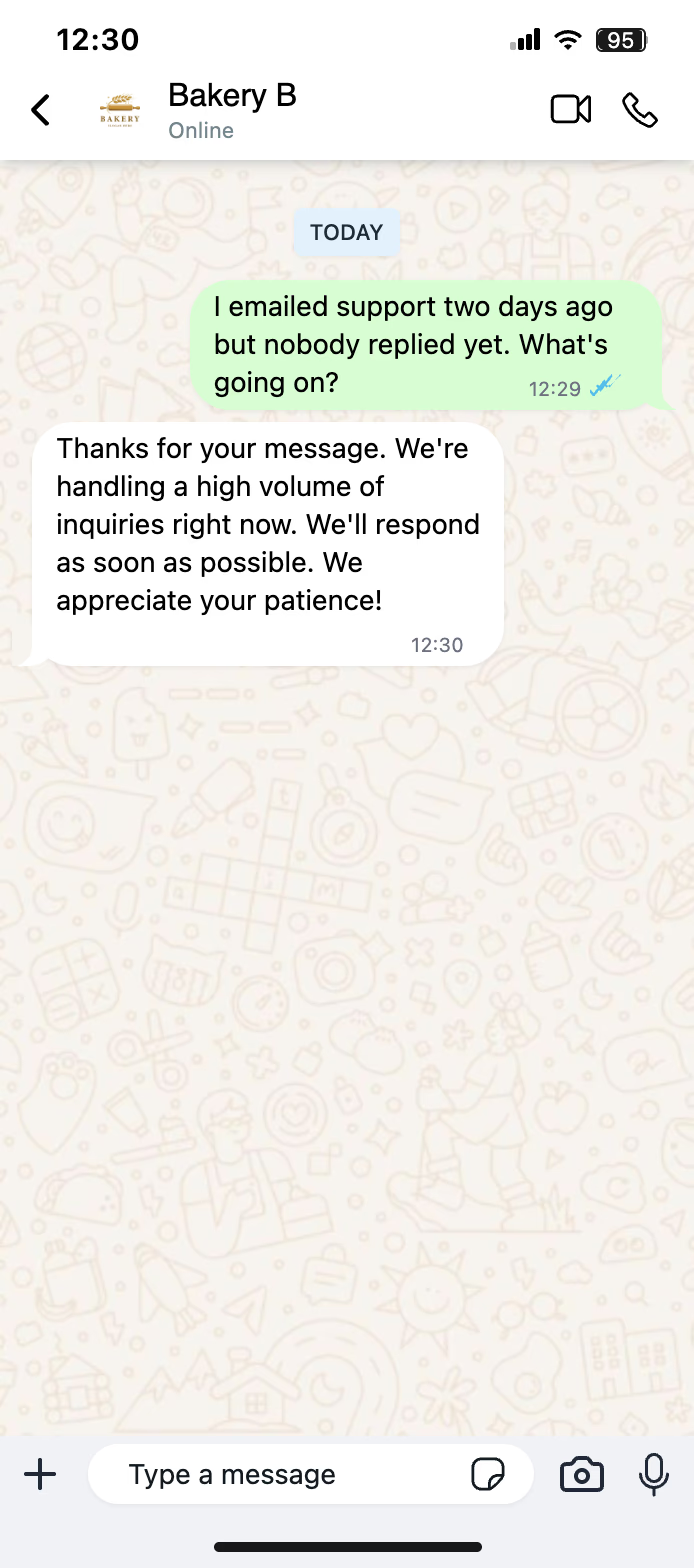
| Seasonal rush | Thanks for reaching out. We’re experiencing a high volume of messages right now, but we’ll reply as soon as possible. |
| Temporary delay | Thanks for your message. Response times are currently longer than usual, and we appreciate your patience. |
| High volume with urgent fallback | Thanks for your message. We’re handling a high volume of inquiries right now. We’ll respond as soon as possible. For urgent matters, call [number]. |
| These messages work best when they stay calm and factual. You do not need to over-explain. In chat, shorter usually feels more trustworthy. |
There is also a subtle difference between a holiday message and a high-volume message:
- A holiday message explains absence
- A high-volume message explains delay
That distinction matters because customers read tone very quickly in WhatsApp. If you are closed, say you are away. If you are open but slow, say response times are longer than usual. Mixing the two can create confusion.
If you want to keep replies consistent across your team, it helps to save these as quick replies too. They will not send automatically, but they make it much easier to respond with the right wording in edge cases that fall outside your normal greeting or away-message setup.
Limitations of native WhatsApp Business auto-reply
The built-in auto-reply tools in the WhatsApp Business App are useful for basic needs, but they have clear boundaries.
No conditional logic or smart routing. You can send greeting messages to new contacts and away messages when unavailable. But you cannot change the reply based on what the person actually says. If one customer asks about pricing and another asks for support, the app cannot detect that intent or send each person down a different path.
Quick replies require manual sending. Quick replies are saved message templates you trigger by typing / followed by a shortcut. You can save up to 50 of them—but someone still has to open the chat, choose the right shortcut, and send manually. There is no automatic trigger based on keywords or customer intent.
| Feature | What it helps with | Where it falls short |
|---|---|---|
| Quick replies | Reusing common responses fast | Must be sent manually |
| Greeting messages | Welcoming new contacts | Only sent once per customer until 14 days of inactivity |
| Away messages | Responding outside business hours | Repeats during the scheduled away period |
| Single device operation only. The WhatsApp Business App is limited to single device use. For a solo founder, that may work. For a support team or sales desk, one person becomes the bottleneck. |
The core limitation is not that native auto-reply does nothing—it handles a few simple things well. The issue is that it stops right before automation becomes operationally useful. No smart routing, no message-based logic, and no hands-free handling of common conversations.
How to set up advanced auto-reply with Typebot chatbot
Build your auto-reply flow visually
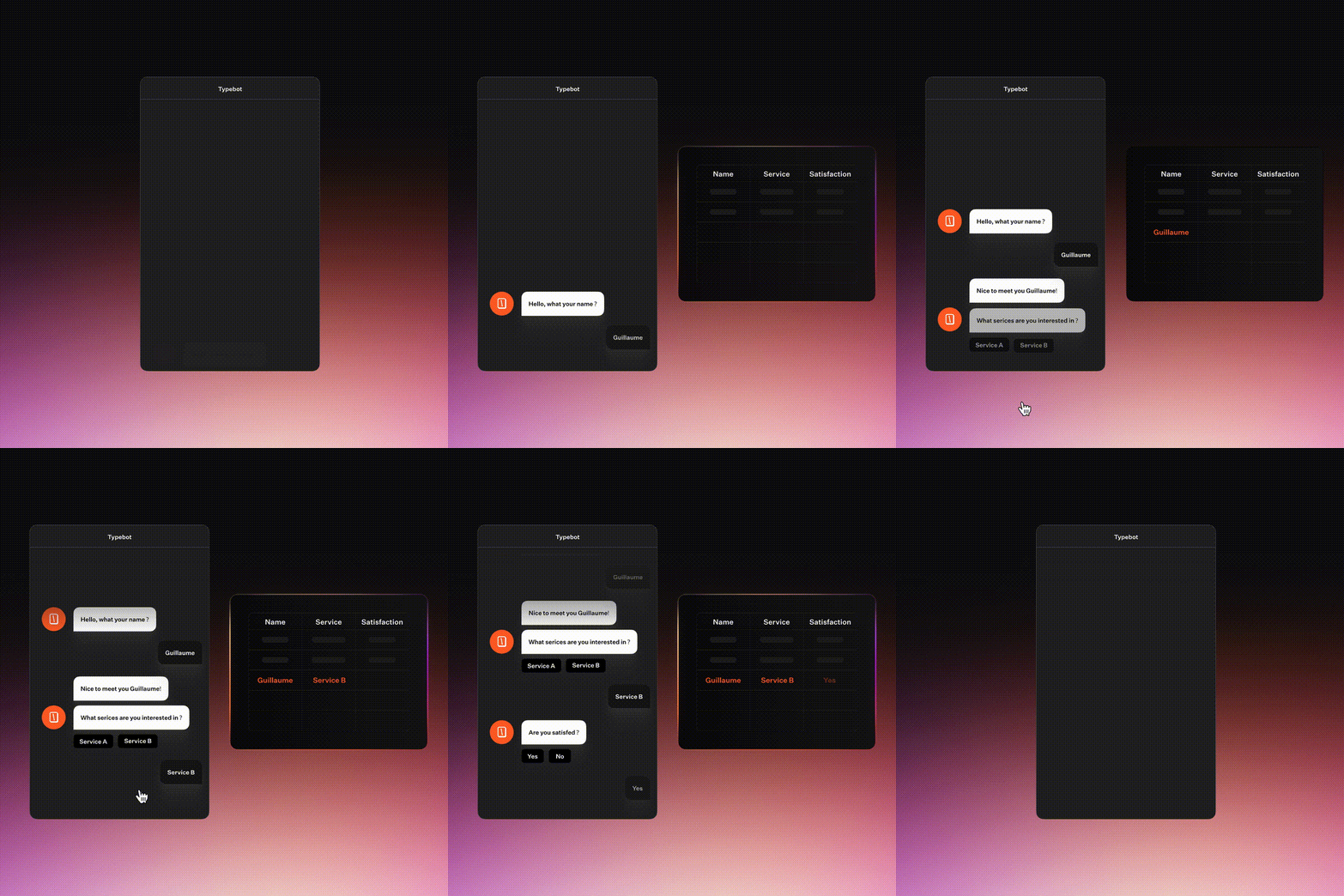
If the WhatsApp Business App feels limiting, the next step is to move from a fixed message to a real conversation flow. Typebot uses a visual flow made of connected groups and blocks, so each user reply can change what happens next.
A practical WhatsApp auto-reply bot usually follows a simple structure:
- Start the conversation.
- Send a welcome message.
- Ask what the person needs.
- Store the answer in variables.
- Branch the flow with conditions.
- Send the right response or hand the conversation off.
In Typebot, that setup starts with a Start event and a few basic blocks:
Textbubbles to send the first messageInputblocks to collect repliesSet variableto store answersConditionto route people to the right branch
For a WhatsApp auto-reply bot, you can build an initial message like this:
Hi {{Contact Name}}! Welcome to [Business]. How can we help you today?
That works well because Typebot exposes WhatsApp contact details, such as the user’s name and phone number. You can use those details to personalize the conversation.
From there, create the first decision point. You have two common options:
- Use a choice-based input for structured routes like “Product inquiry,” “Support question,” or “Speak to a human”
- Use a text input if you want users to type freely and handle that later with AI or additional logic
For example, if someone selects a product question, you can show product information, store their interest in a variable, and send that data to a CRM with an HTTP request. If they choose support, you can reply with an FAQ path or route them toward a human handoff.
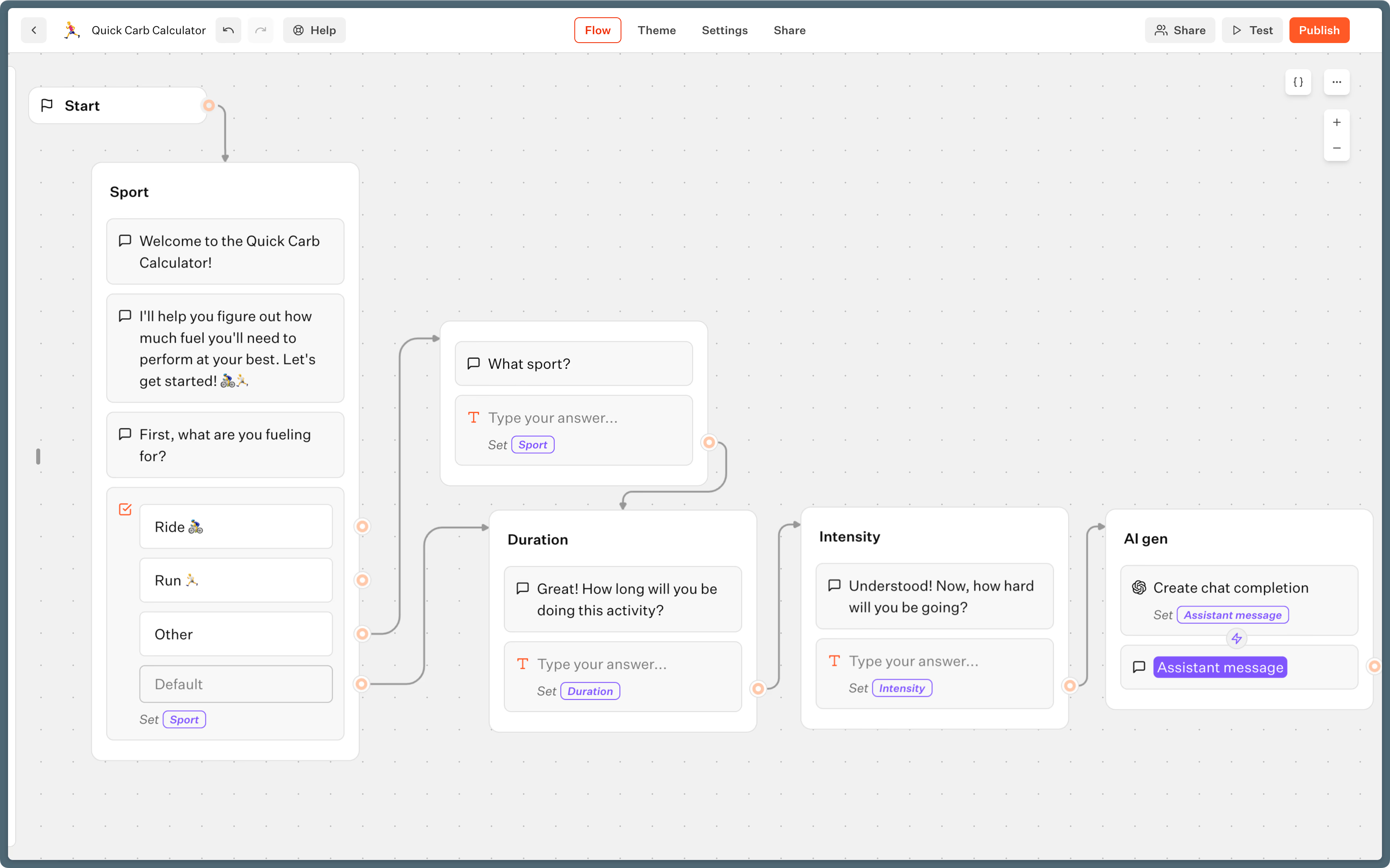
This visual model matters because it keeps the setup understandable. You are drawing the conversation step by step instead of writing code to guess what should happen next.
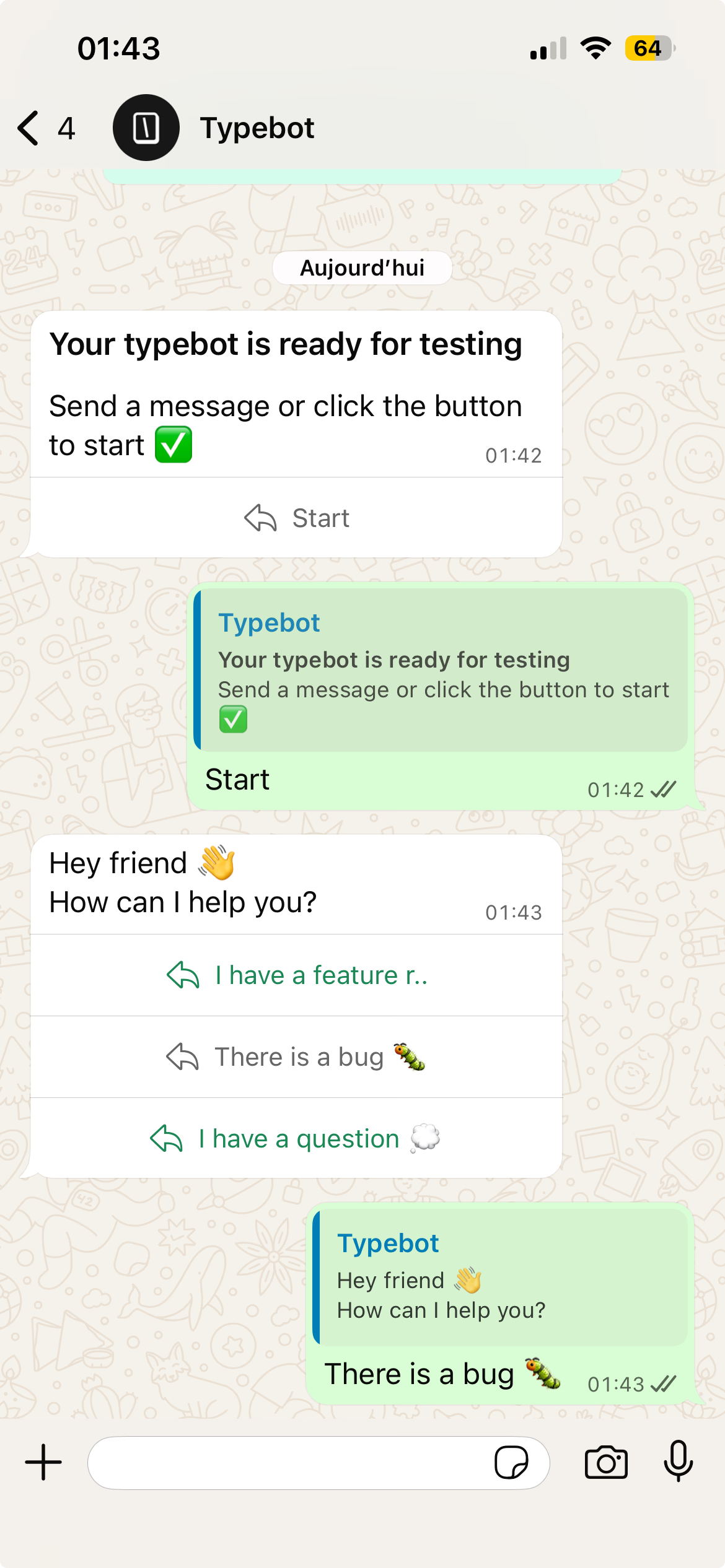
Before moving on, test the logic in the editor. Typebot includes a built-in preview panel. For WhatsApp specifically, click Test and switch the runtime to WhatsApp to see how the conversation behaves in that environment. In that case, you can also test the flow directly on your WhatsApp app or desktop to verify it works as expected.
That brings us to the part most teams actually need once the basic flow works: replies that change based on timing, intent, and context.
Add conditional logic and AI-powered responses
Basic auto-replies are fine when every incoming message deserves the same answer. Most businesses do not work that way. A new lead, an urgent support question, and an after-hours message should not receive identical responses.
This is where Typebot becomes more useful than native WhatsApp auto-replies. You can add Condition blocks to decide what happens based on variable values, previous answers, or runtime context.
One common example is an away message. In Typebot, you can use a variable like Moment of the day and check whether the message arrives during business hours or outside them. If the condition says the user is reaching out after hours, send an away message. If not, continue the regular support or sales flow.
A simple pattern looks like this:
- Set a variable related to time or context.
- Add a
Conditionblock. - Route one path to an in-hours response.
- Route another path to an away message.
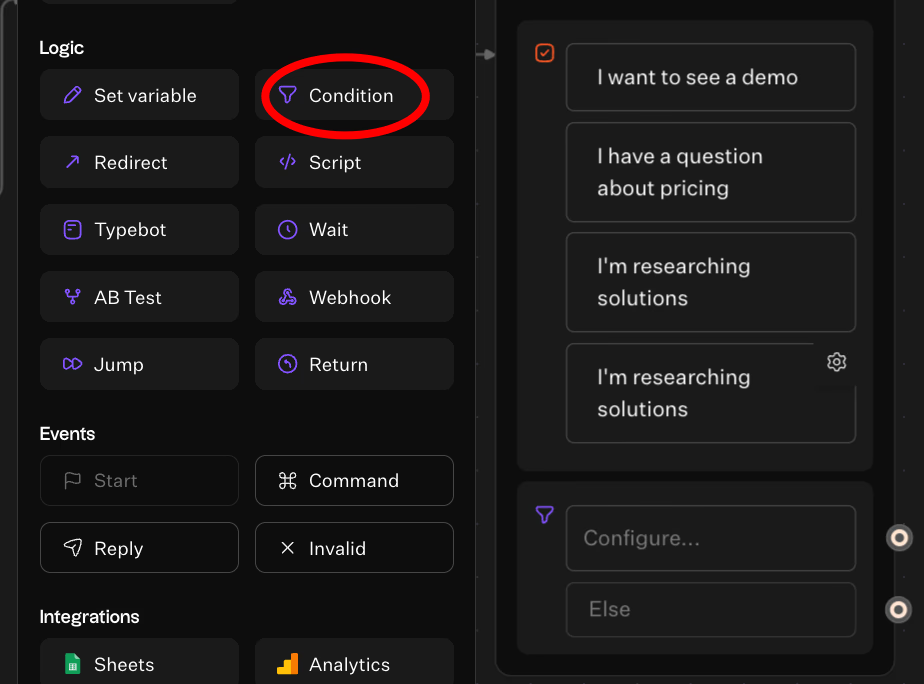
You can also use conditions to control when the bot starts at all. Typebot supports Start Bot Conditions, which are useful if multiple bots share the same WhatsApp number or if you only want the bot to trigger for certain keywords or situations.
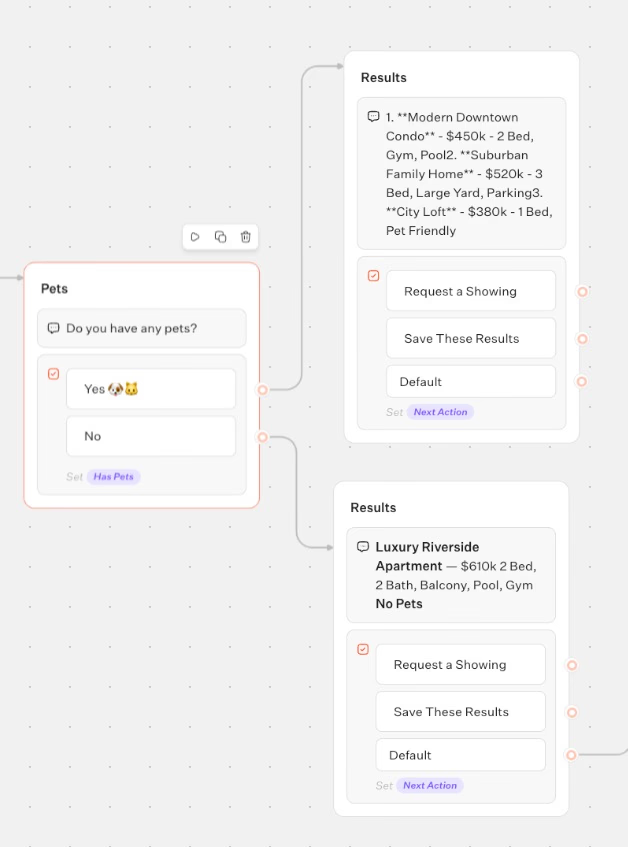
If your users send open-ended questions, you can go further by adding an AI block. Typebot supports LLM integrations including OpenAI, Anthropic, Mistral, Groq, and OpenRouter. A typical AI setup works like this:
- Store the user’s message in a variable such as
Question - Append that message to
Dialogue history - Send the history to an AI block using chat completion
- Map the result into a variable such as
Assistant reply - Display the reply
- Loop back for follow-up questions
→ For advanced automation, explore building a WhatsApp AI agent.
This matters because a WhatsApp conversation is rarely one message long. If you store the thread history in variables, the model can answer follow-up questions with context instead of treating every message like a cold start.
Also keep WhatsApp constraints in mind while designing the flow:- WhatsApp allows only 3 buttons at a time- Bots work in one-on-one conversations, not groups- Some blocks are unsupported in WhatsApp and will be skipped, including Script, Payment, Chatwoot, Google Analytics, Meta Pixel, and Cal.com
So if you are building for WhatsApp, design for that channel first instead of assuming every block from a web bot will behave the same way.
The final step is connection. Once your flow works, it needs to be linked to your WhatsApp Business API so real messages can trigger it.
Reach your audience where they are. Integrate Typebot with WhatsApp for seamless, personalized communication.
No trial. Generous free plan.
Connect Typebot to WhatsApp Business API
The connection between Typebot and WhatsApp runs through Meta’s WhatsApp API. The setup is technical, but the sequence is straightforward when broken into steps.
Before you begin, you need:
- WhatsApp Business API access through Meta
- A Typebot account
- A Meta access token
- Webhook configuration
Here is the setup flow.
- Create a Meta app.
- Enable the WhatsApp product inside that app.
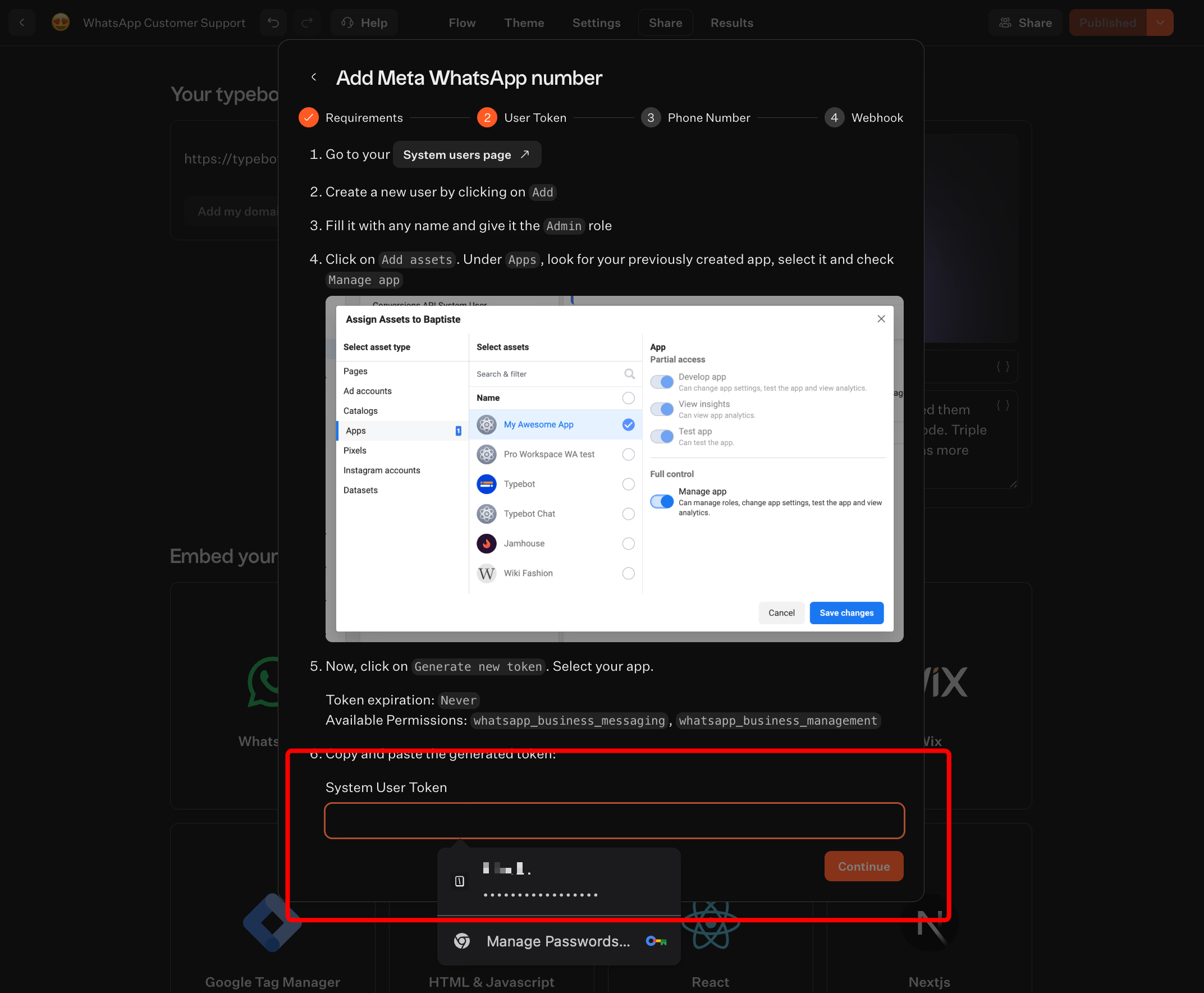
- Generate an access token in Meta Business Settings using a system user with admin role.
- Open your bot in Typebot and go to Settings → WhatsApp.
- Paste the access token into Typebot.
- Copy the Webhook URL and Verify Token generated by Typebot.
- Paste those values into the WhatsApp Developer Console.
- Click Verify.
- Add your phone number in the WhatsApp Developer Console.
Once connected, incoming WhatsApp messages follow this path:
User sends WhatsApp message → Meta WhatsApp API receives it → webhook triggers Typebot → Typebot processes the flow → optional AI or API calls happen → response goes back through WhatsApp API.
After that, configure the behavior that controls re-entry and triggering:
| Setting | What it controls | Why it matters |
|---|---|---|
| Start Bot Conditions | When the bot should trigger | Useful if one number is tied to multiple flows |
| Session Expiration | How long a conversation stays active before resetting | Lets the greeting trigger again after inactivity |
| For example, a 24-hour inactivity timeout can help restart the conversation cleanly, so a new greeting message appears when the user comes back later. |
Now test it live. Do not skip this part.
Use a test phone to send messages to the connected WhatsApp number and check whether:
- the greeting triggers correctly
- after-hours logic sends the away response
- user choices route to the right branch
- AI replies behave as expected
- handoff or escalation paths are clear
Typebot also supports WhatsApp preview mode in the editor, which helps you catch flow issues before you test with a real device.
If you want a simple rule of thumb, it is this: build the logic visually, connect it through Meta, then test every path as if you were a real customer messaging at the worst possible time. That is usually where weak auto-replies show themselves.
Benefits of using a chatbot builder for WhatsApp automation
Smart replies based on message content
The main advantage of a chatbot builder is simple: your WhatsApp replies do not have to be the same for everyone.
In the WhatsApp Business App, the native setup only supports basic greeting and away messages. A chatbot builder changes that by letting each answer shape what happens next.
In Typebot, a bot works as a flow of connected blocks. You can start with a welcome message, collect input, store it in variables, and branch the conversation with conditions.
That matters in real support and lead generation scenarios. A customer asking about pricing should not get the same reply as someone who needs technical help.
With Typebot, you can:
- show a greeting message first,
- ask what the user needs,
- route them to different replies with a
Conditionblock, - store their response in variables,
- continue the conversation based on that context.
If you want more flexibility, you can also move beyond button-based choices. Typebot supports text inputs and AI blocks, so a user can write an open-ended message and still get a relevant response.
The flow can capture the incoming message, pass it to an AI model, map the result back into a variable, and display the reply in the conversation.
That makes auto-reply feel less like an autoresponder and more like a guided conversation.
A practical example looks like this:
| Incoming message | What the bot can do |
|---|---|
| “I want to know your pricing” | Route to product information and store interest in a variable |
| “I need help with my account” | Send FAQ-style support content or use AI to answer |
| “Can I talk to someone?” | Trigger a human handoff path |
| Typebot also includes WhatsApp-specific variables such as the user’s contact name and phone number. That lets the bot personalize replies without asking for the same details again. |
There is also a strategic benefit here. You can design one clean conversational path instead of stacking disconnected canned messages. The result is easier for users to follow and easier for teams to maintain.
CRM and external tool integrations
A useful auto-reply does more than send a message back. It should also move the conversation somewhere useful.
This is where a chatbot builder becomes operational, not just conversational. Typebot can connect WhatsApp flows to external tools through integrations, HTTP requests, webhooks, and automation platforms.
So when someone messages your business, the bot can do more than answer. It can capture data, pass it to another system, and keep the process moving.
Available integrations include:
- Google Sheets, Airtable, and NocoDB for data storage
- Zapier and Make for workflow automation
- Zendesk, Blink, Pabbly, and Chatwoot for support-related workflows
- Segment, Google Analytics, Meta Pixel, and PostHog for tracking
- OpenAI, Anthropic, Mistral AI, Groq, OpenRouter, and Dify.ai for AI responses
- HTTP calls to connect with virtually any API
For a WhatsApp automation flow, that opens up practical use cases such as:
- sending a new lead to a CRM after qualification,
- logging support requests into a shared system,
- storing contact details in Google Sheets,
- triggering a follow-up workflow in Zapier or Make,
- enriching the conversation with data pulled from an external API.
Analytics and performance tracking
If you cannot see where conversations break, you cannot improve them.
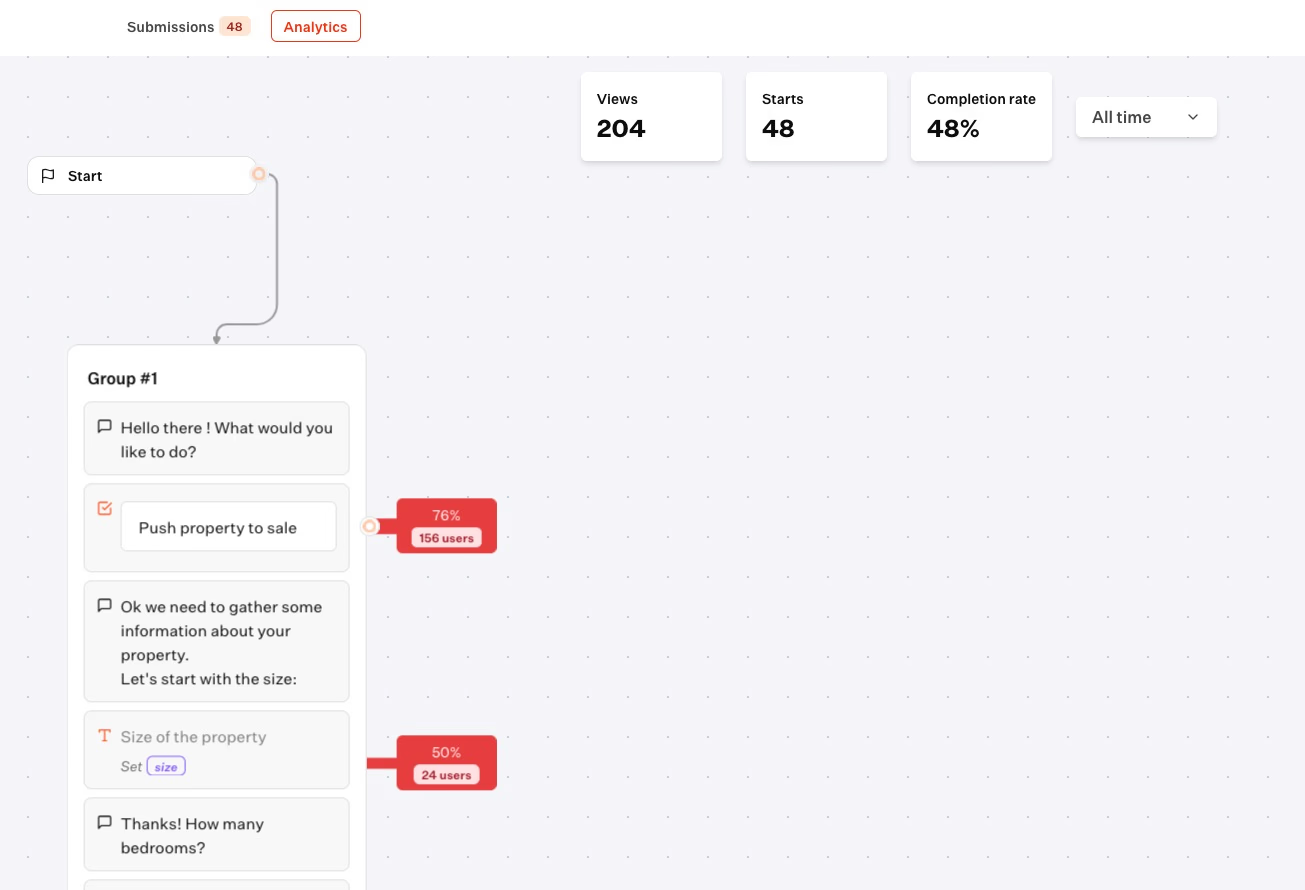
This is another major benefit of using a chatbot builder for WhatsApp automation. Typebot provides built-in analytics, including drop-off rates and completion rates, and also lets you export data to CSV for deeper analysis.
Want to learn more about choosing the right tool for your WhatsApp automation strategy? Check out our guide on the best WhatsApp automation tools to compare features and find the right fit for your business needs.
If you need broader tracking, it can connect to tools like Segment.
That gives you a much clearer view of performance than a simple “message sent” mindset.
With analytics in place, you can answer practical questions such as:
- Do users stop after the first greeting?
- Which branch gets selected most often?
- Are people asking for human help at a specific point?
- Does one version of a welcome message perform better than another?
- Are users completing your lead capture or dropping before the last step?
Typebot even includes an AB Test block, which can split users between two paths. That makes it possible to compare different welcome messages, CTAs, or routing approaches inside the conversation flow.
Best practices for effective WhatsApp auto-replies
Keep messages short and set clear expectations
An auto-reply should feel like a text message, not a canned email. On WhatsApp, people expect speed and clarity, so the best replies are usually 1 to 3 sentences. Put the most important detail first: confirm you received the message, explain what happens next, and give a realistic response window.
A good message removes uncertainty. If someone writes at 8:30 p.m. and your team only works until 6 p.m., say that directly. If support usually replies within two hours, include that. The more specific you are, the less likely customers are to send repeated follow-ups.
For example, a strong auto-reply might say: “Hi! We received your message. Our team responds within 2 hours. For urgent issues, reply URGENT.” It is short, useful, and action-oriented.
When possible, add light personalization. If your setup can use a customer name or detect the type of request, that small detail makes the interaction feel less robotic. Time-based variations can also help. A morning greeting and an after-hours message should not sound the same because the customer’s context is different.
The practical rule is simple: every sentence in your auto-reply should answer one of these questions:
- Did you get my message?
- When will someone reply?
- What should I do if this is urgent?
If a sentence does not help answer one of these questions, it probably does not need to be there.
Always provide a path to reach a human
Automation works best when it does not trap people. Even a well-written auto-reply cannot handle every situation, and customers become frustrated quickly if they feel stuck inside a scripted flow.
That is why every auto-reply system should include a clear escalation path. Give users an obvious way to ask for a real person, using simple keywords such as “HUMAN,” “AGENT,” or “HELP.” Just as important, tell them what to expect after that request. If the average human response time is 10 minutes, say so. If they will be contacted the next business day, say that instead.
Make every WhatsApp message count
WhatsApp auto-replies are not just a convenience feature. They are the difference between capturing a lead and losing one to silence.
For basic needs, the WhatsApp Business App gives you greeting messages, away messages, and quick replies. These work well for acknowledging new contacts and managing after-hours expectations. But they stop there. No smart routing. No conditional logic. No ability to handle different questions differently.
When you need more, a chatbot builder like Typebot lets you create flows that respond based on what customers actually say. You can personalize messages, route conversations, integrate with your CRM, and track performance across every interaction.
Start with the native tools if you are just getting started. Move to a visual chatbot builder when you need replies that think, not just respond. Either way, the goal stays the same: make sure no customer message goes unanswered.
!
FAQ
Can you set auto-reply in WhatsApp without a business account?
Not with WhatsApp’s built-in auto-reply features.
The native auto-reply tools are only available in the WhatsApp Business App, not the regular WhatsApp app. That includes:
- Greeting messages for new contacts
- Away messages for out-of-hours replies
- Quick replies for saved message templates
If you want a built-in auto-reply, you need the WhatsApp Business App.
If you need more than a basic greeting or away notice, you have two broader options:
| Need | Best fit |
|---|---|
| Basic greeting or away messages | WhatsApp Business App |
| True chatbot-style auto-reply | Typebot or a similar third-party tool |
| Enterprise-scale messaging | WhatsApp Business API via BSP |
| The simple answer is this, no business account means no native WhatsApp auto-reply settings. If you use regular WhatsApp, those controls are not available. |
How to set up quick replies on WhatsApp?
Quick replies are set up in the WhatsApp Business App. They work like message snippets you can reuse with a shortcut. They save time, but they are not automatic. You still send them manually.
Here’s the setup process:
- Open WhatsApp Business App.
- Tap More options (three dots), then Business tools.
- Select Quick replies.
- Tap Add (
+icon). - Enter two things:
- a shortcut, such as
opening_hours - the full message, such as your support hours or return policy
- Add optional media if needed.
- Tap SAVE.
To use a saved quick reply in a chat:
- Tap the message field.
- Type
/followed by your shortcut, like/opening_hours. - Tap the saved reply and send it.
You can save up to 50 quick replies in WhatsApp Business.
This helps with repeated answers like pricing, hours, delivery timelines, or onboarding steps. Quick replies do not trigger on their own. If you need replies that react automatically to what a customer says, you need a chatbot flow with a custom knowledge base instead of shortcuts.
What is the difference between greeting and away messages?
The difference comes down to when they trigger and how often they send.
Here’s the clearest way to think about it:
| Feature | When it sends | How often it sends |
|---|---|---|
| Greeting message | When a customer messages you for the first time, or after 14 days of inactivity | Once per customer until 14 days of inactivity pass |
| Away message | When someone messages you during your scheduled away period | Every time they message during that scheduled time |
| A greeting message is your front door. It welcomes a new contact and confirms that the message was received. |
An away message is your out-of-office sign. It tells people you’re unavailable and sets expectations for when they’ll hear back.
That difference matters in practice. If someone writes to you three times at 10 p.m., the away message can send each time during that schedule. A greeting message will not repeat unless that 14-day inactivity window has passed.
So if you are choosing between the two:
- Use greeting messages to welcome new conversations.
- Use away messages to manage after-hours expectations.
If you need both, set both. They solve different moments in the customer journey.
How many quick replies can you save in WhatsApp Business?
You can save up to 50 quick replies in WhatsApp Business.
That limit is usually enough for a small support or sales setup, especially if you create shortcuts for the questions you answer every day, such as:
- business hours
- pricing basics
- onboarding instructions
- shipping timelines
- refund policy
- support escalation steps
But the limit matters once your team needs more coverage. Quick replies also have a second limit, they require manual sending and cannot branch based on what the customer says.
So while 50 saved replies can speed up repetitive work, they do not behave like a full automation system. If you need logic, routing, AI handling, or integrations, the better fit is a WhatsApp chatbot connected through the API, such as a flow built in Typebot.