WhatsApp Automation Chatbot: How to Build One Without Coding in 2026
Your customers already have WhatsApp open. They check it within five minutes of receiving a message. Email sits unread for hours. Forms go abandoned. Calls go unanswered.
Yet most businesses are still routing customer questions through a contact form and a 24-hour reply window — while 2 billion people are waiting on an app they never close.
A WhatsApp automation chatbot changes that equation entirely. It qualifies leads at midnight. It recovers abandoned carts before a customer finds a competitor. It books appointments, answers support questions, and sends order updates — all without a single human lifting a finger.
This guide covers exactly how it works, which use cases drive real results, how to build one without writing a line of code, and what to watch out for before you go live.
What is a WhatsApp automation chatbot and how does it work
Types of WhatsApp chatbots: rule-based, intent-based, and AI-powered
A WhatsApp chatbot is a conversational assistant that interacts with customers on WhatsApp. It handles tasks like collecting information, answering FAQs, booking appointments, sending updates, and qualifying leads, often with little or no human intervention.
You’ll usually see three kinds of WhatsApp chatbots:
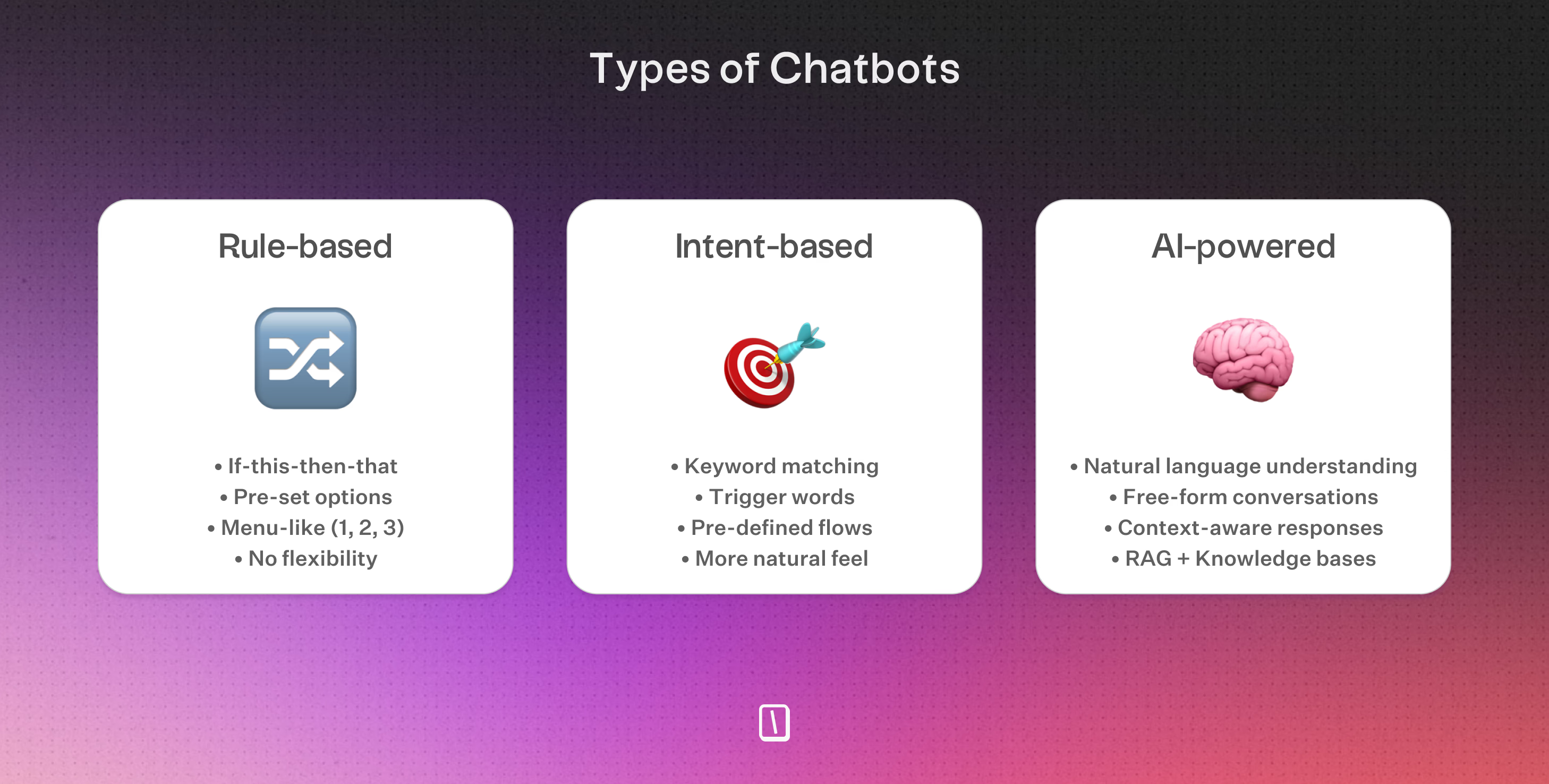
- Rule-based chatbots follow fixed paths. For example, if a user taps “Book appointment,” the bot asks for the date and time. These bots only recognize the options their creator sets.
- Intent-based chatbots go beyond button taps. They analyze what users type, such as “I want to check my order status,” and identify the user’s intent, usually by scanning for keywords or using basic machine learning.
- AI-powered chatbots use advanced language models, such as OpenAI or Anthropic, or RAG. These bots handle open-ended questions and generate tailored answers, even when they have not been programmed for a specific question.
For example, if a customer asks, “Can you explain your return policy in detail?” the AI checks your connected information and responds with something relevant.
This setup keeps conversations quick and interactive. WhatsApp bots can reach up to 98% open rates, and businesses can handle thousands of conversations every month without adding staff.
WhatsApp Automation Chatbot Use Cases That Drive Results
Lead generation and qualification on autopilot
WhatsApp automation chatbots capture leads around the clock. Instead of waiting for users to fill out a form and check email, these bots start a conversation right away, even at midnight.
That instant engagement can raise conversion rates to 45% to 60%. By asking focused questions about budget, needs, or timeline, the bot sorts leads by priority.
The best prospects go straight to your sales reps or CRM. The rest get filtered out, so fewer strong opportunities slip through. This is one reason businesses generates more leads from WhatsApp chatbots than from traditional methods.
Contacting prospects when interest peaks matters. WhatsApp has a 98% open rate, and most users check messages within five minutes. That keeps conversations moving faster than email or web forms.
Want to find out which chatbot tools work best for capturing and qualifying leads? Check out this guide on the best chatbots for lead generation.
Customer support automation with human handoff
A WhatsApp chatbot handles repetitive support questions that fill inboxes, including returns, shipping, troubleshooting, and account info.
Bots cut response times sharply, about 225% faster than email or web chat. They also keep support available after hours, which matches what customers expect when they want answers now.
For more complex questions, the chatbot hands the conversation to a human agent. Customers get fast answers to routine issues, and staff handle the harder ones.
That hybrid approach can reduce support tickets by 40% to 70%. It also keeps satisfaction high.
Ecommerce: Abandoned cart recovery and order updates
Ecommerce companies see strong results here. WhatsApp automation can recover up to 60% of abandoned carts. Personalized nudges, sent at the right moment, bring customers back and can raise sales by about 27%.
It also does more than send reminders. Chatbots on WhatsApp can send:
- Shipping updates
- Payment notifications
- Order confirmations
- Personalized product suggestions
Customers can ask about deliveries or request changes right in WhatsApp. That keeps the process simple and in one place.
Appointment booking and reminders
If your business depends on appointments, such as a clinic, salon, or service provider, a WhatsApp bot lets clients book, reschedule, or cancel on their own at any time.
Bookings connect directly to your calendar, which saves time for everyone. Automated confirmations and reminders help reduce no-shows and last-minute cancellations.
Your team spends less time on phone calls and more time serving clients.
Across all these use cases, WhatsApp chatbots make a clear impact by speeding up replies, improving conversions, and streamlining operations. The key is simple design: keep flows quick and clear, offer no more than three choices per message, and always give users a way to reach a human when needed. That keeps automation helpful, not cold.
How to Build a WhatsApp Automation Chatbot Step by Step Using Typebot
Connect WhatsApp to Typebot via Meta
To build a WhatsApp automation chatbot, you need access to the WhatsApp Business API, not just the standard WhatsApp Business App. The API lets you automate complex interactions and connect Typebot to WhatsApp.
Here's how to set everything up:
Step 1: Create a Meta Business account
Go to business.facebook.com and create your business account. Verify your company if you haven't already.
Step 2: Create a Meta app for WhatsApp
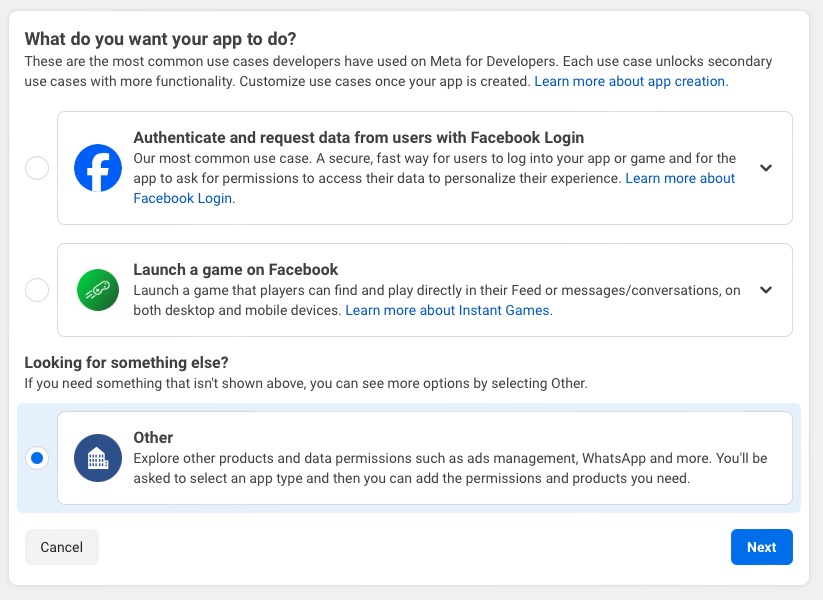
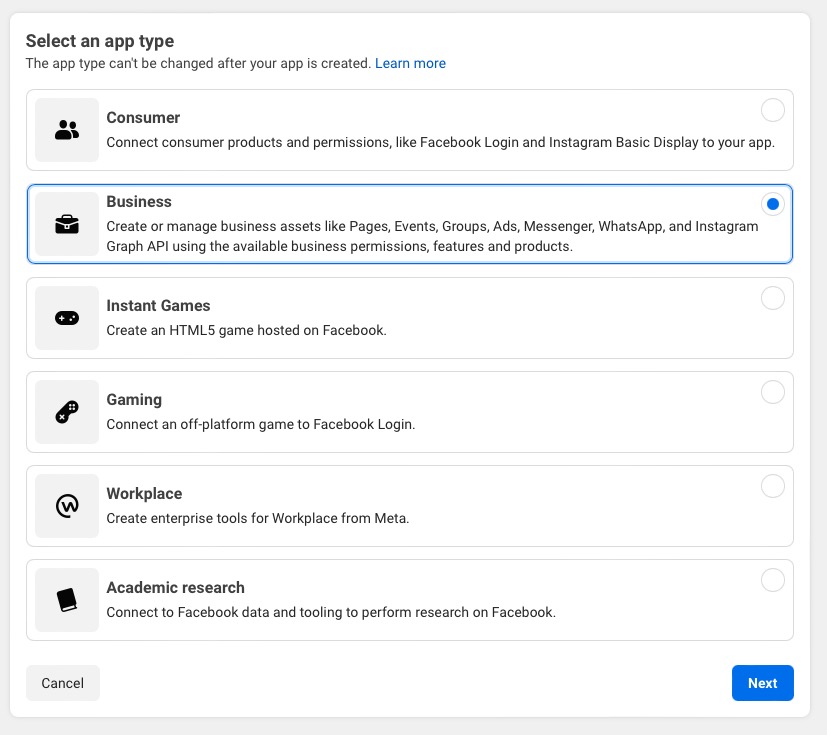
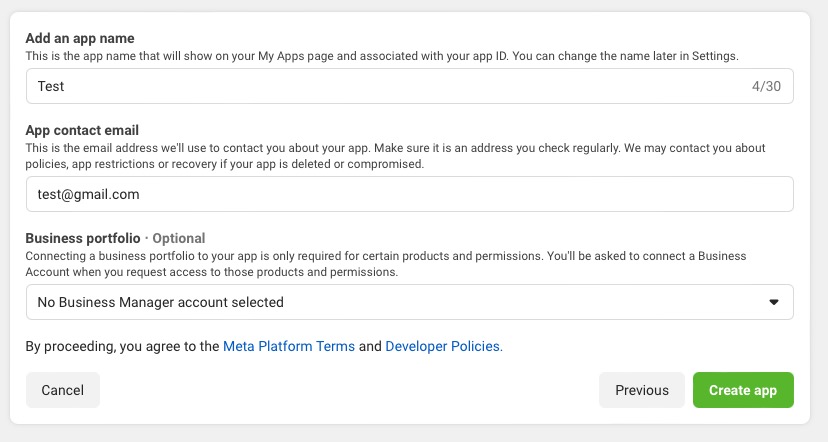
- Head to developers.facebook.com/apps and click Create App
- Select Other for the use case
- Select Business as the app type
- Fill in your app name and contact email
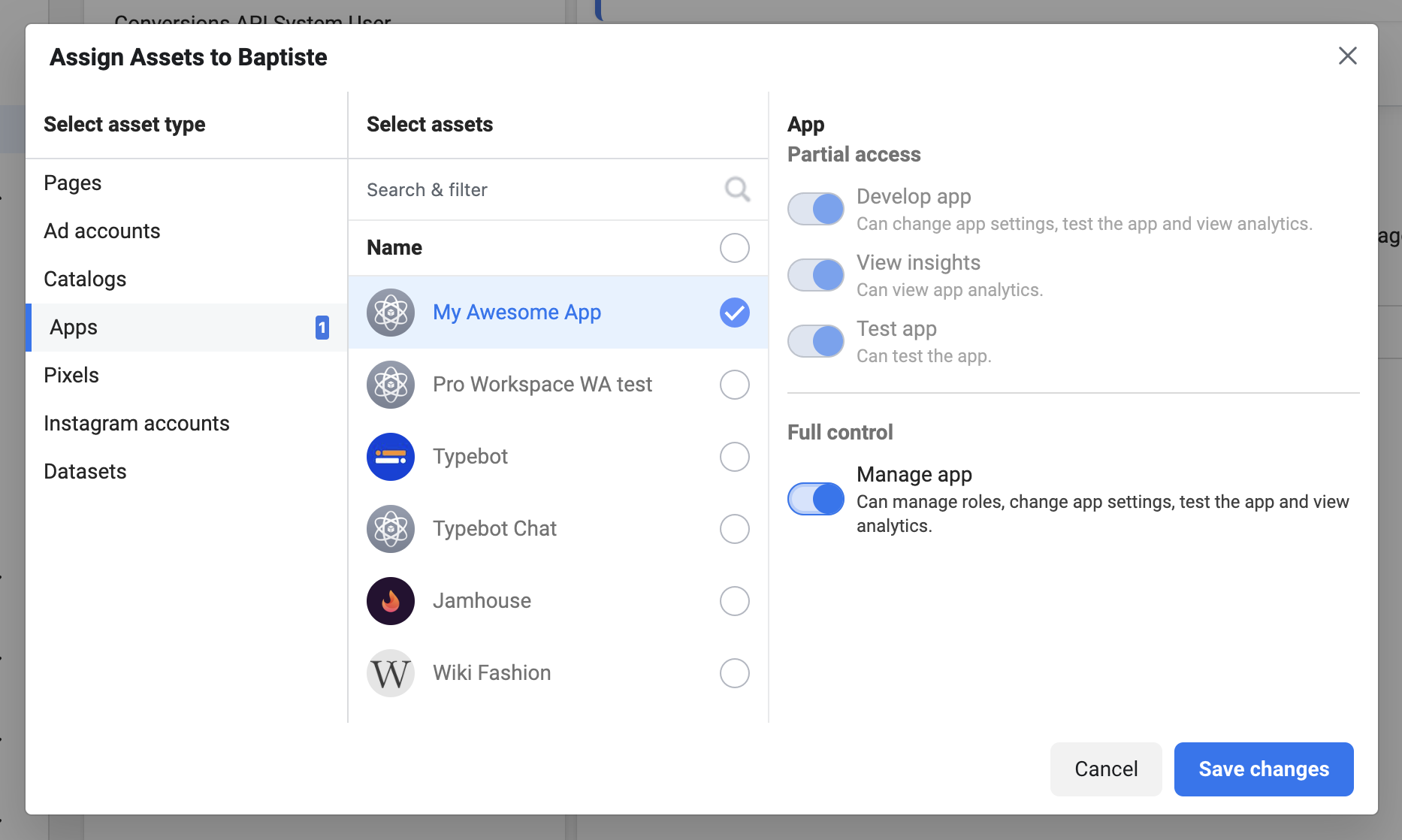
Step 3: Enable WhatsApp and generate an access token
- In your Meta app dashboard, find WhatsApp in the product list and click Set Up
- Go to Meta Business Settings → System Users
- Create a new system user and assign them as admin
- Link your app to this system user
- Generate a permanent access token and copy it somewhere safe
Step 4: Register your phone number
In the WhatsApp Developer Console, register the phone number your bot will use. This number cannot be connected to a personal WhatsApp account.
Step 5: Connect Typebot to WhatsApp
- In Typebot, go to your bot's Share settings and select WhatsApp
- Paste your access token from Meta
- Copy the webhook URL and verification token that Typebot generates
- Back in the WhatsApp Developer Console, add these under your app's webhook settings
- Click Verify to confirm the connection
- Select which phone number to use and set your trigger rules (keywords that start the bot)
Once verified, your WhatsApp messages will flow in and out of Typebot automatically.
Design automated conversation flows with the visual builder
This is where your WhatsApp automation comes to life. Instead of writing code, you'll drag blocks onto a canvas and connect them to create workflows that run without manual intervention.
The key to automation is combining triggers, conditions, and actions that handle conversations from start to finish. Here's how to build an automated lead qualification flow:
- Start block with keyword triggers: Set trigger keywords like "info" or "pricing." When someone messages your WhatsApp number with these words, the bot activates automatically—no human needed to route the conversation.
- Set Variable block: Capture the environment (
weborwhatsapp) and moment of the day (morning,afternoon,evening) to personalize the greeting automatically. - Text bubble with dynamic content: Greet users using their WhatsApp contact name (available as a system variable)—"Hey {{Contact name}}! I'm here to help you find the right plan."
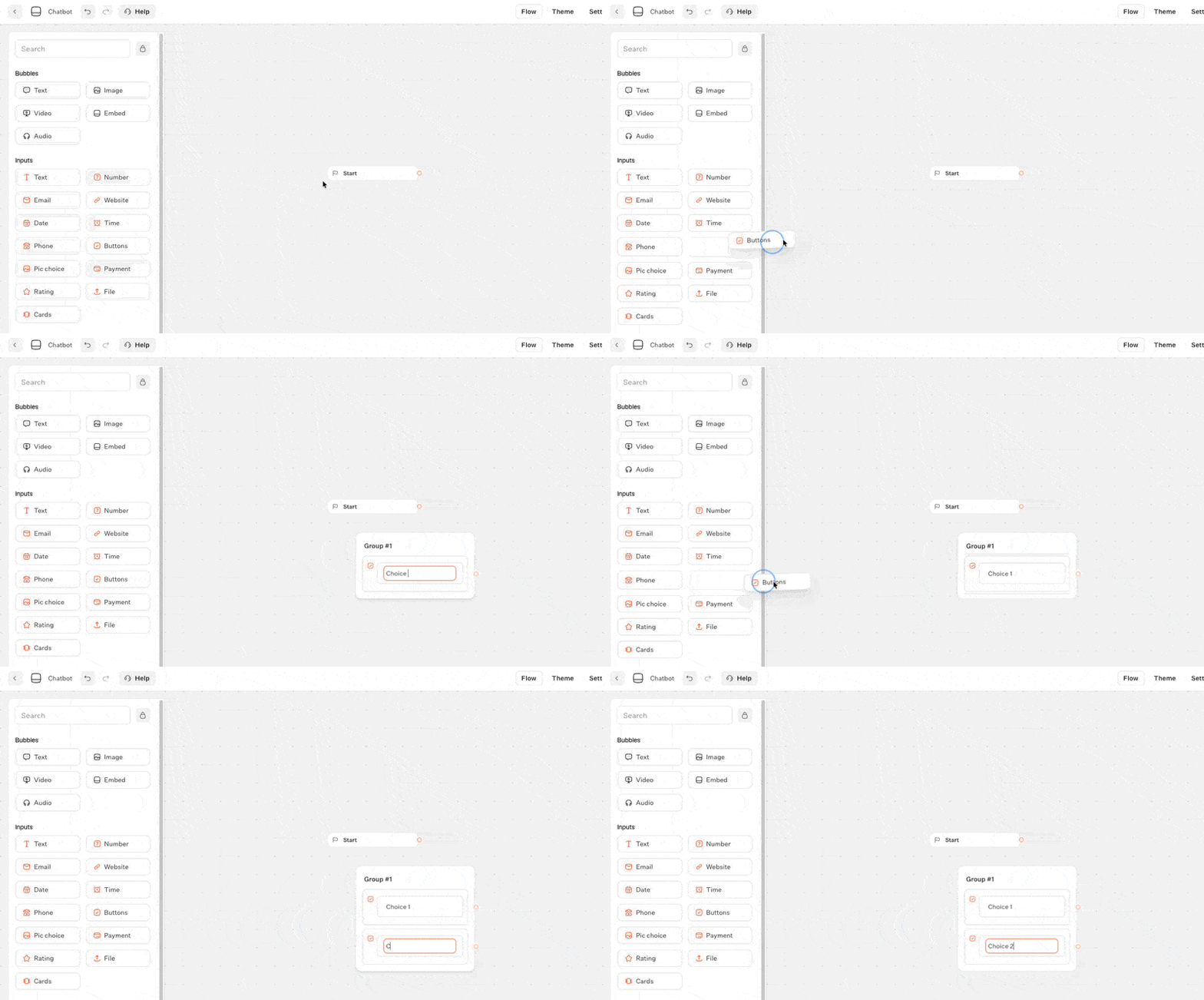
- Input block (Buttons): Ask "What are you looking for?" with options like "Pricing," "Demo," or "Talk to sales." WhatsApp limits you to 3 buttons, but Typebot auto-paginates if you add more.
- Condition block for auto-routing: Branch based on their answer. If they pick "Pricing," the bot automatically shows your plans. If they pick "Talk to sales," it collects their email and routes them differently—all without human intervention.
- Set Variable for lead scoring: Use expressions like
\{\{Score\}\} + 10to automatically score leads based on their responses. High-intent answers increase the score; the bot can later route hot leads to your sales team. - HTTP Request block: Automatically push lead data to your CRM, trigger a Slack notification, or add a row to Google Sheets—the moment someone qualifies.
- Closing message: Confirm next steps—"Got it! Someone from our team will reach out within 24 hours."
The result is a flow that handles inbound WhatsApp messages 24/7, qualifies leads, and syncs data to your tools—without anyone manually managing conversations.
Add AI for smarter automation
Rule-based flows handle predictable paths, but real conversations aren't always predictable. AI lets your WhatsApp automation handle edge cases, open-ended questions, and nuanced requests—without routing everything to a human.
When to add AI to your automation:
- Open-ended FAQs: Users don't always phrase questions the way you expect. An AI block can interpret "how much does this cost" and "what's your pricing" as the same intent, then respond appropriately.
- Fallback handling: When a Condition block doesn't match any expected input, route to an AI block instead of a dead end. The AI can attempt to answer or gracefully hand off to a human.
- Context-aware follow-ups: Store chat history in a session variable using the Set Variable block (select "Transcript"). Pass this to your AI block so it remembers what the user already said—no repetitive questions.
Setting up AI automation in Typebot:
- Add an AI block and connect your preferred provider (OpenAI, Anthropic, Mistral, Groq, or OpenRouter).
- Write a system prompt that defines the bot's role and boundaries—e.g., "You are a helpful assistant for [Company]. Answer questions about our products. If the user asks about pricing, provide the link to our pricing page."
- Use the Condition block after the AI response to route based on detected intent. For example, if the AI identifies a sales opportunity, trigger an HTTP request to notify your team.
Connecting external tools for end-to-end automation:
- Google Sheets: Log every conversation automatically for reporting.
- HTTP Request blocks: Push qualified leads to HubSpot, Salesforce, or any CRM with an API.
- Webhooks: Pause the flow and wait for an external system to call back—useful for order lookups or appointment confirmations that depend on external data.
The goal is a bot that resolves most conversations autonomously, only escalating to humans when genuinely needed.
Test your WhatsApp chatbot before going live
Before you publish, run through every path your users might take. Typebot's preview mode lets you simulate the WhatsApp experience directly in the editor:
- In Typebot, click "Test."
- Run through your flows in "WhatsApp" mode so you see how things work on the actual platform, not just the editor.
- Check for issues: Are variables filled in correctly? Do branches go where they should? Are external integrations running as expected?
- Make sure session expirations and WhatsApp quirks, like the three-button message limit, behave properly.
You can also test directly on WhatsApp itself. Enter your phone number in Typebot's test settings, and a live test session will start on your device—letting you experience the bot exactly as your users will.
Deploy and monitor analytics for optimization
Ready to launch? Here's what you'll do next:
- Publish and connect: Click "Publish." Push your bot to WhatsApp, or share a wa.me link or QR code for easy access.
- Collect analytics: Typebot tracks completion rates, drop-offs, and conversation exports. Use this data to find sticking points and measure how effective your flows are.
- Integrate with tracking: For deeper insights, connect Segment or other marketing tools to watch conversions, see where users leave, and identify responses that drive results.
- Iterate: Use what you learn to adjust questions, change step order, or rebuild high-exit branches.
Optimization is ongoing—your chatbot should improve as you review real data and refine flows.
Reach your audience where they are. Integrate Typebot with WhatsApp for seamless, personalized communication.
No trial. Generous free plan.
Key features to look for in a WhatsApp chatbot builder
Before comparing platforms, it helps to know which features actually matter. Here's what separates a basic bot builder from one that can scale with your business.
No-code visual flow builder
A solid WhatsApp chatbot builder should let you create every part of the conversation visually, with no coding required.
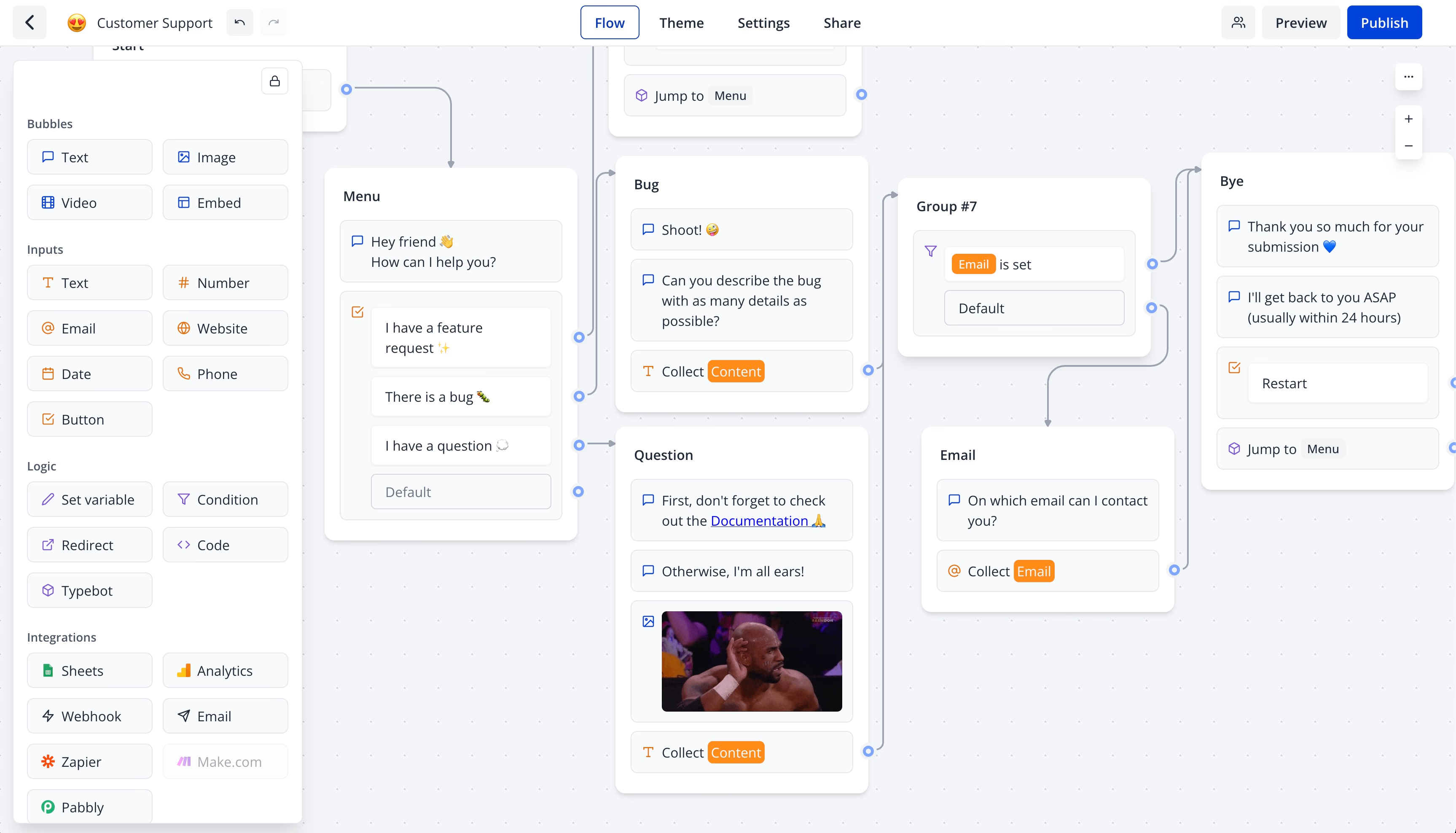
Look for a drag-and-drop interface that lets you build flows with blocks for questions, answers, branching, and integrations. In Typebot, for example, you connect blocks for greetings, info collection, logic branches, and API actions behind the scenes.
You should be able to build, test, and adjust flows as you go. This setup helps non-developers create advanced chatbot experiences without working with scripts.
User responses can change the conversation, personalize content, or trigger the next action in the background.
AI and LLM flexibility
The best chatbot builders let you add AI without locking you into a single provider.
Look for platforms that support multiple LLM providers like OpenAI, Anthropic, Mistral, or Groq. This gives you flexibility to switch models based on cost, performance, or specific use cases.
Native AI blocks for RAG (retrieval-augmented generation) chatbots are a bonus. They let your bot pull answers from your knowledge base instead of just following scripts.
Platforms that lock you into one AI provider limit your options as the AI landscape evolves.
Native integrations and API connectivity
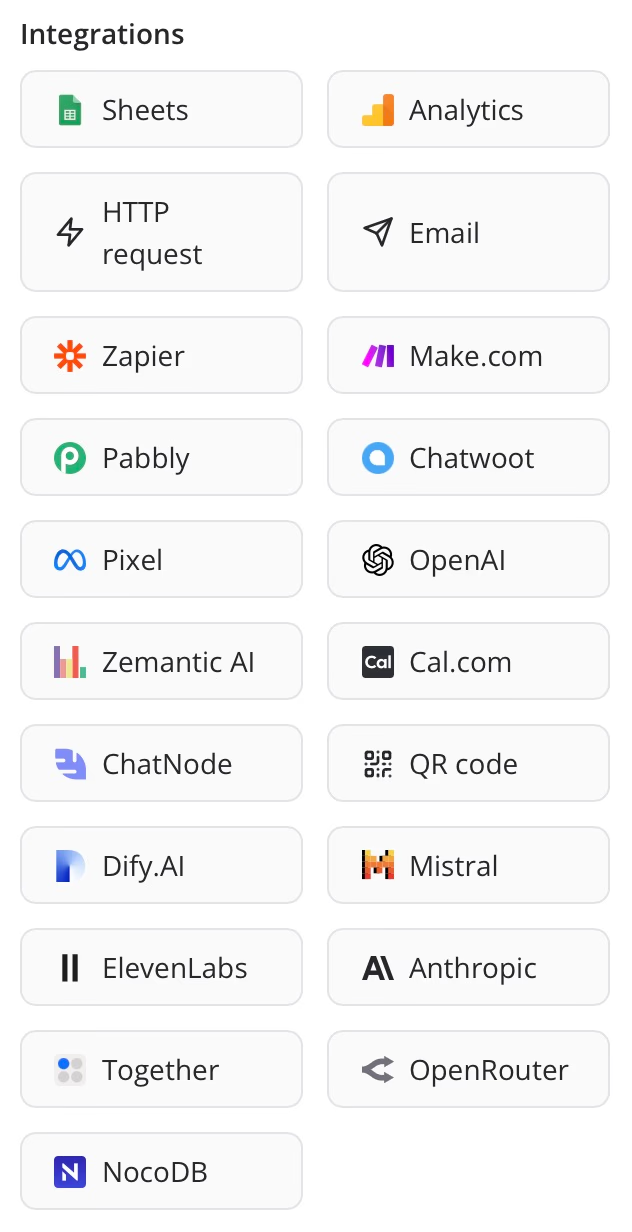
Your chatbot needs to talk to your existing tools. Check for:
- CRM connections: HubSpot, Salesforce, or Zendesk integrations to sync leads and support tickets
- Data storage: Google Sheets or NocoDB for simple databases
- Automation platforms: Zapier, Make.com, or Pabbly for connecting to thousands of apps
- HTTP request blocks: For calling any API directly from your flow
Platforms that restrict integrations to higher tiers force you to upgrade before you can build anything useful.
Built-in analytics and optimization
You can't improve what you can't measure. Look for:
- Drop-off tracking: See where users abandon conversations
- Completion rates: Know how many users finish your flows
- CSV export: Get raw data for deeper analysis
- Segment integration: Connect conversation data to your customer data platform
Good analytics help you identify bottlenecks and optimize conversion rates over time.
WhatsApp-specific features
WhatsApp has unique constraints, so your builder should handle them gracefully:
- Automatic button pagination: WhatsApp limits you to 3 buttons per message. Good platforms split longer lists automatically.
- Contact variables: Auto-capture the user's phone number and name without asking.
- Session management: Control when inactive conversations expire and restart.
- Multi-bot routing: Run multiple bots on one WhatsApp number with start conditions.
- WhatsApp preview: Test your bot as it will appear on WhatsApp before going live.
Data control and self-hosting
For businesses handling sensitive customer data, where your chatbot data lives matters.
Most platforms store your conversation logs, analytics, and customer info on their servers. You often can't export raw data easily, and you may pay extra for access.
Self-hosting options let you run everything on your own infrastructure:
- Full data ownership: Conversations stay in your environment
- No per-message fees: You only pay WhatsApp's API charges
- Custom integrations: Developers can extend flows and connect to internal systems
This matters for regulated industries, agencies managing multiple clients, or teams that need to integrate chatbots with existing internal tools.
Best WhatsApp chatbot platforms compared
Now that you know what to look for, here's how the major platforms stack up.
Platform comparison by pricing and features
| Platform | Free Tier | Paid Plans (starting) | AI Capabilities | WhatsApp Integration | Self-Hosting |
|---|---|---|---|---|---|
| Typebot | 200 chats/month | $39/mo (2K chats) | Multi-LLM (OpenAI, Anthropic, Groq, Mistral) | Native API support | Yes (open-source) |
| Landbot | 100 chats/month | Higher for WhatsApp | Limited (no LLM swap) | Paid add-on | No |
| Chatfuel | Free trial only | $19.99/mo+ | ChatGPT only | Requires upper-tier plan | No |
| Wati | 7-day trial | $39/mo (Growth) | No native AI builder | Core focus | No |
| ManyChat | Free for basic | $15/mo+ | Limited | Limited support | No |
| Typebot offers the highest free chat allowance at 200 chats/month, ideal for prototyping and MVPs. Its paid plans are transparent with no hidden fees or per-message charges beyond WhatsApp's own API rates. |
Key differentiators by platform
Typebot stands out for AI flexibility and customization. It supports multiple LLM providers, offers self-hosting for data control, and has no vendor lock-in since it's open-source. All core features are available across plans.
Wati is strong for WhatsApp broadcast campaigns and marketing automation. It includes a shared team inbox and CRM-style contact management. However, it lacks a native AI chatbot builder.
**Chatfuel and ManyChat** are better suited for Facebook Messenger and Instagram. WhatsApp support is secondary and often requires premium plans. They work well for simple social media marketing bots.
Landbot offers polished design UI and multi-channel support. But WhatsApp comes as a pricey add-on, and AI options are limited compared to Typebot.
Which platform fits your use case
Choose Typebot if you:
- Want AI flexibility with multiple LLM providers
- Need transparent pricing without hidden fees or forced upsells
- Build complex bots with rich logic, branching, and advanced flow control
- Require data control or self-hosting for compliance reasons
- Manage bots for multiple brands or clients
Choose Wati if you:
- Focus primarily on WhatsApp broadcast campaigns and marketing automation
- Need built-in team inbox and multi-agent support
- Don't require custom AI integrations
Choose Chatfuel or ManyChat if you:
- Prioritize Facebook Messenger or Instagram over WhatsApp
- Want quick templates for social media marketing
- Need simpler automation without advanced logic
Choose Landbot if you:
- Value polished design UI and multi-channel web chat
- Have budget for premium WhatsApp add-ons
- Prefer guided onboarding and enterprise support
Create, customize, and deploy your first Typebot today. No coding required.
No trial. Generous free plan.
WhatsApp Chatbot Limitations and Compliance Requirements
3-button maximum and message formatting constraints
WhatsApp limits interactive messages to three buttons per message, with no exceptions.
If your flow needs more than three options, platforms like Typebot split them into groups. They show three at a time and add a “...” option so users can move to more choices.
This rule keeps chats simple and fits WhatsApp’s minimal interface.
If your bot needs to present several choices, such as five product categories, break them into steps. Offer the top picks first, then add a “more options” button to reveal the rest.
Keep replies brief. Avoid large blocks of text and heavy formatting. WhatsApp users usually prefer short messages they can scan quickly on their phones.
Media restrictions apply too:
- WhatsApp does not support GIFs or SVGs.
- It only plays .mp4 videos.
- Some Typebot blocks do not display in WhatsApp messages, including:
- payment
- Chatwoot
- scripts
- Google Analytics
- Meta Pixel
- Cal.com
Plan your flow around these limits before you publish it.
Meta compliance rules for business chatbots
Meta enforces strict guidelines for business chatbots, and it has tightened them further in 2025 and 2026.
Chatbots must support real business use cases, such as lead capture, bookings, or support. They should not exist only to send broadcasts or entertainment.
You need explicit user opt-in before sending any marketing or out-of-session notifications. You can collect opt-in through:
- your website
- a WhatsApp opt-in flow
- a user message after they click an ad
Every marketing broadcast must use pre-approved Meta templates.
As of 2025, broadcast marketing is on hold for US numbers. During active conversations, you can use free-form templates. Stay on topic and avoid sending too many messages, or you risk warnings or temporary suspensions.
Opt-in requirements and frequency limits
Opt-in is not optional. Before sending any marketing or re-engagement message, confirm that users have given clear consent.
WhatsApp takes this seriously, and you should too. Track consent with a system variable in Typebot, and make opting out easy.
A 2025 and 2026 rule limits businesses to two proactive marketing messages per user every 24 hours, across all their numbers.
During a user-initiated chat, your bot can send free-form replies. Once the session ends, only approved notifications with consent can go out.
These policies keep WhatsApp focused on conversations users want, and they protect the experience for everyone.
Conclusion
WhatsApp automation chatbots turn a messaging app with 2 billion users into a direct line to your customers. With 98% open rates and the ability to handle thousands of conversations without adding staff, the operational impact is immediate.
You have seen how rule-based, intent-based, and AI-powered bots fit different needs. You know which use cases drive results and how platforms compare. Typebot stands out for AI flexibility, transparent pricing, and data control.
Start with the free tier. Build one flow. Test it with real users. Your customers are already on WhatsApp. The only question is whether you will meet them there.
Deliver real-time responses and boost engagement with Typebot's WhatsApp integration.
No trial. Generous free plan.
FAQ
Is WhatsApp automation chatbot free?
You can build and test a WhatsApp automation chatbot with Typebot for free. The free plan includes up to 200 chats per month, which is enough for prototyping, pilots, or light use.
If you need more capacity, paid plans raise the limit:
- Starter, $39/month for 2,000 chats and 2 seats
- Pro, $89/month for 10,000 chats and 5 seats
Typebot also offers a self-hostable, open-source version for stricter security or privacy needs. In that setup, you do not pay for the software itself, only for your own hosting or infrastructure.
WhatsApp still charges its own conversation-based API fees, no matter which bot tool you use. Meta also gives you 1,000 free conversations per month while you build in its test environment.
Can I use AI with my WhatsApp chatbot?
Absolutely. Typebot integrates directly with major AI models, including OpenAI, Anthropic, Mistral, Groq, and OpenRouter.
Add an AI block wherever you want the bot to handle open-ended questions, recommendations, or support. You are not tied to one provider. You can use different models, or even several in the same flow.
Typebot also supports Retrieval-Augmented Generation, or RAG. That lets your bot pull information from business documents or FAQs and answer specific questions, such as, “How do I reschedule my delivery?”
How many chats can I automate per month?
Typebot’s free plan supports up to 200 WhatsApp chat sessions per month. Paid plans increase that limit to 2,000 or 10,000 sessions, depending on the plan.
If you self-host Typebot, your limit depends on your own infrastructure.
WhatsApp counts conversations in 24-hour windows per user, not individual messages. In development, Meta lets you handle up to 1,000 conversations free each month. After that, WhatsApp charges apply and vary by region and purpose.
Does WhatsApp allow chatbots for business?
Yes. WhatsApp supports business chatbots through the WhatsApp Business API. Millions of businesses use it, and adoption among larger companies continues to grow.
Current rules, updated for 2025 to 2026, require chatbots to handle real business tasks, collect user opt-ins, limit prompts to three buttons, and follow all message frequency rules.
The WhatsApp Business App is only suitable for basic auto-replies. It does not support full chatbot automation.
What is the difference between WhatsApp Business App and WhatsApp Business API?
| Feature | WhatsApp Business App | WhatsApp Business API |
|---|---|---|
| Target user | Small businesses, 1 device, 1 user | Medium and large teams, automation required |
| Automation | Basic: away messages, welcome messages, quick replies | Full chatbot flows, AI, API integrations |
| Multi-user | No, single device per number | Yes, multiple users per business number |
| Broadcasts | Limited, 256 contacts max, no automation | Meta-compliant outbound, template broadcasts |
| Integration | None | Third-party CRMs, AI, analytics, webhooks |
| Cost | Free | Conversation-based fees from Meta, plus platform fee |
| Chatbot support | No | Yes, required for automation |
| Bottom line, you need the WhatsApp Business API, not just the Business App, if you want chatbots or advanced automation. |
If you want scale, AI-powered conversations, or stronger control and compliance, pairing WhatsApp Business API with Typebot's visual builder is the better choice.